Main Menu
When it comes to adding video to training programs, many learning professionals face the same challenge: they know video can improve learning outcomes, but creating it often feels time-consuming, complicated, and difficult to scale. In a recent ScreenPal webinar, instructional designer Dani Watkins shared a practical approach for creating polished screen recordings and training videos without overwhelming already-stretched learning and development teams. Drawing on more than two decades of instructional design experience, Dani demonstrated how a lean, connected workflow can help teams create high-quality learning assets while working within tight budgets, limited resources, and demanding timelines.
Meet webinar presenter Dani Watkins
Dani has been an instructional designer since 2000 and owned her own company, Zenith Performance Solutions, for 18 years. Her approach to learning design is rooted in industry best practices and focused on one core goal: igniting learning.
She has been using many of the tools discussed during the webinar since 2004 and regularly presents at industry events including ATD, DevLearn, and TechLearn. She is also a Canvassador and actively shares insights with learning professionals through TikTok, Instagram, LinkedIn, and her membership community.
Outside of instructional design, Dani enjoys trail running and long-distance races and recently completed her first pack burro race. She is also the proud mother of two daughters; one attending Kansas State University and the other living and working in France.
Understanding the challenges of video creation
Dani opened the webinar by polling attendees:
“When it comes to video in your courses or sessions, where do you land right now?”
Participants could choose from four responses:
- I avoid video entirely.
- I use it occasionally, but it feels too clunky.
- I have a workflow, but it takes too long.
- I’m pretty comfortable and here to level up.
The responses highlighted a common reality in learning and development: while many professionals recognize the value of video, creating it efficiently remains a challenge.
Dani explained that while she uses ScreenPal for both formal and informal learning, the session would focus primarily on formal screen recordings and microlearning assets she creates as an instructional designer.
To dig deeper into attendee challenges, Dani used a “waterfall” chat activity, asking webinar participants to wait until she gave the signal before submitting their responses.
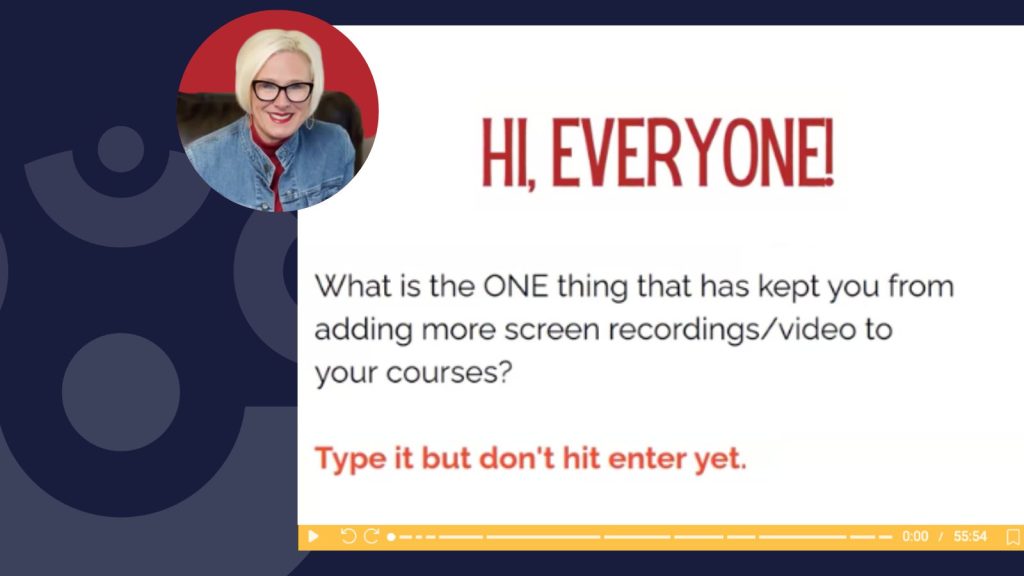
When asked what had prevented them from incorporating more screen recordings into their courses, webinar attendees cited a variety of obstacles:
- Lack of time
- Difficulty finding time to record
- Limited support from leadership
- Engagement concerns
- Questions about quizzes and interactivity
- Not knowing where to start
- Needing time to learn new tools
- Limited SME availability
The discussion resonated with many attendees, especially when Dani asked participants to drop an emoji in the chat if they worked on a team of three people or fewer. The overwhelming response reflected a growing challenge across the industry: teams are often shrinking while expectations remain the same, or increase.
The problem: high expectations, limited resources
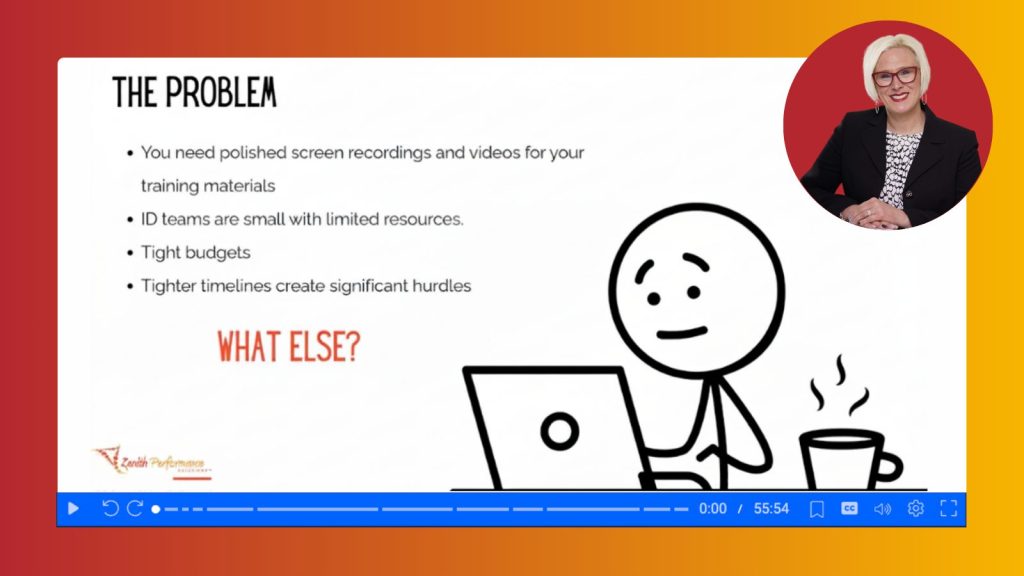
According to Dani, most instructional design teams are being asked to create polished learning experiences while operating with:
- Small teams
- Limited budgets
- Tight timelines
- Increasing demands for video content
The result is a production bottleneck. Teams know learners expect engaging video content, but they often lack the resources to create it efficiently.
The solution: a lean, connected workflow
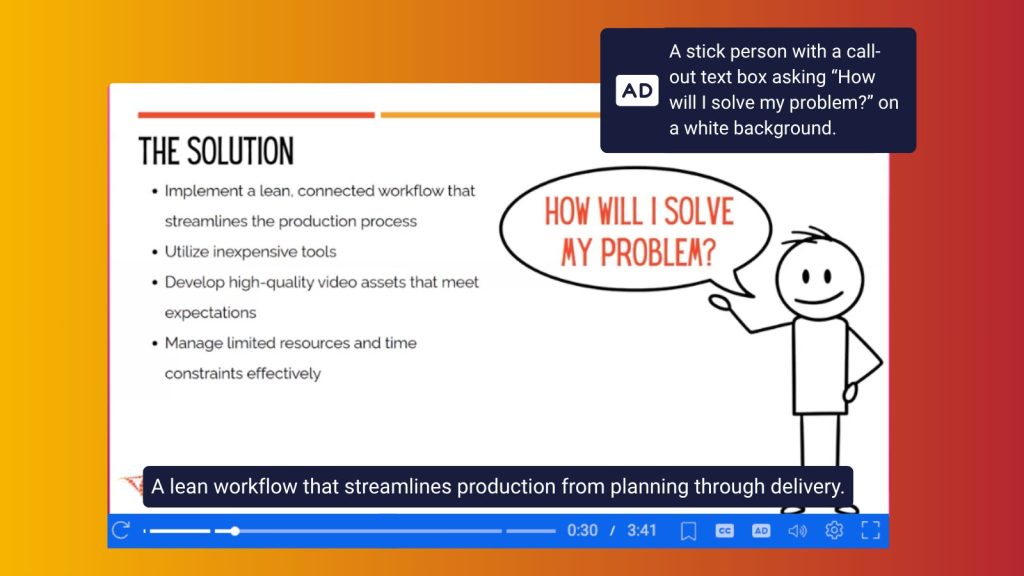
Dani’s recommendation was straightforward: implement a lean workflow that streamlines production from planning through delivery.
Key elements of this approach include:
- Planning before recording
- Using inexpensive tools
- Creating reusable processes
- Developing high-quality assets efficiently
- Managing limited time and resources effectively
One of Dani’s biggest recommendations was to resist the temptation to jump directly into recording.
While storyboarding may initially feel like an extra step, she emphasized that it ultimately saves significant time by reducing revisions, improving SME reviews, and creating a clear roadmap for development.
The scenario for this webinar
Imagine you’re creating an onboarding course in Articulate Rise for new employees working on a specific project.
Your assignment: create a training video that teaches employees how to track their time in Monday.com.
Plan it: start with storyboarding
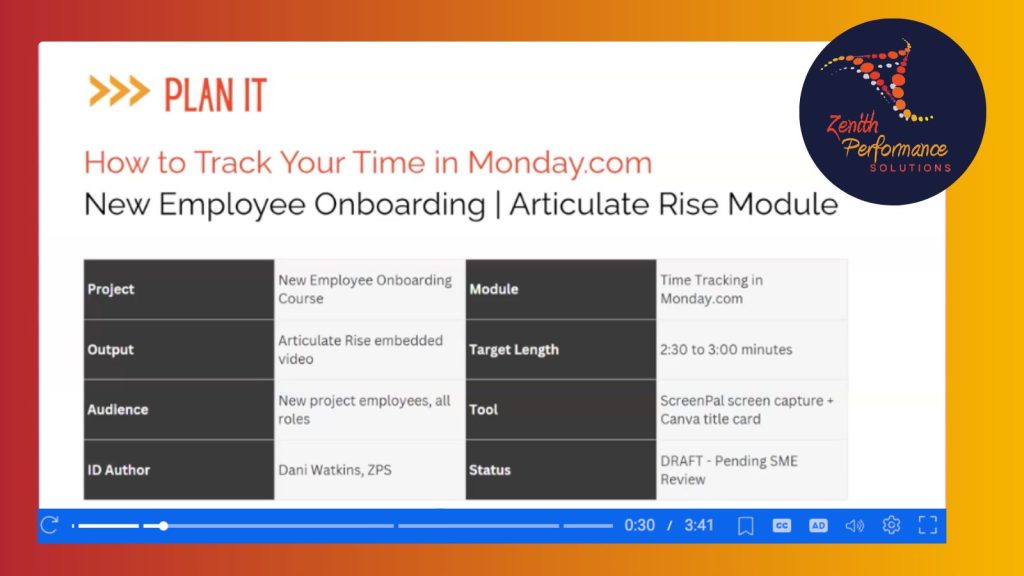
Dani began with the planning phase.
Using ScreenPal’s Storyboard feature, she demonstrated how instructional designers can plan video content before recording a single screen capture.
To accelerate the process, Dani used Claude, affectionately referred to as “Xena,” to help generate project materials.
Her planning document included:
- Project information
- Output type
- Audience
- Instructional design author
- Module information
- Target video length
- Tool requirements
- Status tracking
The next step was defining a learning objective.
For this webinar’s example, the objective was simple:
“I want employees to be able to log their time properly.”
Using that objective, Dani worked with Claude to generate a video overview that included:
- Frames
- Titles
- Estimated duration
- Content type
This provided a strong foundation before moving into development.
Design it: building the storyboard
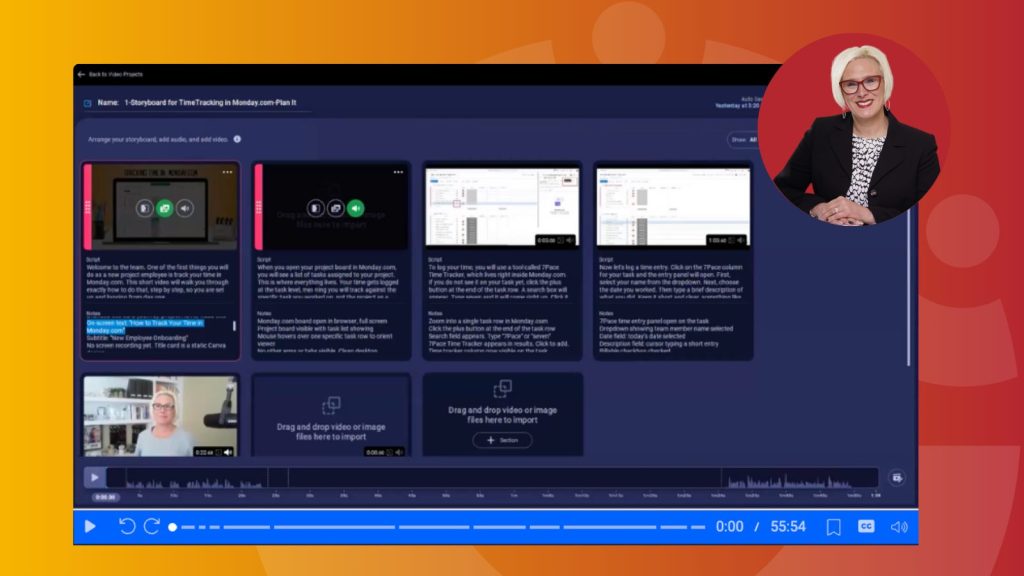
From there, Dani moved into ScreenPal.
She noted that the two features she uses most often are Storyboard and Record.
For informal learning, Dani often uses ScreenPal to quickly share information with her virtual assistant. One example was recording a seven-minute video demonstrating how she wanted blog content posted.
She also appreciates that ScreenPal is lightweight and doesn’t place heavy demands on her computer’s resources.
For formal learning projects, however, Storyboard becomes the centerpiece of her workflow.
Starting from a blank storyboard for this webinar, Dani imported the script she had generated with Claude and began building scenes.
Each section of her script became its own storyboard scene.
Within each scene, she uploaded:
- Graphics
- Script content
- Development notes to provide additional context for clients and SMEs reviewing the storyboard
Dani explained that if access to SMEs is limited, instructional designers can include screenshots within the storyboard and ask content experts to review those visuals instead.
Have a completed slide presentation? You can quickly import an entire slide presentation from any presentation tool- just download the PDF and import to your Storyboard.
In her example, creating the script, gathering screenshots, building the storyboard, and generating a short video draft took approximately one hour.
Using AI narration to speed up reviews
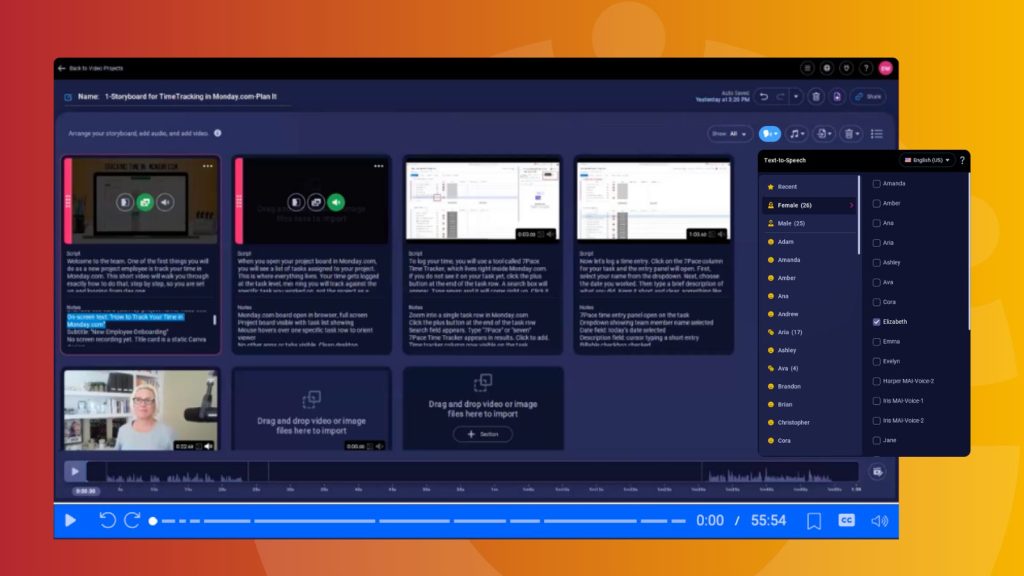
To accelerate the review process, Dani used ScreenPal’s AI text-to-speech feature to narrate the storyboard.
This allowed her to quickly produce a draft version that could be shared with SMEs for feedback before investing additional time in production.
One of Dani’s favorite techniques is recording audio before recording video. She explained that having the narration completed first serves as a guide while capturing the screen recording. As she records, she simply follows along with the audio, clicking through the application based on the narration. This approach creates a smoother recording process and helps keep the screencast aligned with the script.
Recording directly from the storyboard
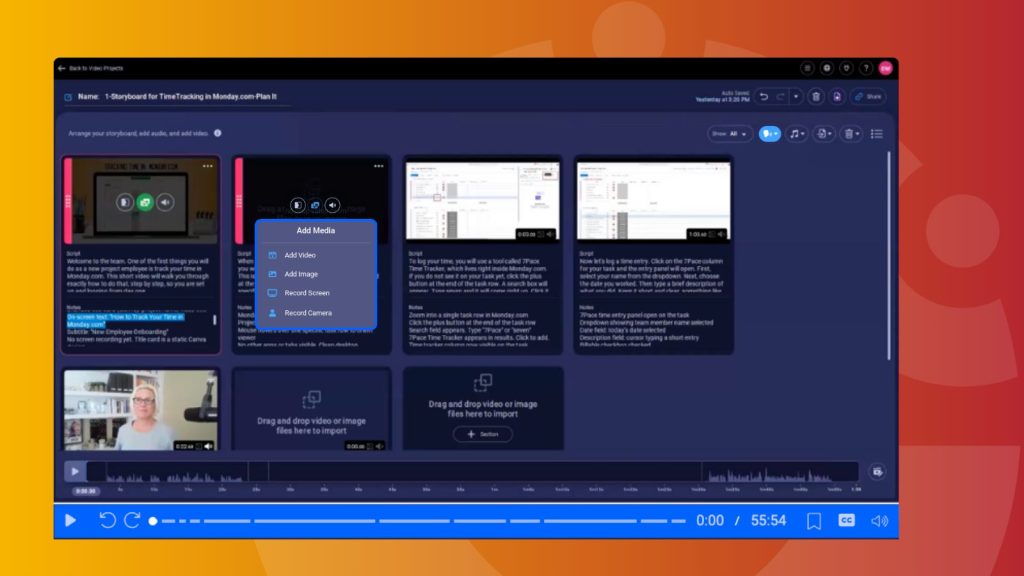
Next, Dani demonstrated recording directly from within the storyboard.
After preparing the Monday.com application, she selected Add Media and then Record Screen from the storyboard interface.
ScreenPal opened a recording frame, allowing her to capture the exact workflow she wanted learners to see.
Because the narration was already complete, Dani could focus entirely on demonstrating the process accurately and confidently.
Once recording was finished, she reminded attendees that they could use ScreenPal’s built-in editing tools to refine and polish the final video.
Develop it: combining ScreenPal and Canva
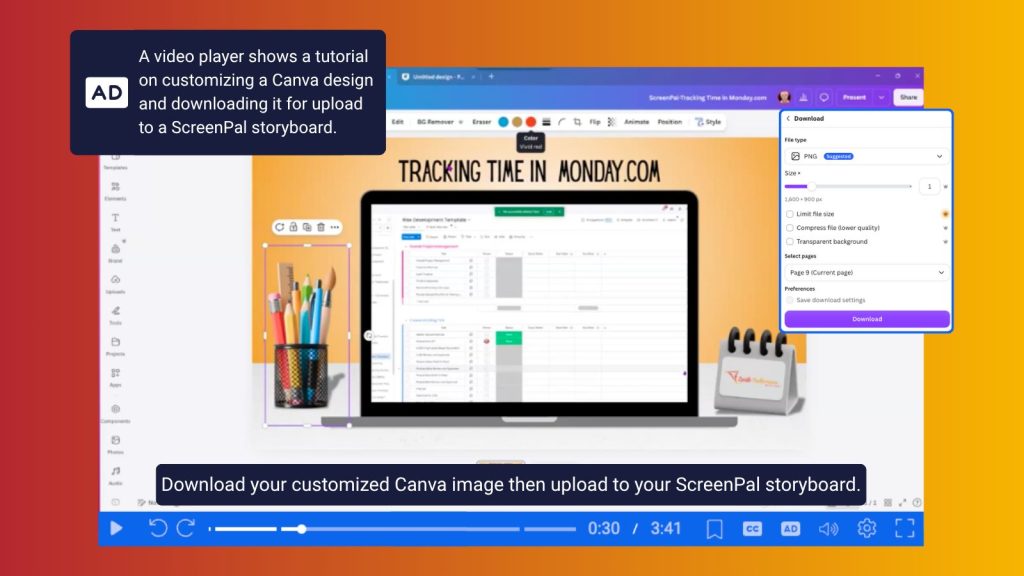
During the webinar, Dani also shared how she combines ScreenPal with Canva to create more polished, branded learning assets.
In Canva, she created a new presentation and selected a laptop-themed template.
After customizing the slide, she:
- Replaced the laptop graphic with a framed laptop element
- Captured a screenshot of Monday.com
- Inserted the screenshot into the laptop frame
- Updated colors to match branding requirements
She then downloaded the image as a JPEG and uploaded it into her ScreenPal storyboard.
This workflow allows her to blend ScreenPal’s production capabilities with Canva’s design tools to create professional-looking training content.
Why storyboarding matters (and why we hosted this webinar)
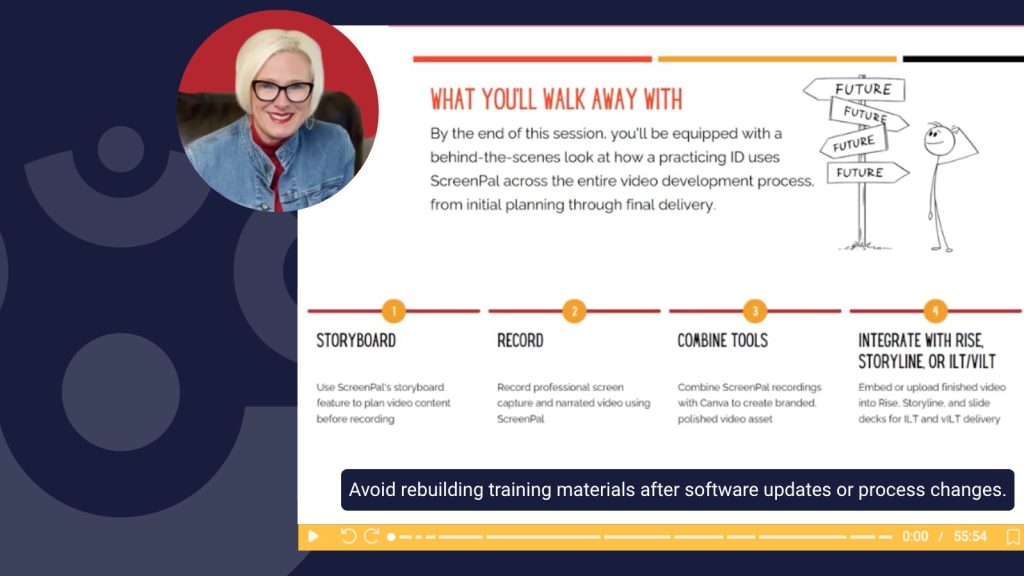
Throughout the webinar, Dani repeatedly emphasized the value of storyboarding.
According to Dani, storyboards help instructional designers:
- Organize ideas before recording
- Visualize the learning experience
- Reduce costly revisions
- Improve SME review cycles
- Establish a clear script and content flow
She noted that she prefers visual storyboards in ScreenPal or Canva over traditional Word documents because reviewers can actually see what the training will look like.
Without visuals, SMEs often imagine something different and request more revisions than necessary. Storyboards also create opportunities to identify future changes before development begins.
Dani recommended asking SMEs an important question:
“What’s changing, and what won’t be here in two weeks?”
This simple conversation can help avoid rebuilding training materials after software updates or process changes.
Launch it: delivering the final product
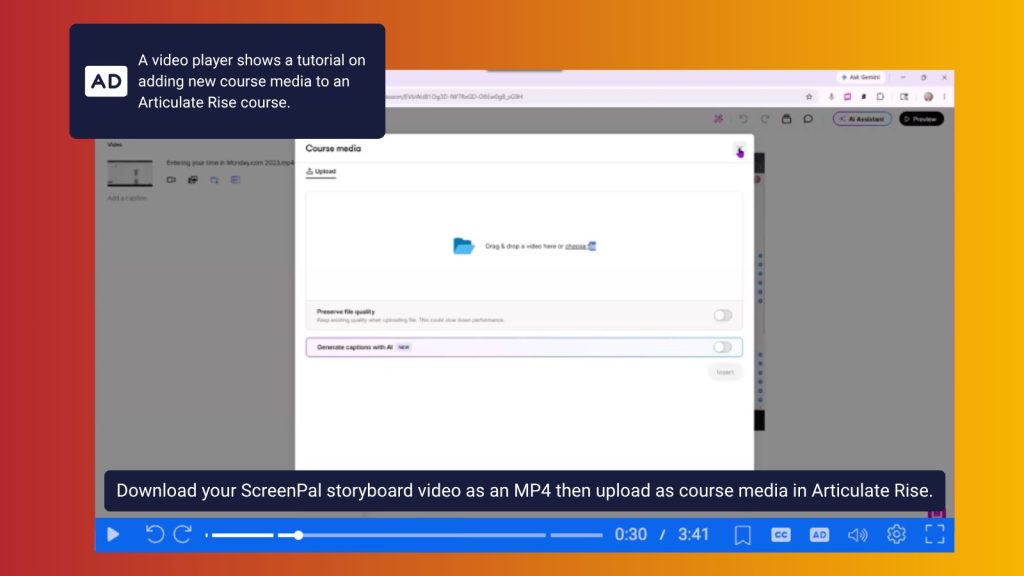
Once the video is complete, Dani’s workflow moves into deployment.
Finished videos can be integrated into:
- Articulate Rise
- Storyline
- Instructor-led training (ILT)
- Virtual instructor-led training (vILT)
One review option is publishing directly to ScreenPal.com, which Dani described as functioning similarly to platforms like Vimeo or YouTube.
Publishing online allows SMEs to review the content and leave time-stamped comments, making feedback more efficient and actionable.
After revisions are complete, the video can be downloaded as an MP4 and uploaded into the final Articulate Rise course.
Final webinar takeaway
The biggest takeaway from Dani’s session was that creating effective training videos doesn’t require a large team, expensive software, or a complex production process.
By starting with a storyboard, leveraging AI-assisted planning, combining affordable tools like ScreenPal and Canva, and following a structured workflow, instructional designers can create professional screen recordings while working within real-world constraints.
For teams struggling with limited resources and growing expectations, a little planning upfront may be the key to producing better learning experiences in less time.