Main Menu
Creating an effective instructional video is about more than recording your screen and explaining what’s happening. The choices you make during recording and editing can determine what learners notice, how easily they follow your explanation, and ultimately how much they retain.
During ScreenPal’s Innovative Learning Summit, Christin Toler, Technical Writer at ScreenPal, took attendees behind the scenes of the workflow she uses to create the tutorial videos that help ScreenPal users learn new features every day.
In her session, “Edit Like a Pro: Advanced Video Editing Techniques in ScreenPal,” Christin connected practical video editing techniques with principles from Richard Mayer’s Cognitive Theory of Multimedia Learning. Rather than treating editing simply as a way to make videos look more polished, she demonstrated how tools such as zoom, blur, highlights, animation, narration, and captions can support the way people actually process and learn from multimedia.
The result was a practical roadmap for creating videos that are clearer, more focused, more engaging, and more accessible.
Use editing to reduce distractions and focus attention
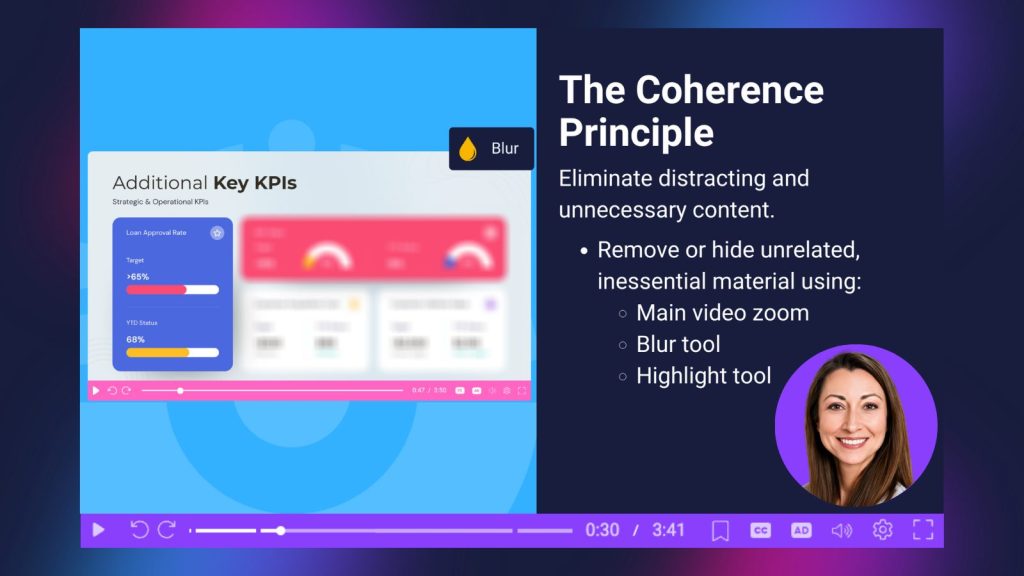
Christin began with the coherence principle, which emphasizes removing unnecessary or distracting information from multimedia learning experiences.
When learners are presented with a busy screen, they have to determine for themselves which information matters. That consumes attention that could instead be devoted to understanding the lesson.
As Christin explained, the goal is to show learners “only the essentials.”
ScreenPal provides several editing tools that can help creators do exactly that.
Zoom in on what matters
The main video zoom allows creators to smoothly zoom into a particular area of a screen recording and then return to the full view.
For example, imagine demonstrating software with several menus, panels, and controls visible at once. If you are explaining one small table or button, there is no reason for learners to divide their attention across the entire interface.
With ScreenPal, Christin demonstrated how creators can add an edit point to the main video, adjust the zoom and position, and then add another edit point later to reset the video to its original view.
The result is a smooth visual transition that effectively tells the learner: this is where you should look right now.
Blur what learners don’t need
Sometimes the easiest way to emphasize important information is to reduce the visibility of everything else.
Christin demonstrated how multiple blur overlays can be placed over sections of a video. Creators can adjust the intensity of each blur and leave only the information being discussed fully visible.
This technique can be especially helpful for complex interfaces, dashboards, spreadsheets, or other visually dense materials.
Instead of expecting learners to filter the screen themselves, the creator does that work for them.
Highlight a specific area
ScreenPal’s highlight overlay offers another way to direct attention. Christin showed how creators can select an area of the screen and customize the surrounding background, including its opacity, blur, shape, shadow, and other styling.
Creators can even combine the highlight with a zoom.
For tutorials in particular, Christin frequently uses these tools because they let her temporarily isolate a feature or interface element and then smoothly return learners to the complete screen.
The broader lesson is simple: editing can manage attention.
When creators intentionally control what learners see, they reduce unnecessary cognitive work and make it easier for viewers to concentrate on the lesson itself.
Use editing to break complex information into manageable pieces
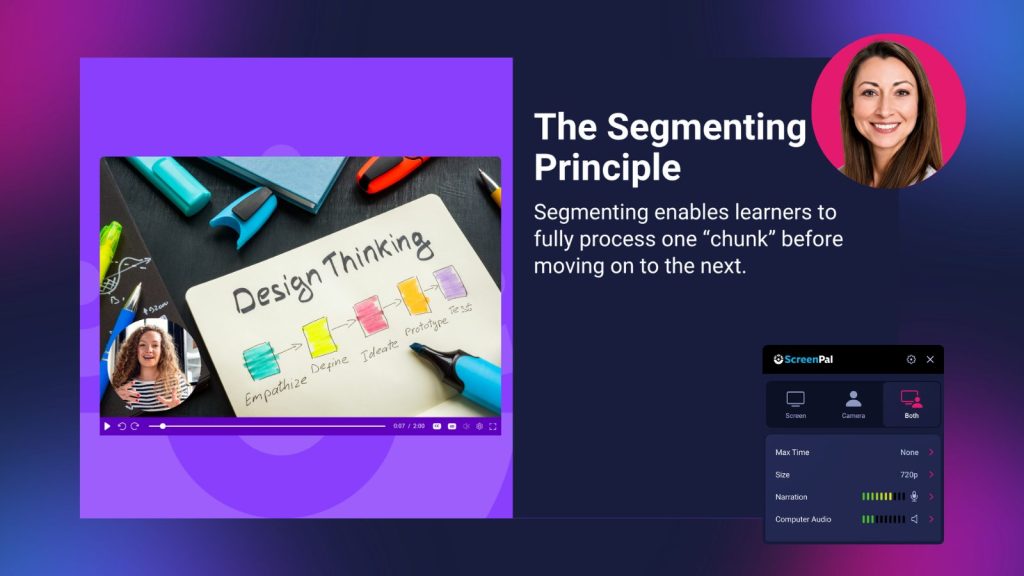
Next, Christin explored the segmenting principle: people learn more effectively when information is broken into smaller, manageable chunks rather than presented as one long stream.
That principle has implications for both recording and editing.
Pause instead of pushing through
One of Christin’s practical recording tips was also one of the simplest: use pause and resume.
Creators don’t need to deliver an entire recording perfectly in one take.
ScreenPal’s recorder lets you pause, collect your thoughts, prepare the next application or screen, and resume when you’re ready. If part of the recording didn’t work, you can also return to an earlier point and rerecord from there.
That can remove the pressure to get everything right on the first try while also eliminating unnecessary footage of the presenter searching for the next screen or trying to remember what comes next.
For anyone who has ever kept recording after making a mistake because starting over felt worse, this workflow can make recording significantly more manageable.
Turn one long video into several focused videos
Christin also demonstrated a powerful technique for repurposing existing content: copying and pasting portions of a video.
Much like copying text in a document, ScreenPal allows creators to select part of an existing video and copy it elsewhere.
That copied section can include more than the underlying video. Christin explained that elements such as narration and overlays, including text, images, and shapes, can come with it, and those elements remain editable after they have been pasted.
This means a creator who already has a long, comprehensive recording doesn’t necessarily need to rerecord content to turn it into a series of shorter lessons.
Instead, they can identify the natural learning segments, copy those portions, and build smaller videos around them.
Christin offered a simple workaround for creating an entirely new video from copied content in Story: add a temporary image so the video editor can be opened, paste the copied content, and then remove the placeholder.
For educators and training teams with large libraries of existing recordings, this approach creates significant opportunities for content reuse without starting from scratch.
Use editing to put explanations next to what they explain
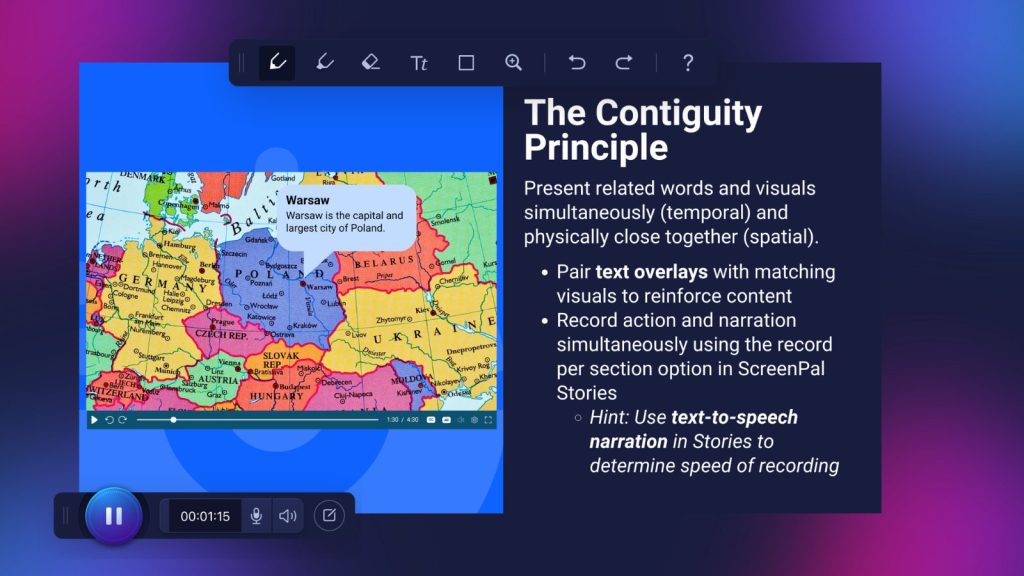
The contiguity principle focuses on the relationship between words and visuals.
Learners understand information more easily when related words and images appear together, and when narration occurs alongside the corresponding visual action.
In practical terms, if you’re demonstrating how to complete a task, it is generally better to explain an action while viewers see it happening than to describe several steps first and demonstrate them later.
Christin showed two ways ScreenPal can help creators build that connection.
Label visuals with callouts
Using ScreenPal’s text overlay tools, creators can add a background to text and turn it into a callout with a pointer.
The pointer can be attached to a specific part of an image or video, helping learners immediately understand what the text refers to.
Creators can use multiple callouts to label different components as they explain them.
This is particularly useful when teaching with diagrams, maps, interfaces, graphics, or other visuals where learners need to understand the relationship between terminology and specific elements on screen.
Instead of making viewers mentally connect a spoken term with an unlabeled visual, the video makes the connection explicit.
Build the narration first, then record the action
Christin also shared an inside look at the workflow she uses for many ScreenPal tutorials.
She often starts with the script, adds narration, and then records the screen section by section.
When recording a section of a ScreenPal Story, the script text for that section is available as a reference. The associated narration can also play while the screen is being recorded.
That allows Christin to listen for the exact point at which the narration describes an action and perform that action on screen at the corresponding moment.
If the narration says to click Resources, for example, she can time the click to occur precisely when the viewer hears that instruction.
It is a small production decision with an important learning benefit: viewers don’t have to remember an instruction while waiting to see it demonstrated.
The words and action reinforce each other at the same moment.
Use editing to give learners visual signals
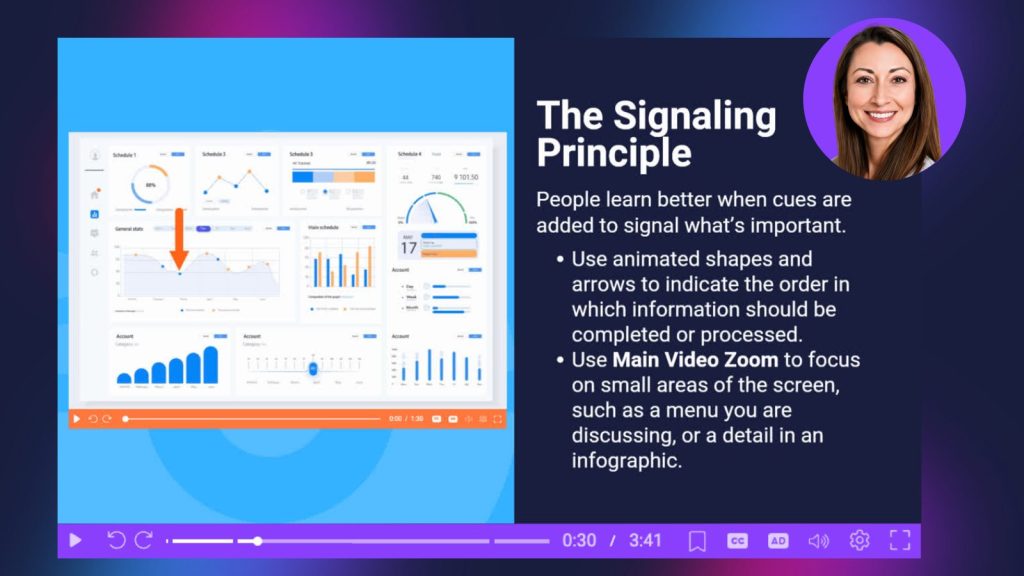
Another concept Christin explored was Mayer’s signaling principle, which suggests that people learn better when cues are used to indicate what information is important.
Zoom and highlighting can provide those cues, but Christin demonstrated another technique that can make them even more dynamic: animated overlays.
Animate arrows to guide the viewer
ScreenPal allows creators to add arrows as overlays and then create animation points along the timeline.
Christin demonstrated placing an arrow beside one element, adding an edit point, moving the arrow to another element, and continuing that process as the explanation progressed.
Instead of displaying a static arrow for an entire sequence, the arrow can follow the explanation.
As the presenter moves from one idea to another, the learner receives a corresponding visual cue.
Move shapes between areas of interest
The same technique can be used with shapes.
For example, an unfilled rectangle can surround one area of a screen and then smoothly move or resize to surround another area as the lesson progresses.
Creators can adjust the size, placement, timing, and speed of these animations to coordinate them with the narration.
Christin acknowledged that animation can initially seem intimidating. But once she began working with the tools, she found the process much simpler than she expected, and the resulting effect looks polished.
More importantly, the animation has a purpose beyond aesthetics.
It creates a visual pathway through the lesson.
Rather than asking learners to search the screen every time the presenter changes topics, the video shows them exactly where to look.
You don’t have to be on camera the entire time
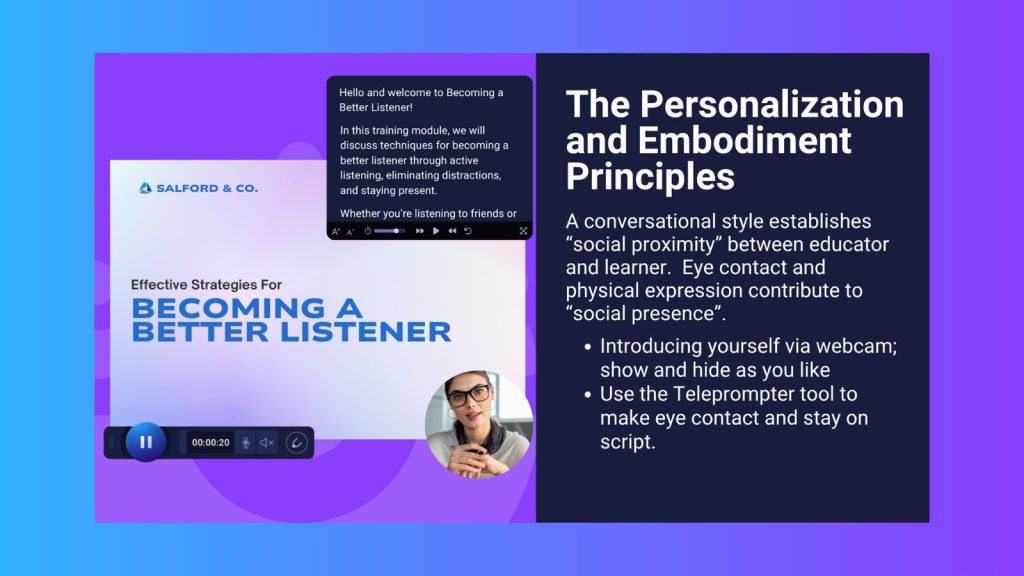
For many creators, appearing on camera is one of the most uncomfortable parts of making instructional videos.
Christin acknowledged that discomfort herself.
At the same time, she pointed to the value of establishing a social presence with learners. Even briefly introducing yourself on camera can help create a personal connection.
The solution doesn’t have to be choosing between being on camera throughout the entire lesson or never appearing at all.
With ScreenPal, creators can show and hide the webcam during a recording.
Christin demonstrated starting a video on camera with an introduction and then hiding the webcam while moving into the instructional portion. When appropriate, the camera can be shown again.
The camera can also be hidden from portions of a recording later in the video editor.
This creates a flexible middle ground: creators can use their presence strategically without feeling as though they need to perform on camera throughout an entire tutorial.
Use a teleprompter to stay on message
For creators who want to appear on camera but struggle to remember a script while maintaining eye contact, Christin demonstrated ScreenPal’s teleprompter.
Creators can enter or paste their script, adjust the text size and scrolling speed, and position the teleprompter near the area where they naturally look while recording.
As the script scrolls, the presenter can follow it while keeping their attention close to the camera.
The teleprompter is available with ScreenPal’s recording workflows, including the online video recorder and app.
For instructional video creators, a teleprompter can provide benefits beyond simply remembering what to say. A well-planned script can reduce tangents, tighten explanations, and help creators produce more concise learning experiences.
In other words, better preparation can reduce the amount of editing needed later.
Make accessibility part of the editing and production process
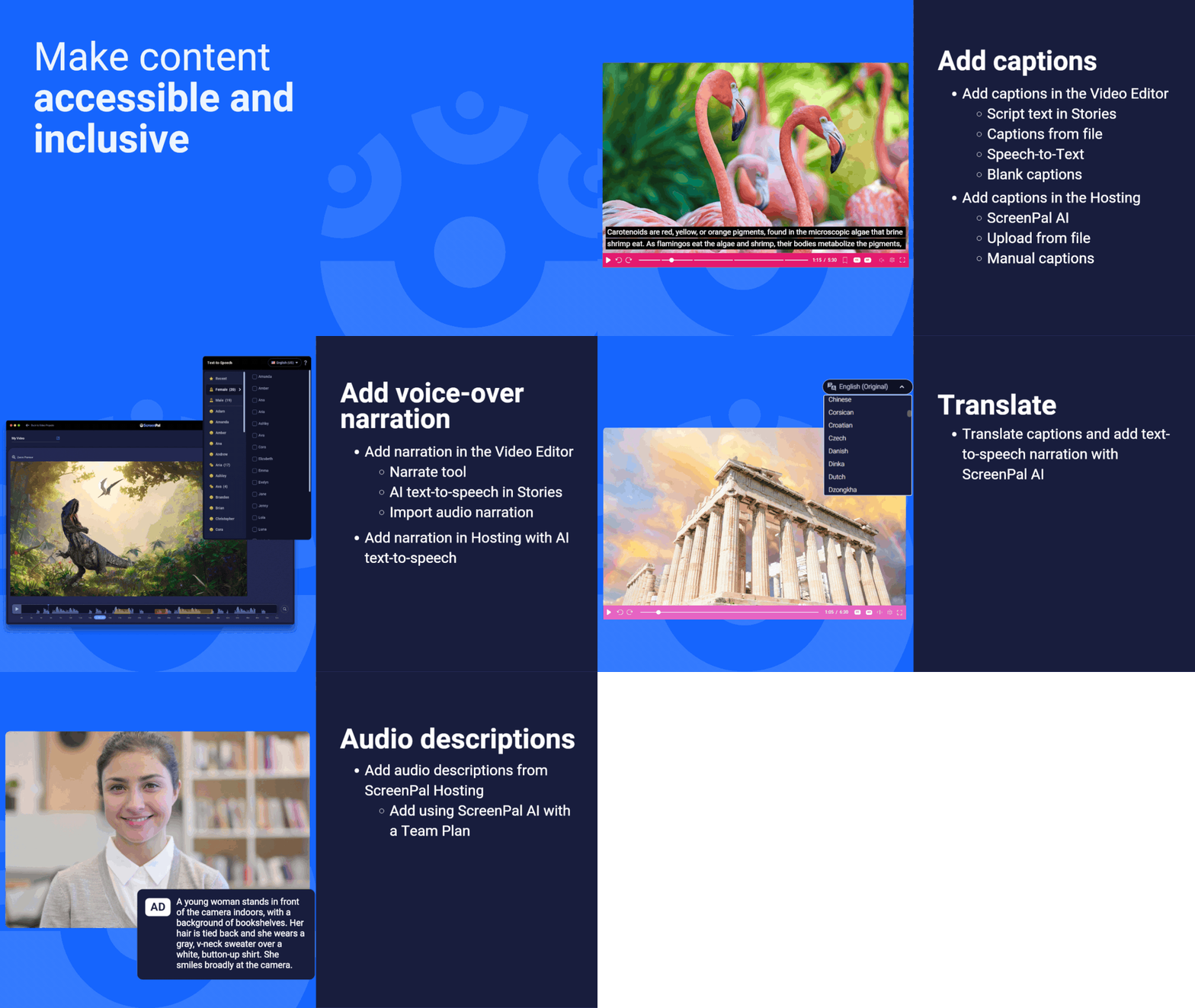
Christin concluded by moving beyond multimedia learning principles to another essential consideration: accessibility.
ScreenPal provides multiple options for making video content easier for more people to access and understand.
Give viewers multiple ways to follow along
Depending on their workflow and ScreenPal plan, creators can add captions in several ways.
For example, script text used in a ScreenPal Story can become captions. Creators can also upload caption files or manually enter captions, while ScreenPal AI can generate captions from narrated video.
For eligible plans, creators can also add audio descriptions. Christin demonstrated that audio descriptions can be generated with ScreenPal AI on supported team plans or entered manually.
The takeaway is that accessibility doesn’t need to be treated as something added after the “real” video is complete. It can be incorporated directly into the creation and publishing workflow.
Use ScreenPal AI to accelerate post-production
Christin also demonstrated how ScreenPal AI can reduce the amount of manual work required after recording.
For a video with audio narration, ScreenPal AI can use that narration to help generate assets such as a video summary, chapters, and captions. On supported team plans, it can also generate audio descriptions.
That can turn a narrated video into a more complete learning resource without requiring the creator to manually build every supporting element.
Reach multilingual learners
Accessibility also extends to language.
Christin demonstrated ScreenPal’s translation and text-to-speech capabilities, including the ability to select languages and locales.
That level of specificity matters. A creator may need Brazilian Portuguese rather than Portuguese from Portugal, for example, or Canadian French rather than another French locale.
After translated content is generated, creators can select available voices and create text-to-speech narration in another language.
ScreenPal can also support translated captions for viewers based on available language settings, helping creators make learning content useful to audiences far beyond the language in which it was originally recorded.
During the session, ScreenPal Community Engagement Manager Sarah Eiler shared a practical strategy for determining which translations to prioritize: observe which caption languages webinar viewers select, then use that information to decide which additional language narration may be most useful.
Instead of trying to anticipate every language an audience might need, creators can let actual viewer behavior help guide their accessibility strategy.
Advanced editing is really about intentional editing
Although Christin’s session was packed with advanced ScreenPal techniques, the most important takeaway wasn’t any individual tool.
It was the thinking behind them.
A zoom isn’t valuable simply because it looks professional. It is valuable when it removes competing information and directs a learner’s attention.
An animated arrow isn’t useful simply because it moves. It is useful when that movement signals where the learner should look next.
Breaking one video into several smaller videos isn’t just a content-management decision. It can make complex information easier to process.
Timing narration with screen actions isn’t merely a production detail. It removes the mental work learners would otherwise have to do to connect instructions with visuals.
And captions, audio descriptions, translations, and multilingual narration aren’t extras. They expand who can successfully engage with the learning experience.
Christin’s workflow demonstrates that polished instructional video doesn’t necessarily require complicated production. It requires intentional choices about what learners see, hear, and focus on at every moment.
Start with one editing improvement
Throughout her Innovative Learning Summit session, Christin repeatedly invited attendees to think about how they could apply each principle to their own work.
- Where could a zoom help learners focus?
- What long piece of content could be broken into smaller videos?
- Where could an arrow, highlight, or animation make an important concept easier to follow?
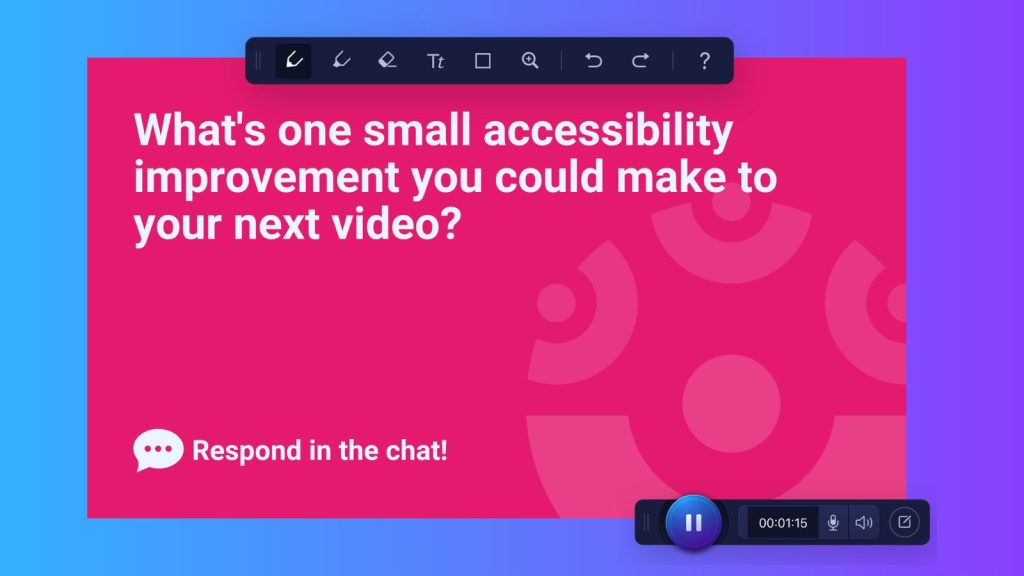
- And what is one accessibility improvement you could make to your next video?
You don’t need to apply every technique to every recording. Start with one.
Remove one distraction. Break one long explanation into smaller pieces. Synchronize one important action with your narration. Add captions. Introduce yourself on camera and then hide the webcam when it no longer adds value.
Those small editing decisions can add up to something much bigger: video learning experiences that are easier to follow, easier to understand, and accessible to more learners.
About the speaker
Christin Toler is a Senior Technical Writer at ScreenPal with nearly two decades of experience in technical communication, education, and content creation. She specializes in turning complex concepts into clear, approachable guidance that helps people get the most out of technology. At ScreenPal, Christin creates educational resources and shares practical expertise on video creation, editing, and accessibility. A writer at heart, she’s passionate about making information useful, engaging, and easy to understand.