


 Main Menu
AI can generate a script in seconds. It can brainstorm ideas, organize information, suggest learning objectives, and help you figure out what to say. But that doesn’t mean the best instructional design workflow starts with a prompt.
In her ScreenPal Innovative Learning Summit session, Dani Watkins, CLEO of Zenith Performance Solutions, shared a practical look at how she incorporates AI into the instructional design process without allowing the technology to take over the process itself.
Her message was clear: the workflow matters more than the tool.
Instead of treating AI as a magic button that instantly produces training content, Dani demonstrated how instructional designers can use it as an assistant throughout a thoughtful production workflow; from defining the business problem and planning the learning experience to scripting, storyboarding, recording, polishing, and ultimately measuring the impact of the finished training.
Using a simple employee onboarding video as her example, Dani walked attendees through an AI-assisted process designed to reduce rework while keeping human judgment firmly at the center.
And perhaps the biggest shift is this: AI’s most valuable contribution may happen before you ever press Record.
Jump to a takeaway
- Start with the problem, not the recording
- Why the workflow matters more than the tool
- Step 1: Plan it- turn the project brief into a video blueprint
- Keep critical thinking in the workflow
- Step 2: Script it- use AI to escape the blank page
- Write for learners, not instructional designers
- Step 3: Storyboard before you record
- Use AI for pre-production, too
- Step 4: Record with a plan
- Step 5: Polish, deploy, and think beyond the video
- Connect learning to measurable business results
- Three ways this workflow can save instructional designers time
Start with the problem, not the recording
Imagine someone asks you to create a training video showing employees how to use a piece of software. What happens next? For many of us, the instinct is familiar: open the screen recorder and start talking. Then record it again. And maybe again. The third version is almost right, but there’s a mistake halfway through, the mouse pointer is flying around the screen, and you forgot to explain an important step.
Dani argued that this isn’t really a recording-tool problem. It’s a planning problem.
Before creating the video at all, instructional designers should also make sure that video is actually the appropriate solution.
Does the learner need training? Would a job aid, checklist, or other performance support be more useful? What business problem are we trying to solve? Only after answering those questions should production begin.
That distinction matters because instructional designers aren’t simply content producers. As Dani explained, L&D professionals who want a stronger strategic role within their organizations need to connect their work to the language and priorities of the business.
Instead of beginning with, “We need to create a training video,” begin with: What needs to change?
Why the instructional design workflow matters more than the tool
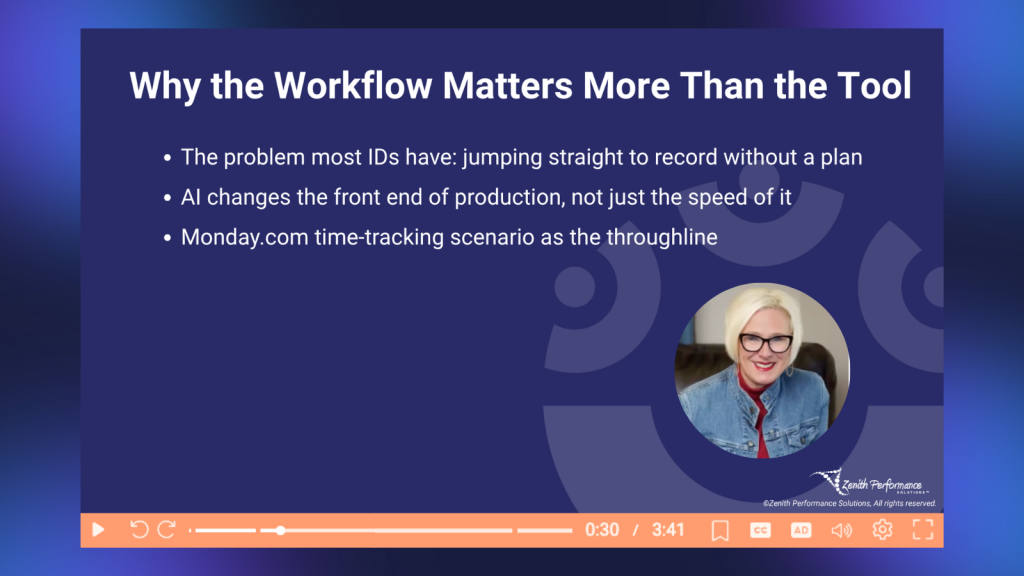
With new AI tools arriving constantly, it’s easy for conversations about instructional design to become conversations about software. Dani encouraged attendees to flip that thinking. The tool is important, but it comes later.
When we put the tool first, we risk spending more time creating, revising, re-recording, and fixing content because we haven’t done enough thinking upfront. That’s where Dani sees one of AI’s biggest opportunities.
Rather than using AI simply to make production faster, use it to sharpen your thinking before production begins.
For the session, Dani demonstrated this approach by building a realistic onboarding resource: a three-to-five-minute video teaching new employees how to accurately track their time on Monday.com.
The workflow followed four primary production stages: Plan it → Script it → Record it → Polish and deploy it
AI can assist at every stage, but it doesn’t replace the instructional designer’s judgment along the way.
Step 1: Plan your instructional design- turn the project brief into a video blueprint
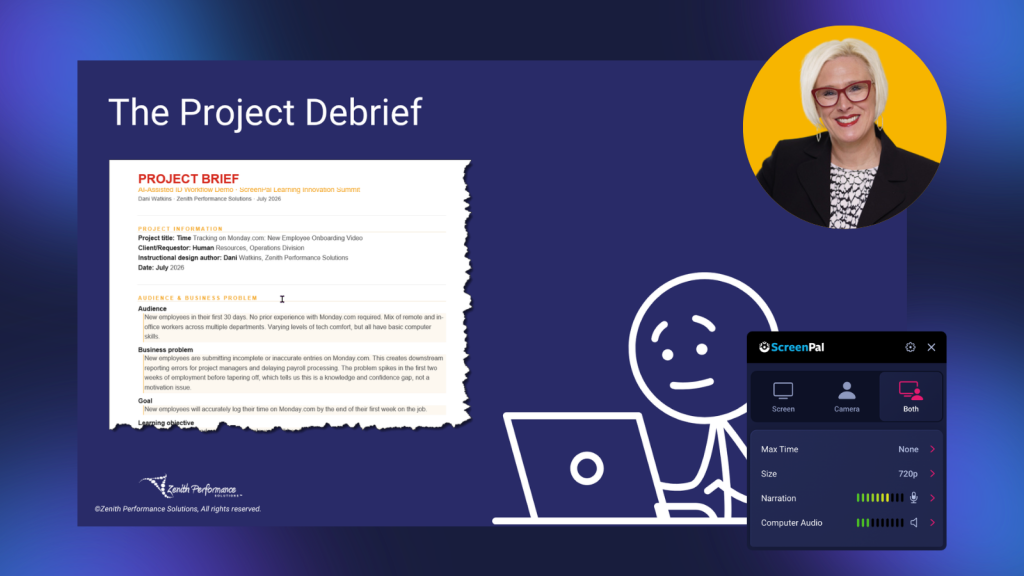
Dani begins with a project brief. Before asking AI to generate anything, she gathers the information an instructional designer should already understand after conversations with stakeholders and subject matter experts.
For the sample project, that included details such as:
- Audience: New employees within their first 30 days, with varying levels of technical comfort
- Business problem: Incomplete or inaccurate time entries are creating downstream reporting and payroll issues
- Performance goal: Employees should accurately log their time by the end of their first week
- Learning objective: Employees should be able to log, edit, and submit a weekly time entry with zero errors and without assistance
- Format: A three-to-five-minute training video
- Constraints: Limited production resources, an existing onboarding course where the video needs to live, and software that may change over time
- Content shelf life: Medium, because the software interface and processes could evolve
That last point is especially useful.
When creating software training, thinking about content shelf life before production can influence how you design the video. If a feature or interface changes frequently, you may want to structure the content so individual pieces can be updated without rebuilding the entire resource.
The project brief also keeps AI grounded in actual context.
Instead of typing something vague like, “Create a training video about time tracking,” Dani gives the AI information about the audience, business need, desired behavior, constraints, and expected output.
And once you’ve developed that project brief with the LLM AI tool of your choice, you don’t have to start over when you’re ready to create. You can copy the completed project brief and paste it directly into the “What’s the video topic?” field in ScreenPal’s AI video generator. That gives ScreenPal’s AI much richer context to work from than a simple topic or one-sentence prompt and helps carry the thinking you’ve already done into the next stage of the video creation workflow.
From there, ScreenPal can use that detailed context to help generate a script for your video. Or, as Dani demonstrated in her workflow, you can continue working with your preferred AI assistant to turn the brief into a more detailed video blueprint before bringing the content into ScreenPal.
For example, Dani asked AI to generate a measurable learning objective, video overview, scene breakdown, and estimated duration for a three-to-five-minute video. Within moments, she had a starting structure.
But that wasn’t the end of the planning process. It was the beginning of the review process.
Keep critical thinking in the instructional design workflow
One of the most important parts of Dani’s AI-assisted workflow isn’t the prompts she uses. It’s what happens after AI responds.
Alongside her prompts, Dani maintains what she calls critical thinking follow-ups: questions the instructional designer should ask to evaluate and improve the AI-generated output.
For the planning phase, those might include:
- Which scenes are most likely to confuse someone completely new to the software?
- Is the learning objective actually measurable and observable?
- Which scenes carry the greatest risk of containing inaccurate information?
- Which steps in this process are most commonly performed incorrectly?
- Do we have data showing where learners are currently making mistakes?
These questions matter because AI doesn’t automatically know everything happening inside your organization.
Suppose employees aren’t simply logging time incorrectly. Maybe data shows they’re consistently rounding their time to the nearest hour when organizational standards require smaller increments. That changes the training.
An instructional designer can recognize that the video needs to emphasize that particular behavior and give AI additional context to revise the scene accordingly.
This is the part of the workflow Dani believes can’t simply be handed over to AI. AI can generate. The instructional designer still has to evaluate.
Your experience with learners, organizations, subject matter experts, business goals, and learning design is what turns generated content into an intentional learning experience.
Step 2: Script it- use AI to escape the blank page
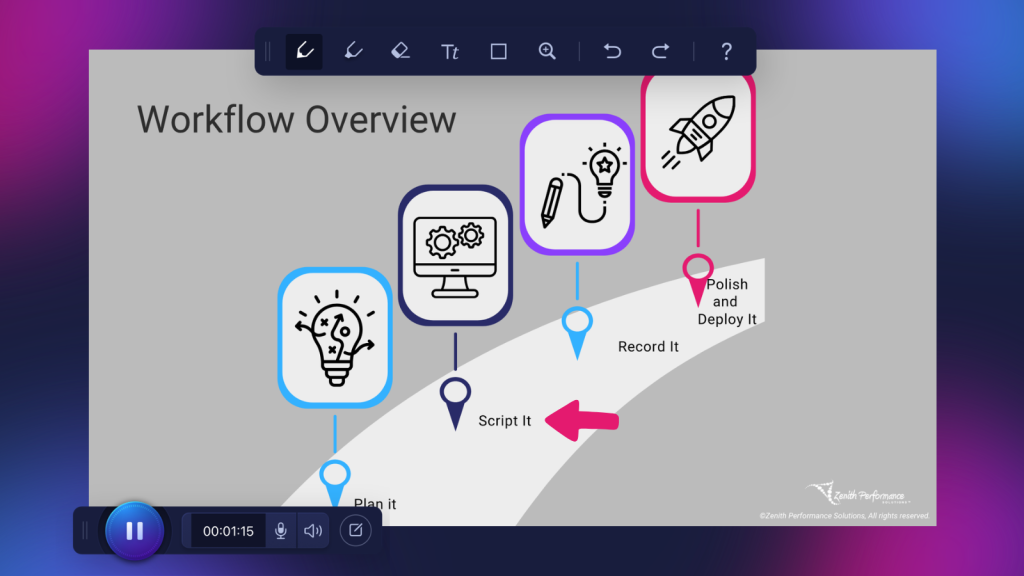
Once the video blueprint is solid, Dani moves into scripting. Instead of asking AI to create a script from scratch with little context, she builds from the scene breakdown already developed during the planning phase.
Her instructions include details about the intended production method, tone, pacing, and organization. For example, the narration should be conversational, use short sentences, include clear action cues, and be easy to follow while the learner watches a software demonstration.
That gives AI enough direction to produce a complete first draft. The benefit isn’t necessarily that the first draft is perfect. It’s that you’re no longer staring at an empty page.
You can also bring that same planning directly into ScreenPal. ScreenPal’s AI video generator can turn your topic and instructions into a draft script, giving you a starting point you can review and refine before moving into production. Rather than treating the generated script as the finished product, apply the same critical-thinking process Dani recommends: check the language, accuracy, pacing, and assumptions before you record.
Dani described having a full narration draft to react to as one of the biggest time savers in her workflow. Editing is often easier than generating. Once a draft exists, you can ask, “Does this sound like us?,” “Is this how our learners talk?,” “Are the instructions accurate?,” “Is there too much information?,” “Does the pacing make sense?,” “Where will someone get lost?,” and then you revise.
Write for learners, not instructional designers
Dani also shared an important scripting reminder: learning objectives don’t have to sound like learning objectives when they’re presented to learners.
Instructional designers may need formal, measurable objectives behind the scenes. But, learners don’t necessarily need to hear: “At the end of this course, you will be able to…”
Instead, Dani’s example simply told learners that in the next few minutes, they would learn how to log, edit, and submit their time correctly.
Same purpose. Better conversation.
As Dani put it during the session, learners need to understand what they’re going to get in plain, non-L&D language. That philosophy extends to the rest of the script.
Before accepting the AI-generated version, ask questions such as:
- Does the narration assume knowledge the learner doesn’t have?
- Is the pacing realistic?
- Where is the learner most likely to get lost?
- Does this sound like a person talking- or a manual?
- Which instructions could become outdated if the software changes?
These aren’t necessarily prompts you have to ask word-for-word every time. They’re thinking habits. And those habits are what keep AI-assisted content from becoming generic AI-generated content.
Step 3: Storyboard before you record your instructional design
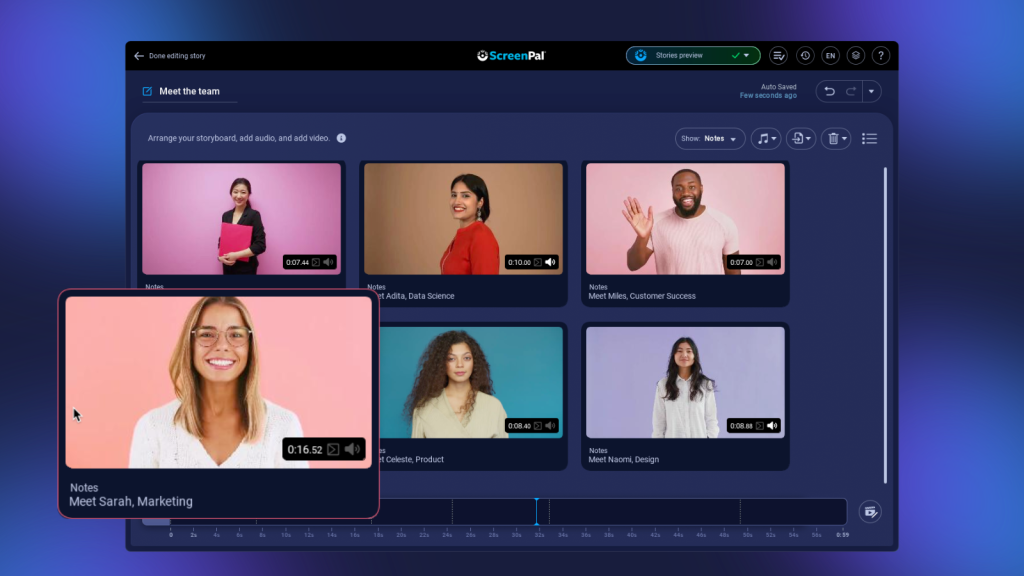
With the script ready, Dani moves into ScreenPal Storyboards.
While it would be possible to immediately start recording, Dani prefers a visual planning step. Within the storyboard, she can divide the training into sections and add the corresponding script to each part. She can also make notes about what should appear visually on screen.
One scene might include a designed visual or graphic; another might be a screen recording; another could feature the presenter on camera. The storyboard makes those choices visible before production begins.
It also creates flexibility in how narration is handled. Depending on the project, creators can record narration themselves, import existing narration, or use ScreenPal’s built-in AI text-to-speech voices.
For Dani, the value of the storyboard is bigger than organization. It gives her a production guide.
Instead of recording an entire tutorial as one long take and hoping everything works, she can think scene by scene. That makes it easier to plan, record, revise, and eventually update the content. And because scripts can be included within the workflow, creators can also use a teleprompter while recording to make delivery easier and more consistent.
Use AI for instructional design pre-production, too
AI doesn’t have to disappear once the script is finished. Before recording the sample software demonstration, Dani returned to AI and asked it to create a pre-recording checklist specific to the demo.
This is a deceptively useful step. Anyone who has recorded a software tutorial knows how quickly a demonstration can become messy. Maybe your screen contains irrelevant information, maybe the sample data doesn’t make sense, maybe notifications appear, maybe the cursor moves constantly while you’re talking, maybe you realize halfway through that you forgot to set up the example you need for the next step. AI can help anticipate some of those problems.
For the sample project, Dani used it to think through preparation such as opening the correct board, pre-populating realistic tasks, setting up the screen properly, and checking audio. This becomes even more valuable when someone else is doing the recording.
If an instructional designer needs a subject matter expert to capture a highly technical workflow, an AI-assisted recording checklist can provide the SME with clear expectations before they press Record.
And even with careful preparation, recordings don’t have to be perfect. ScreenPal’s video editor gives instructional designers and SMEs room to clean things up after recording; from trimming unnecessary content and adjusting pacing to adding overlays, annotations, zooms, and other visual cues that help direct the learner’s attention.
That can mean fewer unusable recordings coming back to the instructional designer, and less rework for everyone.
Step 4: Record with a plan
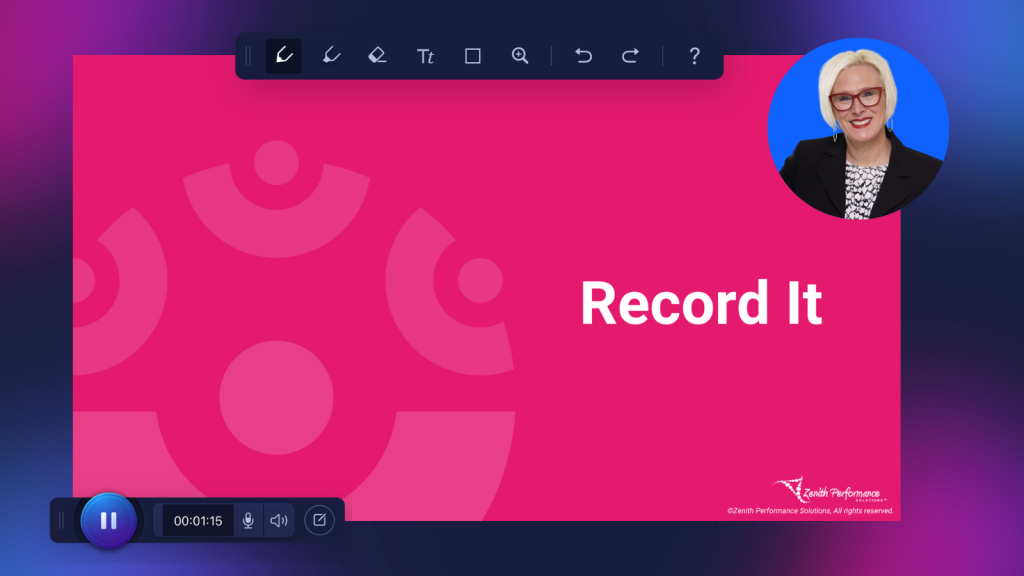
By the time Dani actually reaches the recording stage, much of the difficult work has already happened. The business problem is defined, the desired learner behavior is clear, the scenes are mapped, the narration is written, the storyboard is ready, and the recording environment has been considered. Now ScreenPal becomes the production tool rather than the starting point.
Creators can capture the screen, camera, or both depending on what each scene requires. The difference is that they aren’t improvising the entire learning experience while recording it. That can make a significant difference in the finished tutorial, particularly with cursor movement and pacing.
Dani joked about the familiar experience of watching a software recording afterward and realizing the mouse seems to be moving everywhere at once. For the person recording, those movements may feel natural. For the learner, they’re visual noise.
Planning helps creators become more deliberate about where the cursor moves, what learners should be looking at, and how much time they have to process what they’re seeing.
And when mistakes happen, they don’t necessarily require starting over. Individual sections can be corrected or replaced during editing rather than rerecording the entire video. ScreenPal’s transcript-based video editing also lets creators edit spoken content by working directly from the transcript, and can help identify filler words and silences that may need to be removed or shortened. That makes it easier to refine the pacing of a tutorial without rebuilding an otherwise successful recording.
Step 5: Polish, deploy, and think beyond the instructional design video
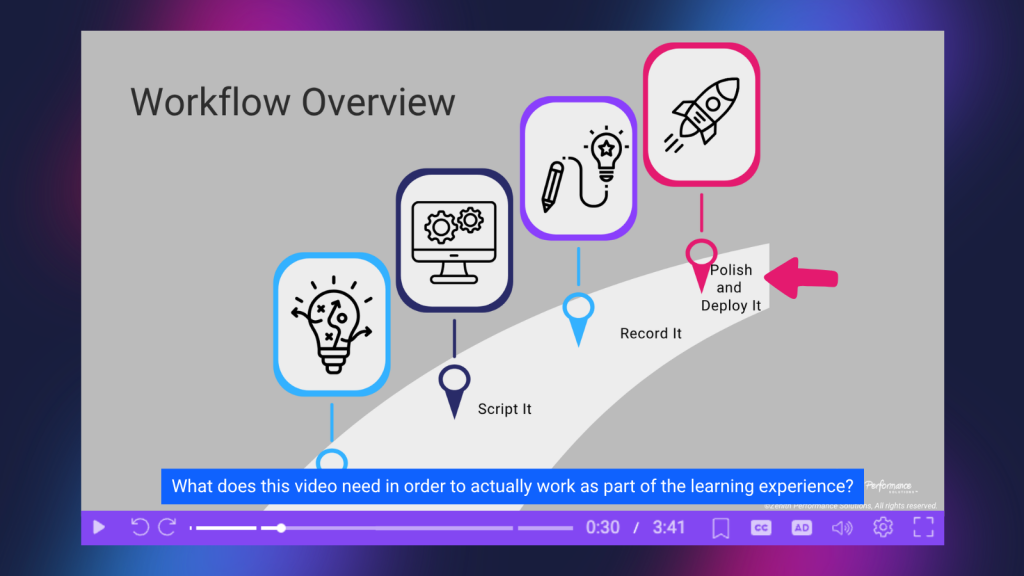
Finishing the edit isn’t the end of Dani’s workflow. Her final phase is polish and deploy.
That means asking another instructional-design question: What does this video need in order to actually work as part of the learning experience?
For Dani’s sample project, the video would ultimately become part of an existing onboarding course. But simply embedding a video into a course doesn’t automatically make it effective.
AI can help brainstorm questions such as:
- What should learners see or know before watching?
- What supporting assets could reinforce the learning?
- Does the video need a companion job aid?
- Should there be a knowledge check?
- How will learners find help if the software changes?
- How will accessibility be addressed?
- How will we know whether the training worked?
If a knowledge check supports the learning objective, ScreenPal quizzes can be added directly to a video, allowing learners to respond to questions as part of the viewing experience rather than sending them to a separate assessment. Interactive elements such as polls, ratings, and calls to action can also create opportunities for learners to engage with the content.
Accessibility is also an important part of this stage. Dani shared that she regularly uses ScreenPal to add captions, including to videos she receives from clients that don’t already have them. When creators upload videos to ScreenPal they can also use AI-powered captioning, translation, and speech-to-text AI narration for multilingual learners, making their video content accessible to a broader audience.
Connect learning from your instructional design to measurable business results
One of the strongest themes throughout Dani’s session was the importance of connecting instructional design to the business problem that started the project.
Remember the original scenario? Employees were making errors while submitting time, which was creating downstream reporting and payroll problems.
If training was the right intervention, then the finished video’s success shouldn’t be measured simply by whether it was published, or even whether employees watched it. It should be measured by one essential question: Did behavior change?
Once the video is shared, ScreenPal’s hosting analytics can also provide insight into how learners are interacting with the content, including viewing behavior and quiz results. Those learning metrics won’t replace the business measures Dani recommends tracking, but they can add another layer of evidence when you’re evaluating whether the intervention is working.
Dani offered a simple example. Imagine that before the training, 26% of new employees were completing the process incorrectly. Afterward, that number falls to 2%. Now the instructional designer has something much more meaningful to report.
Not: “I created a training video.”
But: “We identified a performance problem, created an intervention, and reduced the error rate from 26% to 2%.”
That’s a very different conversation with organizational leadership. It also brings the workflow full circle. The business problem defined during the project brief becomes the measurement you return to after deployment. That is how instructional design becomes strategic work rather than simply content production.
Don’t let learning end when the video ends
Dani also encouraged instructional designers to consider how a finished video might support learning beyond its original placement. A three-to-four-minute tutorial doesn’t necessarily have to remain a single asset forever. Could individual sections become microlearning clips? Could a key step become a short reminder sent to employees later? Could the video become the foundation for a step-by-step job aid? Could parts of it support future onboarding or performance support?
With the source video already in ScreenPal, creators can also return to the editor to trim or repurpose portions of a longer training into shorter, focused videos; extending the useful life of the original recording without starting from scratch.
If you’re unsure, Dani suggested turning the question back to AI: ask how the existing video could be repurposed into additional learning opportunities.
That extends the value of the work you’ve already done instead of treating every learning asset as a one-and-done project.
Three ways this workflow can save instructional designers time
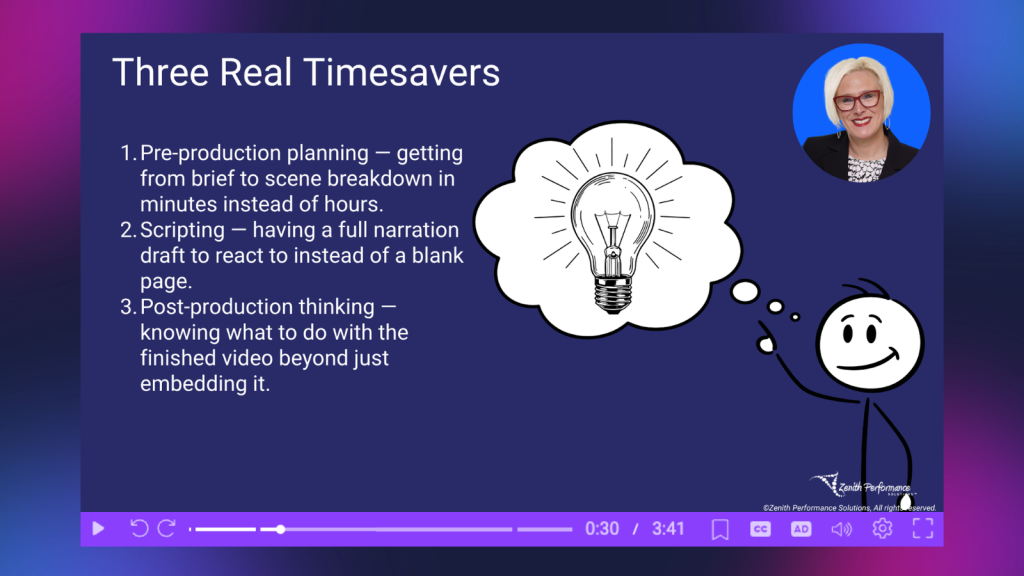
At the end of the session, Dani highlighted three practical time savers from her workflow.
1. Do more pre-production planning
Moving deliberately from the project brief to the scene breakdown prevents the repeated record-and-rerecord cycle.
The goal isn’t to spend more time planning for the sake of planning. It’s to make the production time you do spend more effective.
2. Start scripting with something to react to
A complete first draft, even an imperfect one, is often easier to work with than a blank page.
Use AI to help create that starting point, then apply your own expertise to make it accurate, useful, conversational, and appropriate for your learners.
3. Think about what happens after production
Don’t automatically consider the project finished once the video is exported.
Consider accessibility, reinforcement, job aids, measurement, repurposing, and ongoing learning.
The finished video is an asset. The learning experience is bigger than the asset.
AI can accelerate the workflow. It shouldn’t replace it.
Dani’s session offered a refreshingly practical view of AI in instructional design.
AI doesn’t eliminate the need for instructional designers to understand their learners. It doesn’t determine whether training is the right solution. It doesn’t automatically understand the business problem. And it can’t replace the experience that allows an instructional designer to look at generated content and ask, “Is this actually going to work?”
What it can do is help instructional designers move faster through parts of the process that often slow us down. It can help transform a detailed project brief into a starting blueprint. It can turn that blueprint into a draft script. It can identify potential confusion points. It can help prepare for recording. It can brainstorm supporting resources. And it can help us think about how to extend learning after a video has been published.
Combined with a thoughtful workflow and flexible video creation tools like ScreenPal, those efficiencies can give instructional designers more time for the work that actually requires their expertise: asking better questions, making better decisions, and designing better learning experiences.
The goal isn’t to press a button and let AI create the training. It’s to build a smarter workflow where AI assists and the instructional designer leads.
About the speaker
Dani Watkins is the Founder and Chief Learning Experience Officer of Zenith Performance Solutions, where she combines her passion for education, instructional design, and technology to create meaningful learning experiences. With a graduate degree in Information Technology, Dani specializes in instructional design and eLearning development while also training teams on Social Styles, DiSC, leadership, and other professional development topics.
Dani is an experienced virtual facilitator and technical producer who regularly shares her expertise at learning and development conferences, including events hosted by the Association for Talent Development (ATD) and Training Magazine. When she isn’t designing learning experiences or facilitating training, you’ll likely find her spending time with her husband and two daughters; or enjoying Colorado’s outdoors through trail running, hiking fourteeners, and skiing the Rocky Mountains.