Main Menu
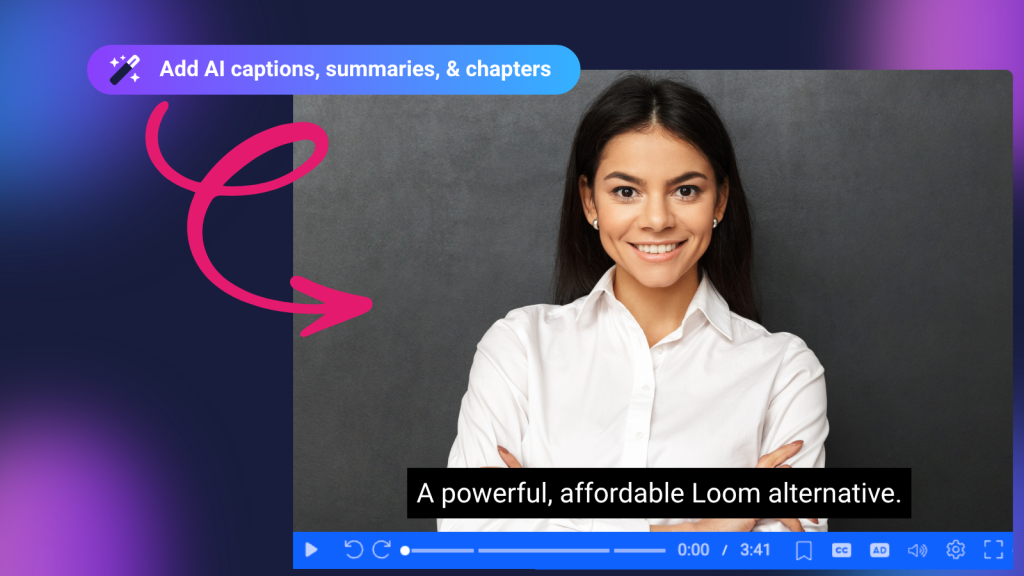
Looking for a Loom alternative that does more than record and share videos? ScreenPal offers an affordable alternative to Loom with advanced video editing, AI-powered creation tools, interactive quizzes, accessibility features, and flexible hosting.
Both ScreenPal and Loom make it easy to record your screen, capture your webcam, and share videos. Loom is particularly well suited for quick video messages and asynchronous team collaboration. ScreenPal goes further, providing tools to create polished tutorials, training videos, presentations, and interactive learning experiences.
If you need more creative control, flexible and affordable licensing, or a complete video creation platform, ScreenPal may be the better fit.
ScreenPal vs. Loom: At a glance
| Feature | ScreenPal | Loom |
|---|---|---|
| Free screen recording | Unlimited recordings, 15 minutes each | 25 videos, 5 minutes each |
| Paid recording | Unlimited recording time | Unlimited recording time |
| Advanced video editing | Timeline editing, music, overlays, effects, and transitions. Full history. | Trimming, stitching, and text/box overlays |
| AI video editing | Conversational prompts, transcript editing, filler word and silence removal, and automated enhancements | Transcript editing, filler word and silence removal, and video-to-text workflows |
| AI video creation | Slides to Video, text-to-video, AI narration | Primarily recording-based AI workflows |
| Screenshots | Capture, scrolling capture, annotate, blur, and edit images | Capture, crop, annotate, and share |
| Assessments | Quizzes, polls, ratings, reporting, and analytics | Not available |
| Interactive capabilities | Annotation and CTA buttons, video commenting | Comments, reactions, and CTAs |
| Accessibility | Captions, translations, text-to-speech, and audio descriptions | Captions, transcripts, and translation features |
| Video hosting | Local saving, cloud hosting, channels, and folders | Cloud-based hosting and team libraries |
| Integrations | Zoom, Microsoft Teams, Webex, Google Drive, Learning Management Systems | Atlassian ecosystem, Microsoft Teams, Zoom, Salesforce, Slack |
| Paid individual plan | Solo Max from $10/month (AI included) | Business + Loom AI for $24/month |
| Paid team plan | Team Business from $8/creator/month (AI included) | Business + Loom AI from $24/user/month |
Pricing reflects advertised starting rates checked in October 2026 for a 100-license team plan. Billing terms, plan eligibility, and feature availability vary.
What’s inside
- Which screen recorder offers more for free?
- Which platform has better video editing and AI tools?
- Which tool is better for screenshots and visual instructions?
- Can you create interactive training videos with ScreenPal or Loom?
- Which platform offers better accessibility features?
- How do video hosting, privacy, and integrations compare?
- ScreenPal vs. Loom pricing: Which offers better value?
- Which platform should you choose?
- Frequently asked questions
1. Which screen recorder offers more for free?
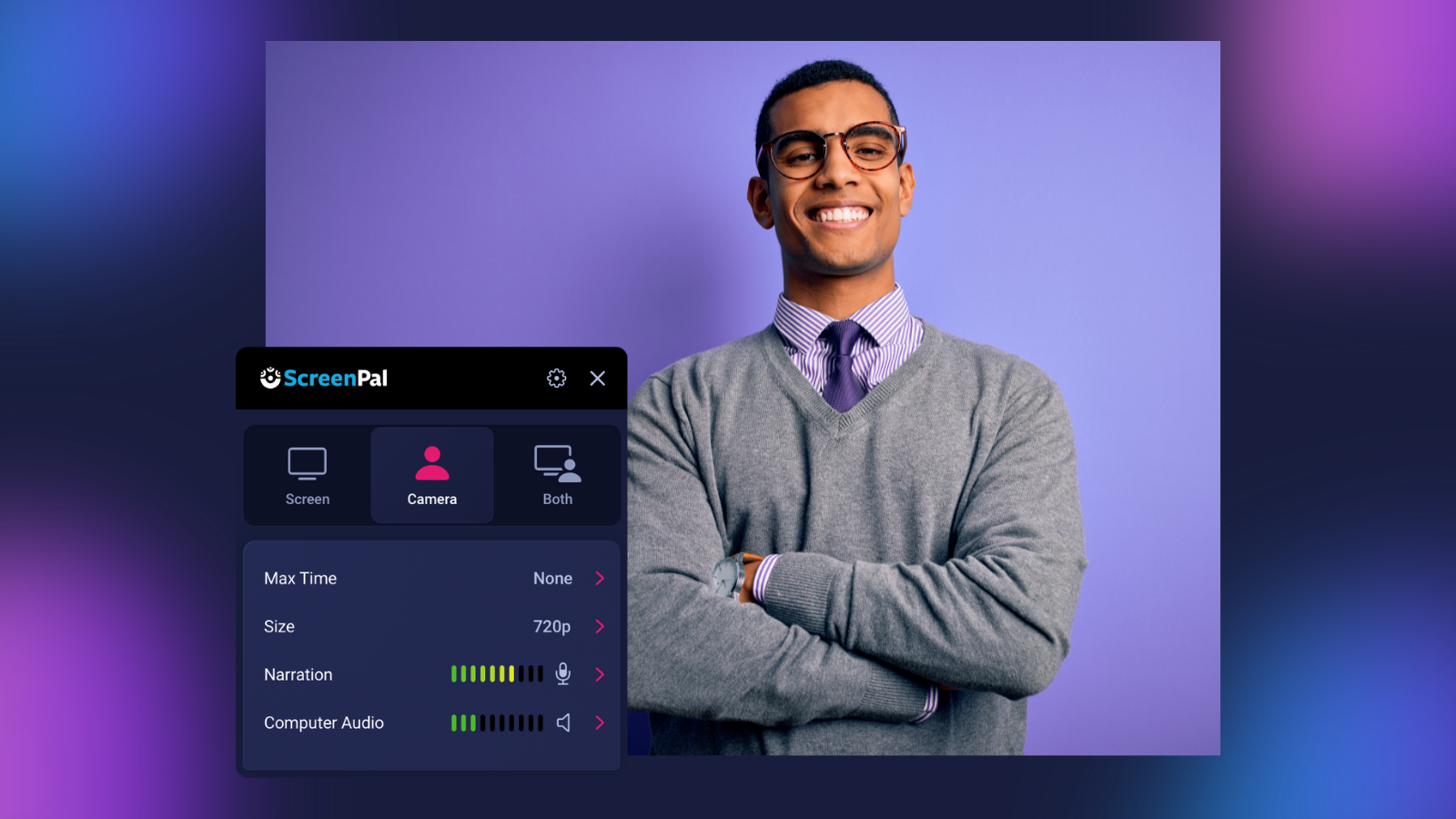
Both ScreenPal and Loom allow you to record your screen, webcam, or both, with microphone and system audio. Both also provide recording controls and visual tools to make video messages more engaging.
One of ScreenPal’s biggest advantages is that you get a powerful, feature-rich screen recorder and video editor completely free. With generous recording limits and built-in tools for creating clear, engaging videos, ScreenPal gives you everything you need to get started without paying for a subscription.
ScreenPal vs. Loom free recording limits
Loom’s free Starter plan allows up to 25 videos per person, with a five-minute limit on each screen recording. It also includes screenshot capture, comments, reactions, and basic transcription.
ScreenPal’s free desktop recorder allows unlimited recordings of up to 15 minutes each, without requiring an account to start recording.
That gives ScreenPal users three times the recording length per video, without Loom’s 25-video limit.
For educators creating lessons, trainers demonstrating workflows, or professionals recording detailed explanations, those additional minutes provide more flexibility.
Recording tools that make instructions easier to follow
ScreenPal also offers recording tools designed to help viewers focus on important details.
You can:
- Record your entire screen, a window, or a selected area.
- Capture your webcam alongside your screen.
- Remove your background and replace it with virtual backgrounds.
- Draw, highlight, and annotate while recording.
- Zoom in to emphasize important details.
- Pause and resume recordings.
- Save recordings locally before choosing whether to upload them.
Loom offers drawing tools, webcam backgrounds, and other recording enhancements, making it a convenient choice for quick communication.
ScreenPal’s advanced annotation and zoom tools are especially useful for software demonstrations and instructional videos that require step-by-step visual guidance. These elements can also be adjusted after recording, making it easy to refine content, emphasize key details, and repurpose videos for different audiences.
Try it yourself: Start recording with ScreenPal.
2. Which platform has better video editing and AI tools?
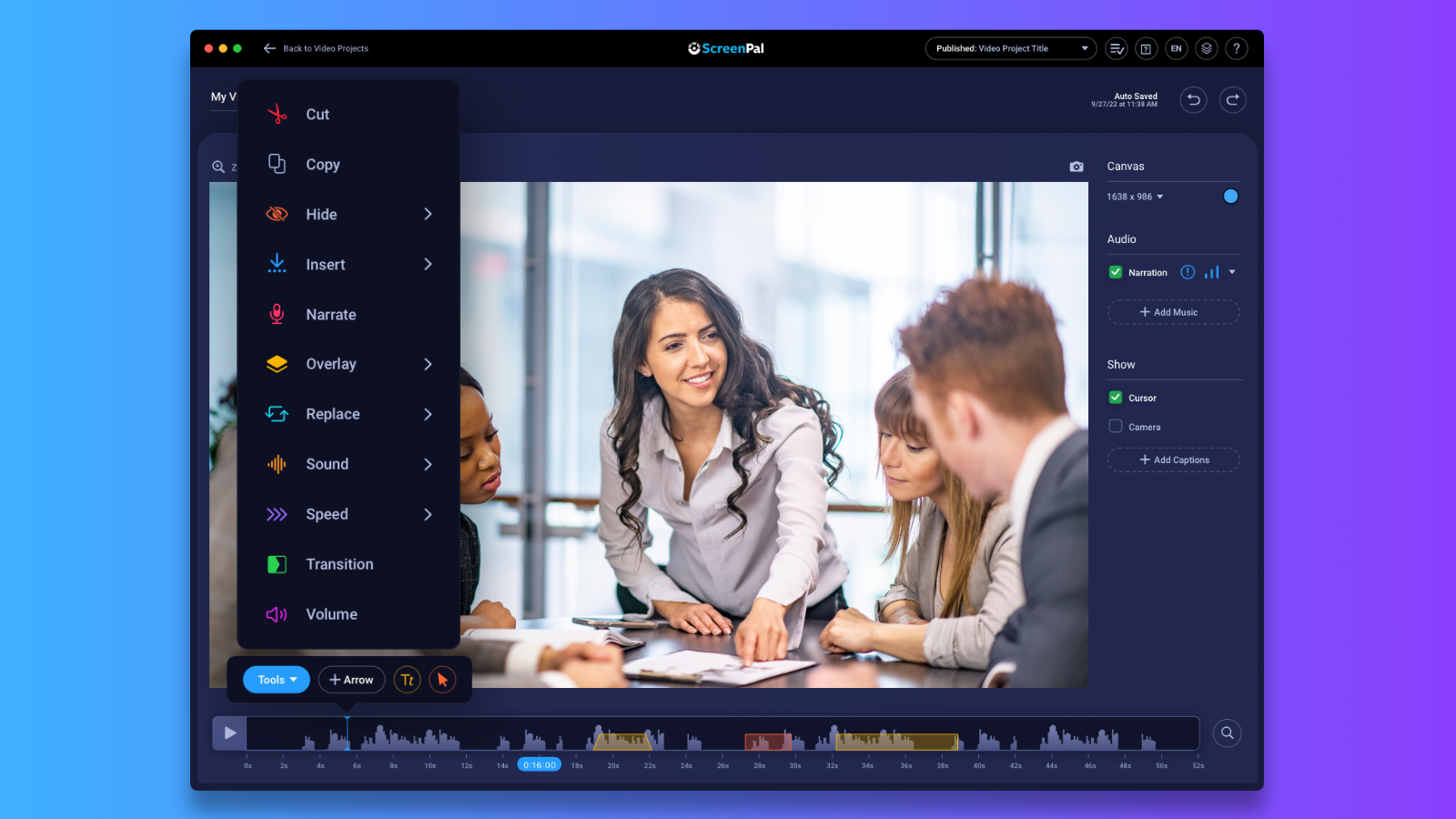
Recording is only the first step in creating an effective video. Editing tools determine how easily you can refine your message, highlight important information, and repurpose content.
Both ScreenPal and Loom provide editing capabilities, but they emphasize different workflows.
Video editing: Quick adjustments vs. creative control
Loom supports trimming, stitching clips, transcript-based editing on eligible plans, and visual overlays such as text, arrows, and boxes. These tools help users clean up recordings and communicate clearly.
ScreenPal offers a more comprehensive video editing environment for both quick adjustments and detailed video production.
With ScreenPal, you can:
- Trim, cut, crop, combine, and rearrange clips.
- Add text, images, videos, shapes, and animated overlays.
- Enhance your videos with background music, sound effects, and voiceovers. Upload your own audio files or choose from ScreenPal’s library of over 8 million stock assets.
- Adjust playback speed and add transitions.
- Blur sensitive information.
- Add zoom effects, highlights, and animations.
- Create chapters, captions, and interactive elements.
Example: Creating a product demonstration
Imagine recording a software demonstration that needs an introduction, background music, an animated callout, and a close-up of an important feature.
Loom’s editing tools can help refine the original recording. ScreenPal provides the additional creative tools needed to produce the complete demonstration within one editing environment.
ScreenPal also supports non-destructive editing workflows. In supported desktop recordings, creators can adjust webcam positioning, remove or replace backgrounds, and revise certain recording elements without starting over.
This flexibility is especially valuable when updating training materials, tutorials, or product demonstrations.
AI video editing: How do ScreenPal and Loom compare?
Both platforms use AI to simplify video workflows.
Loom AI focuses on improving recorded communication through features such as automatic titles, summaries, chapters, filler-word removal, silence removal, and video-to-text documentation.
These capabilities are especially useful for asynchronous team updates, meeting recaps, and internal documentation.
ScreenPal also offers AI-assisted editing, including transcript editing, filler-word removal, silence detection, and automated captions.
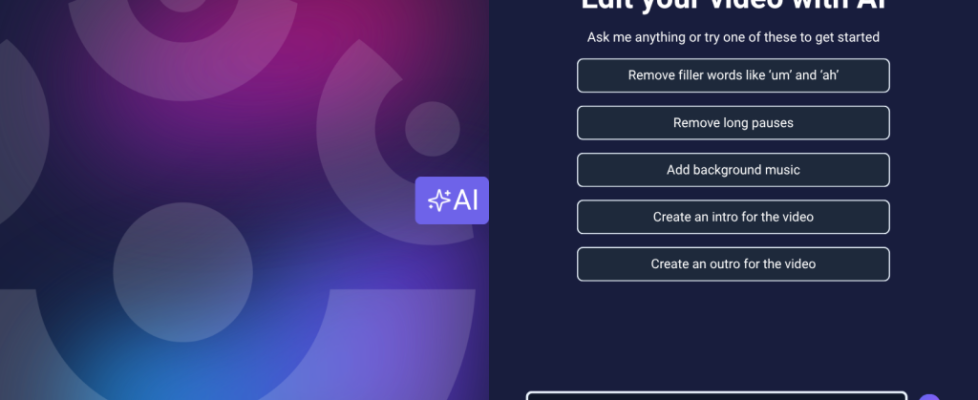
However, ScreenPal’s AI Video Editor allows creators to make changes using conversational text commands directly inside the Online Video Editor.
For example, you can enter prompts such as:
- “Remove the long pauses in my video.”
- “Add background music.”
- “Insert a text overlay at the beginning.”
- “Create an introduction for this video.”
- “Remove filler words from the transcript.”
After the AI applies the changes, you can review the results, undo edits, refine edits manually, or continue making adjustments through additional prompts.
The distinction is in the workflow: Loom AI helps users quickly package and communicate recorded information, while ScreenPal’s AI Video Editor also supports creative changes to the video itself.
Can you create videos with AI instead of recording them?
ScreenPal extends AI beyond editing existing recordings.
Its AI-powered creation tools allow users to:
- Transform presentation slides into narrated videos.
- Generate text-to-speech narration in 140+ languages.
- Create video content from text prompts.
- Generate captions, chapters, and summaries.
- Translate captions and other video content.
- Generate interactive quiz questions.
For example, a training manager can turn an existing presentation into a narrated onboarding video, edit the resulting content, and add questions to assess understanding.
Loom offers AI-powered documentation and communication workflows, but its core experience remains centered on recorded video messages rather than dedicated Slides to Video creation.
For organizations regularly producing instructional content, ScreenPal provides more ways to create videos without recording every element manually.
Explore: ScreenPal’s video editing tools and AI-powered features.
3. Which tool is better for screenshots and visual instructions?
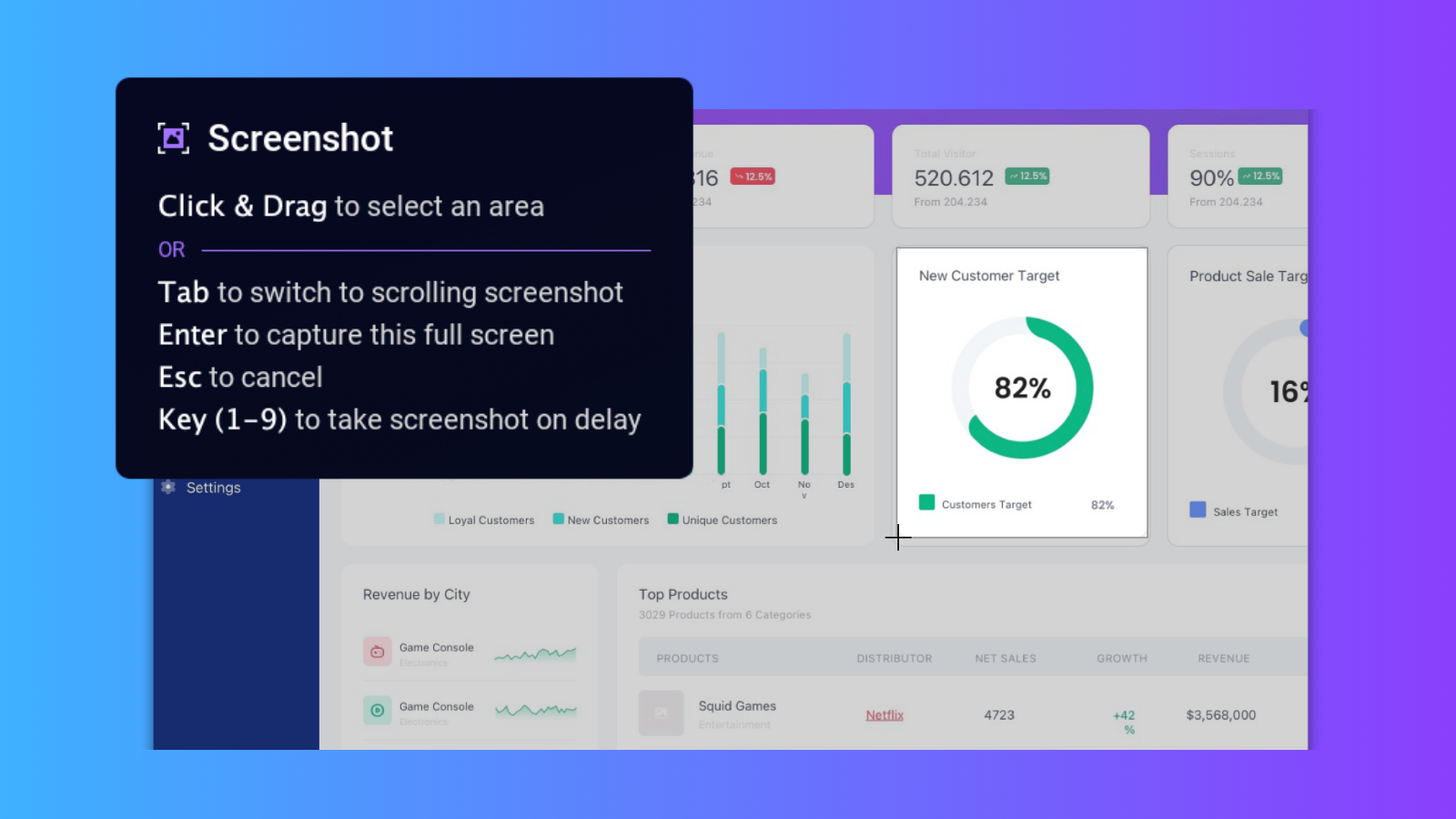
Not every explanation needs a video. Sometimes a screenshot with a few annotations communicates the information more effectively.
Both ScreenPal and Loom support screenshot capture and sharing.
Loom allows users to capture screenshots, crop images, add annotations, and share them through links.
ScreenPal offers additional image editing tools that help creators develop detailed visual instructions.
With ScreenPal, you can capture full-screen, window, custom-area, and scrolling screenshots; add arrows, text, shapes, and numbered steps; highlight or blur information; and import existing images for editing.
ScreenPal also provides AI-powered image-to-text tools and allows screenshots to be incorporated into video projects.
Create reusable visual instructions
Consider creating a step-by-step software guide.
With ScreenPal, you can capture screenshots, add numbered annotations, blur sensitive information, and incorporate the images into a storyboard or video tutorial.
Instead of treating screenshots as standalone communication assets, ScreenPal allows you to reuse them throughout a larger content creation workflow.
For teams developing documentation, tutorials, or training resources, that flexibility can reduce repetitive work.
4. Can you create interactive training videos with ScreenPal or Loom?
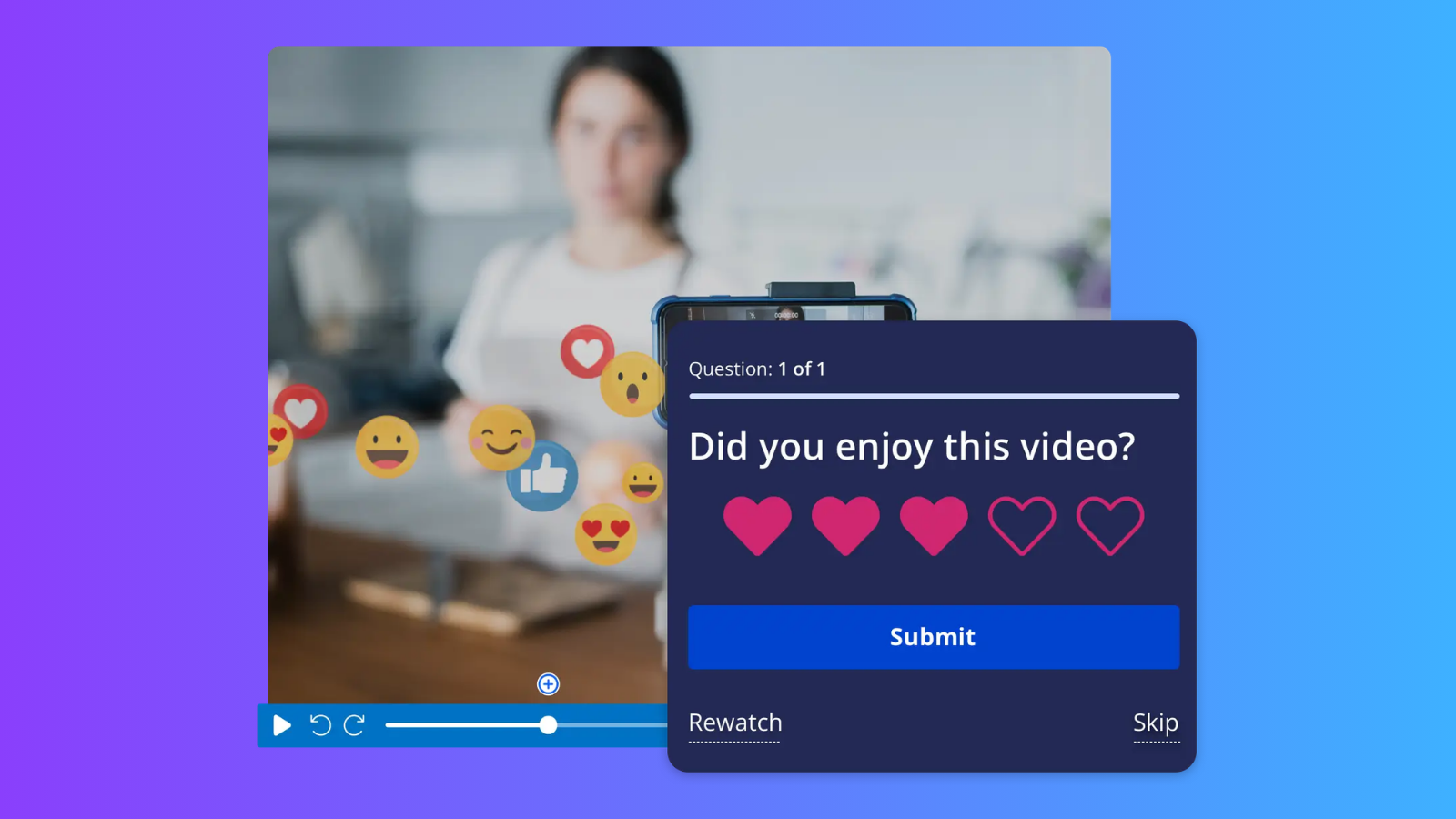
This is one of the most meaningful differences for educators, trainers, and organizations that want to measure learning.
Loom supports audience engagement through comments, emoji reactions, and calls to action. These features encourage conversation and feedback around recorded content.
ScreenPal goes further by allowing creators to add interactive assessments directly to videos.
Turn videos into interactive learning experiences
ScreenPal supports:
- Multiple-choice questions.
- True/false questions.
- Short-answer questions.
- Polls and ratings.
- Interactive hotspots and annotation buttons.
- Navigation and jump links.
Creators can also use AI to generate quiz questions, customize the questions and answers, and review results.
For example, an organization creating an employee onboarding video can add knowledge checks throughout the recording.
Rather than simply tracking whether employees watched the video, trainers can review quiz responses to identify areas where additional instruction may be needed.
Educators can use the same approach to assess student understanding, provide feedback, and support learning outcomes.
ScreenPal offers quiz reporting and supported LMS gradebook syncing, capabilities that extend beyond Loom’s native viewer engagement tools.
For organizations focused on learning and assessment, ScreenPal offers a more complete instructional video workflow.
Try it: Create an interactive video quiz.
5. Which platform offers better video accessibility features?

Accessibility is an important consideration when creating video content for students, employees, customers, and broader audiences.
Both ScreenPal and Loom provide automatic captions and transcripts.
Loom also supports multilingual transcription and translation capabilities, with additional caption customization on eligible paid plans.
ScreenPal provides AI-generated captions and translations in more than 140 languages, along with tools designed to support accessible video creation.
These include:
- Automatic caption generation and editing.
- Caption translation.
- Audio descriptions.
- Text-to-speech narration.
- Video chapters and transcripts.
- An accessible video player.
Why audio descriptions matter
Consider a software tutorial where the presenter opens menus, selects buttons, and navigates an interface without explaining every visual action.
Captions communicate spoken dialogue, but they may not describe the visual information needed to follow the demonstration.
ScreenPal’s audio description tools allow creators to add narration describing important visual details for viewers who may not be able to see them.
Loom provides captioning and transcription features, but its publicly documented tools do not describe an equivalent dedicated audio description authoring workflow.
For educational institutions, government agencies, and organizations working toward WCAG accessibility requirements, ScreenPal offers tools that can support more inclusive video creation.
6. How do video hosting, privacy, and integrations compare?
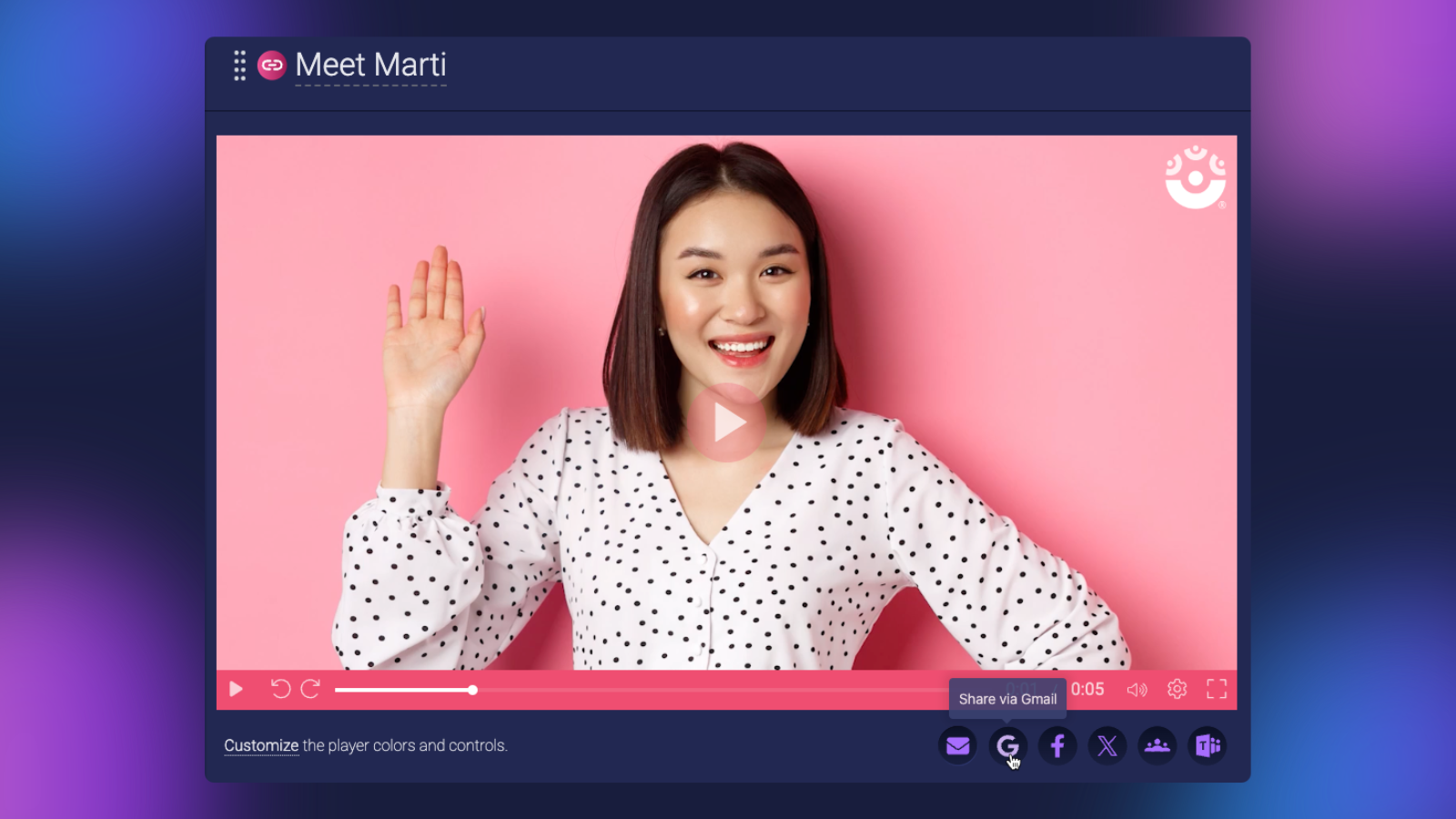
Both ScreenPal and Loom provide cloud hosting, shareable links, privacy controls, and viewer analytics.
However, they offer different approaches to storing, organizing, and distributing content.
Video hosting: Cloud-first vs. flexible publishing
Loom’s recording workflow is centered on cloud-based sharing and collaboration. Videos are stored in the Loom platform, where users can organize content and share links.
ScreenPal offers greater flexibility for creators who want to decide when and where their recordings are published.
With ScreenPal, you can:
- Save recordings locally before uploading.
- Share videos through links or embed codes.
- Organize content into folders, playlists, and channels.
- Customize player branding and thumbnails.
- Add calls to action.
- Manage privacy and password protection.
- Track viewer engagement.
For example, a business can organize onboarding videos into a branded channel, while an educator can create playlists for different lessons or subjects.
ScreenPal also provides password protection for hosted videos on its free plan, while Loom reserves password-protected videos for paid plans.
This flexibility can be useful for organizations that want to review content before publishing or build structured video libraries.
Integrations: Collaboration vs. learning workflows
Loom integrates with workplace tools including Slack, Jira, Confluence, and other applications. These integrations make it particularly useful for asynchronous communication and documentation.
ScreenPal supports video creation and sharing workflows with integrations designed for education and training.
Through LTI 1.3 and other supported integrations, ScreenPal connects with learning management systems such as Canvas, Blackboard, Moodle, Schoology, and D2L Brightspace, as well as Google Classroom.
Educators can incorporate videos and interactive quizzes into courses, while compatible LMS integrations support quiz gradebook syncing.
For example, an instructor can create a video lesson, add assessment questions, share it through a supported LMS, and review student results.
Loom is well suited to workplace collaboration. ScreenPal is especially useful when video needs to support structured learning, assessment, and content delivery.
Explore: ScreenPal’s Google Classroom integration.
7. ScreenPal vs. Loom pricing: Which offers better value?
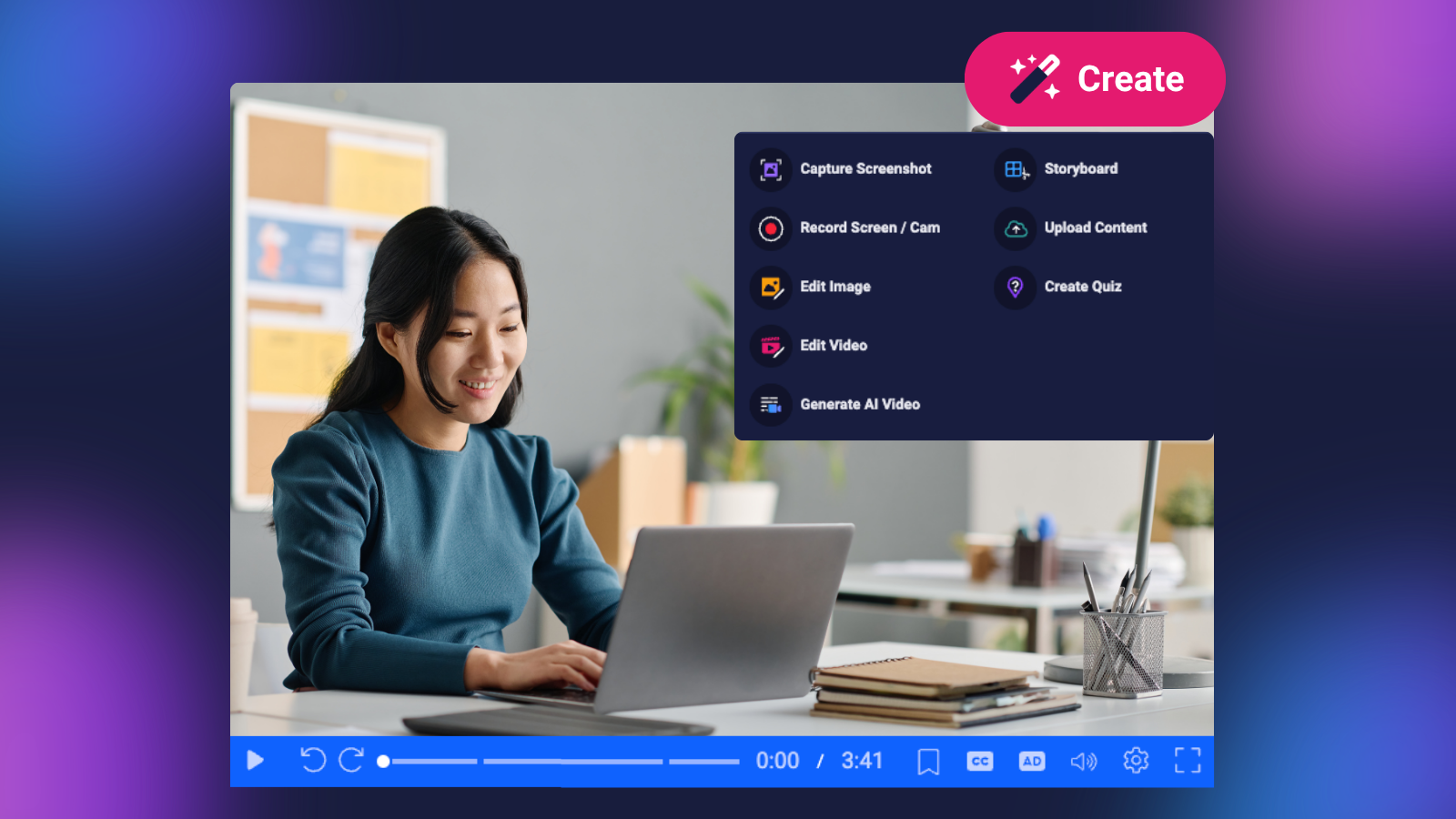
Price matters when choosing a screen recorder, but subscription cost is only part of the equation.
It’s also important to consider which features are included, how much flexibility each plan provides, and whether you’ll need additional software to complete your projects.
Both ScreenPal and Loom offer free and paid plans.
How much does Loom cost?
| Loom plan | Advertised starting price | Key capabilities |
|---|---|---|
| Starter | Free | 25 videos, five-minute screen recordings, basic sharing |
| Business | $18/user/month | Unlimited recordings, basic editing, branding, and collaboration |
| Business + AI | $24/user/month | Advanced AI editing, summaries, chapters, and video-to-text workflows |
| Enterprise | Custom pricing | Advanced administration, security, and enterprise capabilities |
Pricing reflects advertised starting rates as of October 2026. Business + AI pricing based on team size of 100 users. Billing terms, plan eligibility, and feature availability may vary.
Loom’s advanced AI features, including filler-word removal, automatic summaries, and AI workflows, are primarily available on Business + AI and Enterprise plans.
How much does ScreenPal cost?
| ScreenPal plan | Advertised starting price | Key capabilities |
|---|---|---|
| Free | Free | Unlimited recordings up to 15 minutes, basic editing, and hosting of 10 videos |
| Solo Deluxe | $4/month | Expanded editing and recording capabilities |
| Solo Max | $10/month | Advanced editing, AI tools, and unlimited quizzes |
| Team Business | $8/creator/month | Team management, AI capabilities, integrations, and collaboration tools |
Pricing reflects advertised starting rates as of October 2026. Team Business pricing based on team size of 100 creators. Billing terms, plan eligibility, and feature availability may vary.
Flexible licensing for teams
ScreenPal’s Team Business plan starts at just $8 per creator/month, compared with Loom’s Business plan at $18 per user/month and Business + AI plan at $24 per user/month. That’s a potential savings of up to two-thirds on subscription costs alone.
On top of these significant savings right out of the gate, ScreenPal’s active-creator licensing model offers even greater cost efficiency as organizations scale. Rather than paying for every user, organizations only pay for those who actively create and share content each month. Licenses automatically adjust based on usage, eliminating the need for administrators to manually add or remove users.
With Loom’s discontinuation of its Creator Lite option, organizations may face increased licensing costs for users who only occasionally create videos. ScreenPal’s flexible licensing model provides a cost-effective alternative, particularly for organizations where video creation needs vary across teams, departments, or throughout the year.
ScreenPal’s lower entry cost and generous active-creator licensing make it possible for large enterprise organizations to scale video-based knowledge capture, sharing, and communication across departments while still saving significantly compared with Loom. This flexibility allows organizations to expand access to video creation tools without the expense of purchasing individual licenses for every potential creator.
For larger teams, contact us to explore additional savings through enterprise pricing.
More capabilities, fewer subscriptions
The value of a video platform extends beyond its monthly price.
Organizations using Loom for quick video communication may find that it meets their needs without additional software.
However, teams that also need advanced video editing, interactive assessments, audio descriptions, or instructional video production may need separate tools.
ScreenPal combines these capabilities within one platform, potentially reducing the number of applications needed to create, edit, host, and share video content.
For individuals and organizations looking for a comprehensive video creation solution, ScreenPal offers competitive pricing and a broader set of production and learning tools.
Compare your options: Explore ScreenPal plans.
Prices shown are advertised starting rates and may reflect annual billing. Confirm current pricing, billing terms, and feature availability before purchasing.
8. ScreenPal vs. Loom: Which platform should you choose?
Both platforms make it easier to communicate through video. The better choice depends on what you want to accomplish.
Choose Loom if you primarily need to:
- Record quick video messages and team updates.
- Share asynchronous feedback.
- Collect comments and emoji reactions.
- Generate meeting summaries and documentation.
- Collaborate within tools such as Slack, Jira, and Confluence.
Choose ScreenPal if you want to:
- Record more videos without Loom’s free recording limits.
- Create professional videos with advanced editing tools.
- Use AI prompts to edit and enhance recordings.
- Add music, animations, and layered visual effects.
- Turn presentations into narrated videos.
- Create interactive quizzes, polls, and assessments.
- Add audio descriptions and multilingual captions.
- Integrate video lessons with an LMS and supported gradebook workflows.
- Save recordings locally before uploading.
- Build organized video channels and learning libraries.
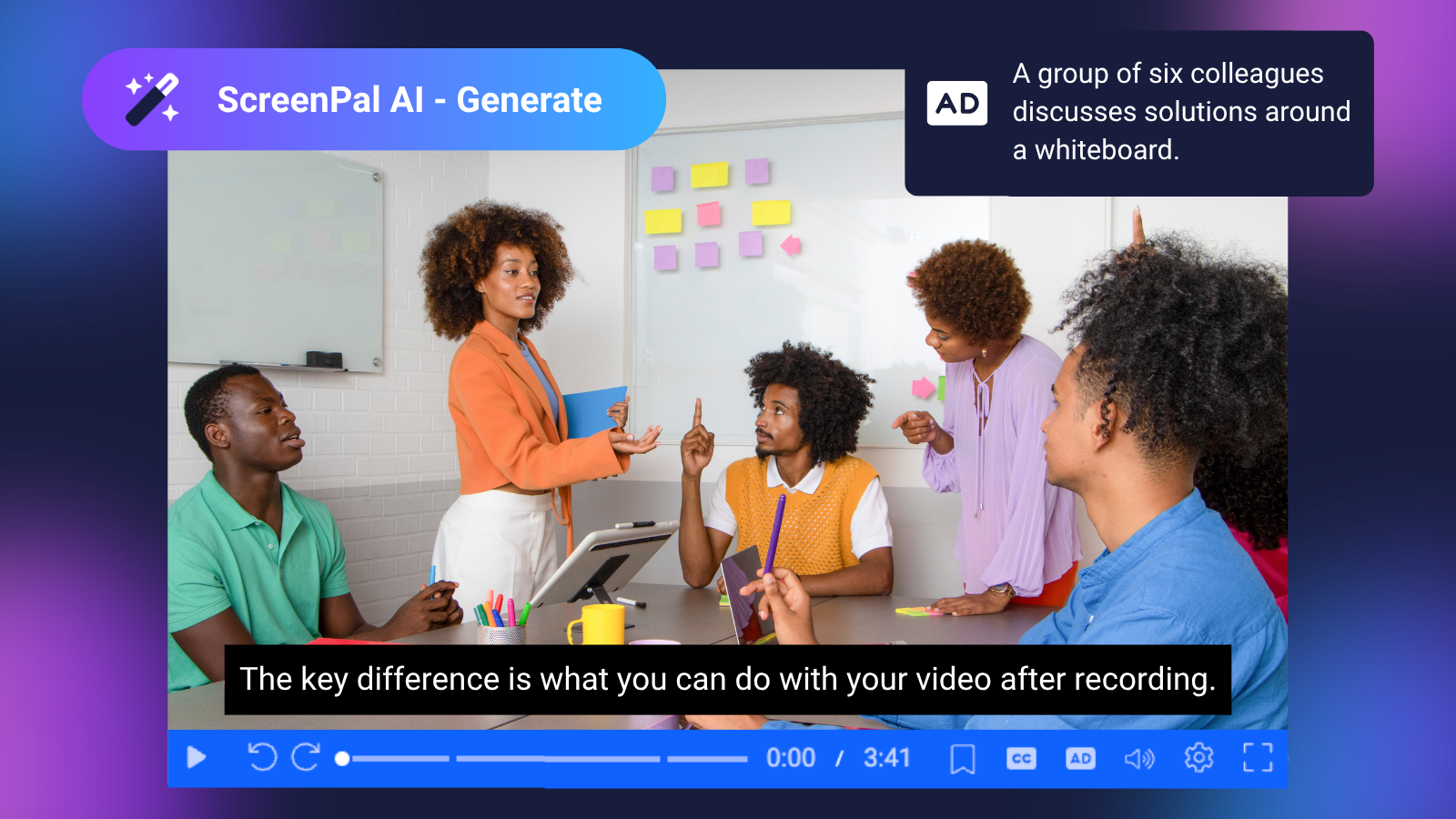
The key difference isn’t whether you can record and share a video. It’s what you can do with that video afterward.
Loom makes it easy to communicate quickly. ScreenPal gives you the tools to record, edit, enhance, engage, and share within one platform.
9. Frequently asked questions about ScreenPal and Loom
What is the best alternative to Loom?
ScreenPal is a strong Loom alternative for individuals, educators, trainers, and businesses that need more than basic screen recording. It combines recording, advanced editing, AI-powered creation, interactive assessments, and video hosting in one platform.
Is ScreenPal cheaper than Loom?
ScreenPal offers lower advertised starting prices for several comparable paid plans. ScreenPal Solo Max starts at $10/month and Team Business at $8/creator/month, while Loom Business starts at $18/user/month and Business + AI at $24/user/month. Features and licensing models differ, so organizations should compare the capabilities and billing terms they need.
Can I record longer videos for free with ScreenPal?
Yes. ScreenPal’s free desktop recorder allows unlimited recordings of up to 15 minutes each. Loom’s free Starter plan limits screen recordings to five minutes and allows up to 25 videos per person.
Does ScreenPal offer AI video editing?
Yes. ScreenPal’s AI Video Editor allows eligible users to make changes using conversational text prompts. You can remove pauses and filler words, add music, insert text overlays, and create additional video sections directly within the Online Video Editor.
Can I create quizzes with ScreenPal?
Yes. ScreenPal supports multiple-choice, true/false, short-answer, poll, and rating questions. Creators can also generate questions using AI, customize assessments, and review results. Unlimited quizzes are included with eligible Solo Max and Team plans.
Does Loom offer the same video editing features as ScreenPal?
No. Both platforms offer editing tools, but their capabilities differ. Loom focuses on refining recorded messages with trimming, stitching, and AI-assisted editing. ScreenPal provides additional production tools, including music, layered overlays, animations, transitions, and more detailed editing controls.
Can I save ScreenPal recordings without uploading them?
Yes. ScreenPal’s desktop recorder allows you to save recordings locally and choose whether to upload or share them later. Loom’s primary recording workflow stores videos in its cloud platform.
Is ScreenPal a good Loom alternative for education and training?
Yes. ScreenPal provides instructional video tools such as quizzes, polls, captions, audio descriptions, and supported LMS integrations with gradebook syncing. These capabilities make it particularly useful for educators and organizations creating structured training content.
Go beyond screen recording with ScreenPal
Whether you’re creating a quick update, training employees, teaching students, or producing content for your audience, the right tools can make video creation easier and more effective.
ScreenPal brings screen recording, advanced editing, AI-powered creation, interactive assessments, accessibility tools, and flexible hosting together in one platform.
Start with a simple recording and turn it into something more, without switching between multiple applications.
Ready to do more with your videos?
Contact our team to discuss the right solution for your organization.