Main Menu
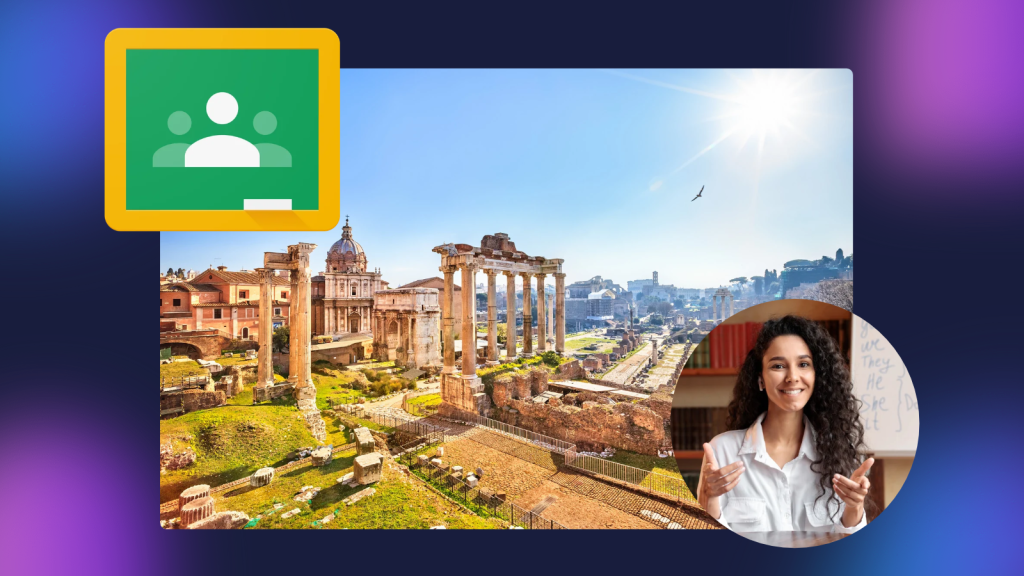
Creating engaging lessons shouldn’t mean adding more work to your day. Between planning instruction, managing assignments, and assessing student understanding, K-12 teachers need tools that simplify their Google Classroom workflow while keeping students engaged.
That’s why ScreenPal’s Google Classroom integration makes it easier than ever to bring interactive video learning into your classroom.
With ScreenPal, teachers can create engaging video lessons, share content directly to Google Classroom, and automatically sync video quiz scores to their Google Classroom gradebook.
Less time managing technology means more time focused on teaching and learning. That’s a win-win in our (grade)book.
Create and share video lessons in Google Classroom
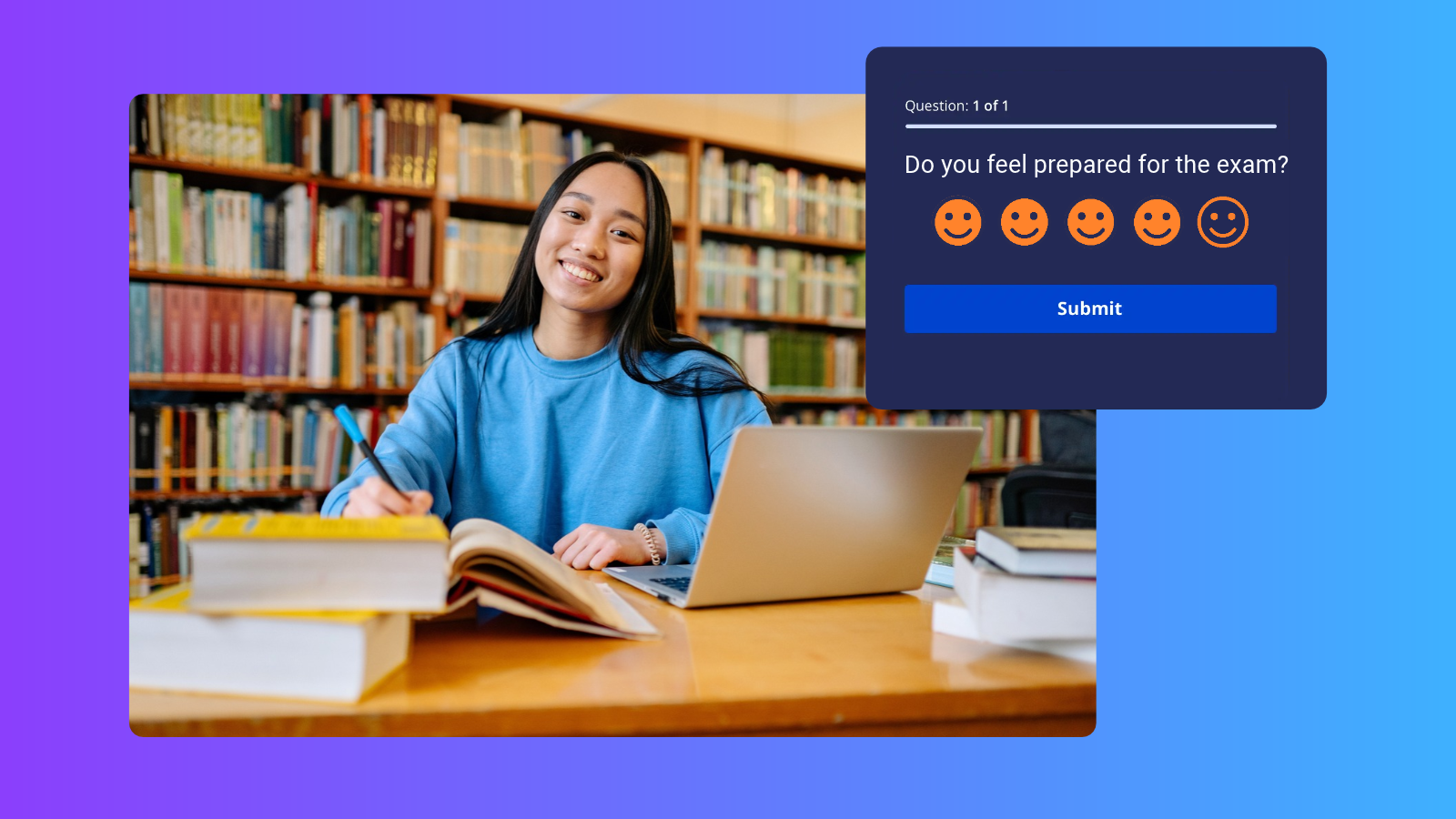
Video is a powerful way to explain complex concepts, provide personalized instruction, and give students opportunities to learn at their own pace.
Whether you’re introducing a new topic, reviewing a challenging concept, or creating a flipped classroom lesson, ScreenPal makes it easy to create and share personalized video content with your students.
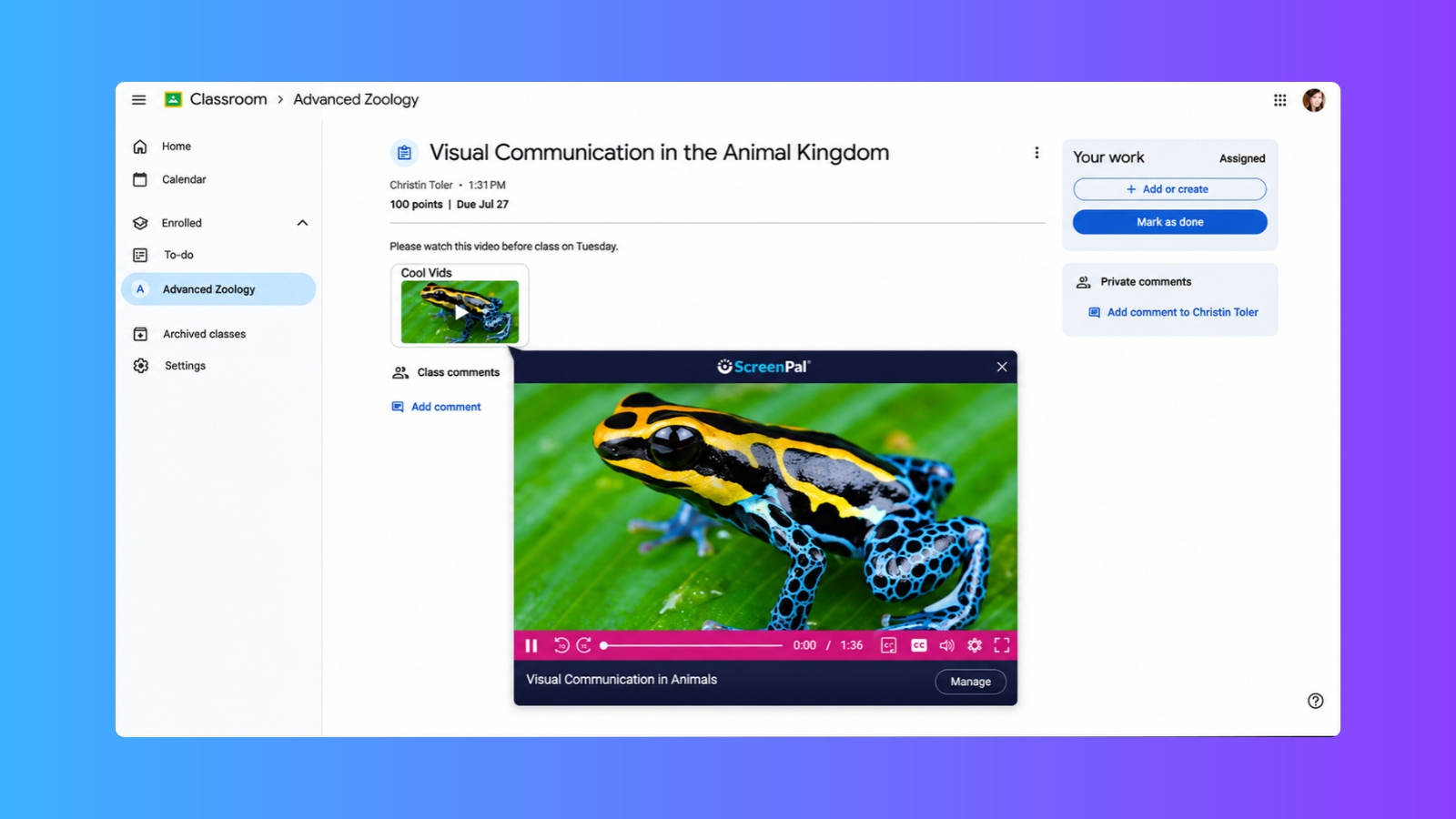
With the Google Classroom integration, teachers can share ScreenPal videos directly from their ScreenPal library to their Google Classroom courses.
Choose how you want to engage your students:
- Video assignments: Assign instructional videos for students to watch as part of a lesson, homework activity, or independent learning experience.
- Class materials: Share tutorials, review videos, and supplemental resources students can revisit whenever they need additional support.
- Video questions: Encourage reflection and discussion by sharing a video with a question in Google Classroom.
- Video announcements: Communicate important classroom updates, reminders, or instructions through video.
Instead of manually copying links and switching between platforms, teachers can share their ScreenPal content directly to their connected Google Classroom courses.
Less time creating, more time teaching
While AI-generated instructional materials can be helpful, creating effective, differentiated content often requires multiple rounds of prompting, revisions, and quality checks. For teachers with already packed schedules, that means even more time spent preparing lessons.
With ScreenPal, educators can simply record their instruction and use built-in tools to make their videos more accessible and easier to navigate. AI-generated captions, automatic video chapters, and adjustable playback speeds help students engage with content at their own pace. Plus, one-click filler word removal makes polishing instructional videos faster than ever.
The result? Less time creating and editing content, and more time focused on what matters most: teaching and supporting students. Once complete, teachers can share their video lessons directly through Google Classroom.
Make learning more interactive with video quizzes
What if your instructional videos could do more than deliver information?
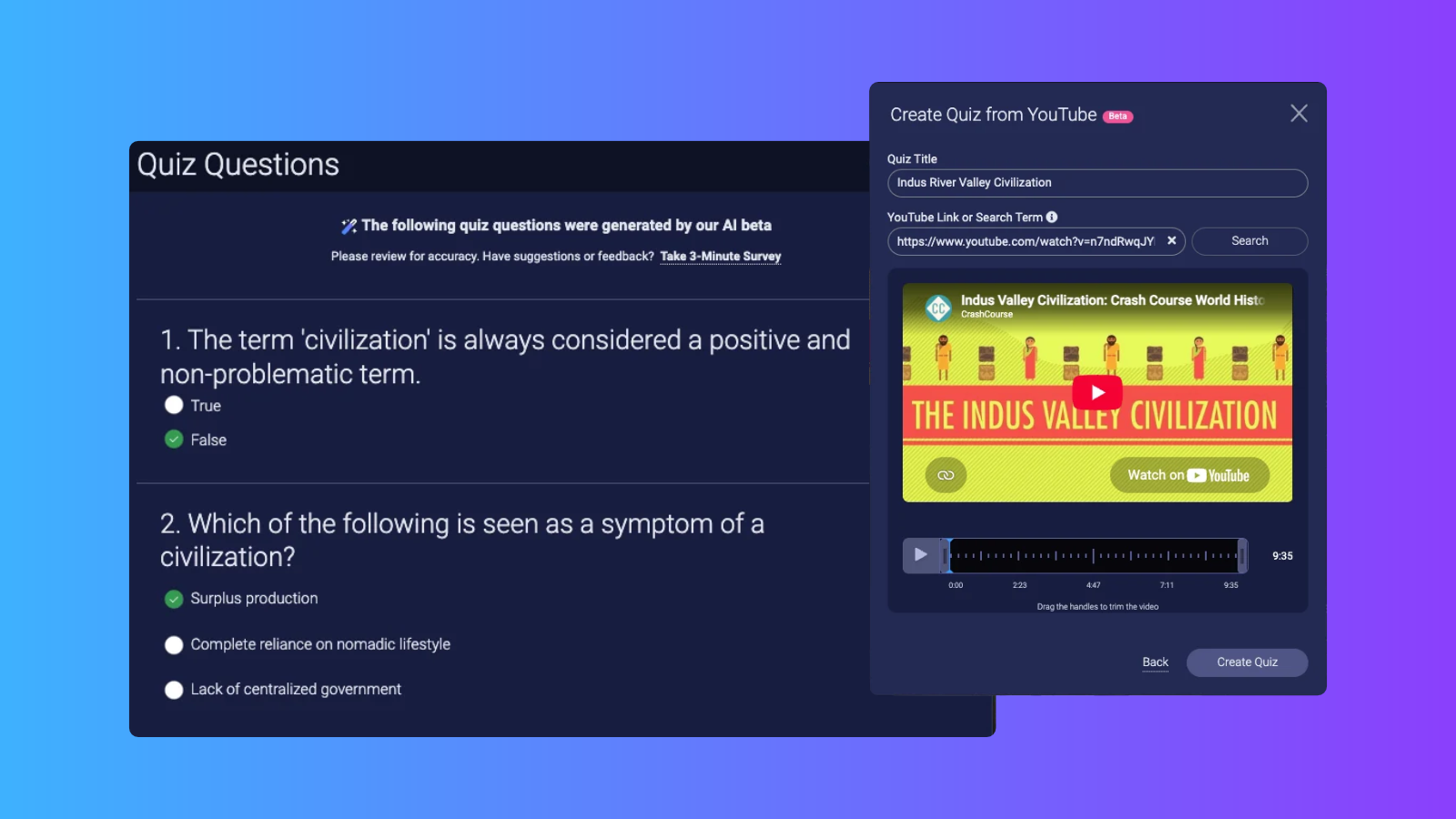
With ScreenPal’s interactive video quizzes, teachers can check for understanding, reinforce key concepts, and encourage active participation throughout a lesson.
Whether it’s your own recordings or a YouTube video, add multiple-choice, true/false, or short-answer questions to transform passive viewing into an engaging learning experience. You can also incorporate polls and ratings to collect feedback from students.
For example, a teacher might:
- Add comprehension questions throughout a recorded reading lesson.
- Check student understanding after demonstrating a math problem.
- Incorporate knowledge checks into a science experiment video.
- Use a short video quiz as an exit ticket or review activity.
These interactive assessments help teachers identify learning gaps and provide students with opportunities to demonstrate their understanding.
Automatically sync quiz grades with Google Classroom
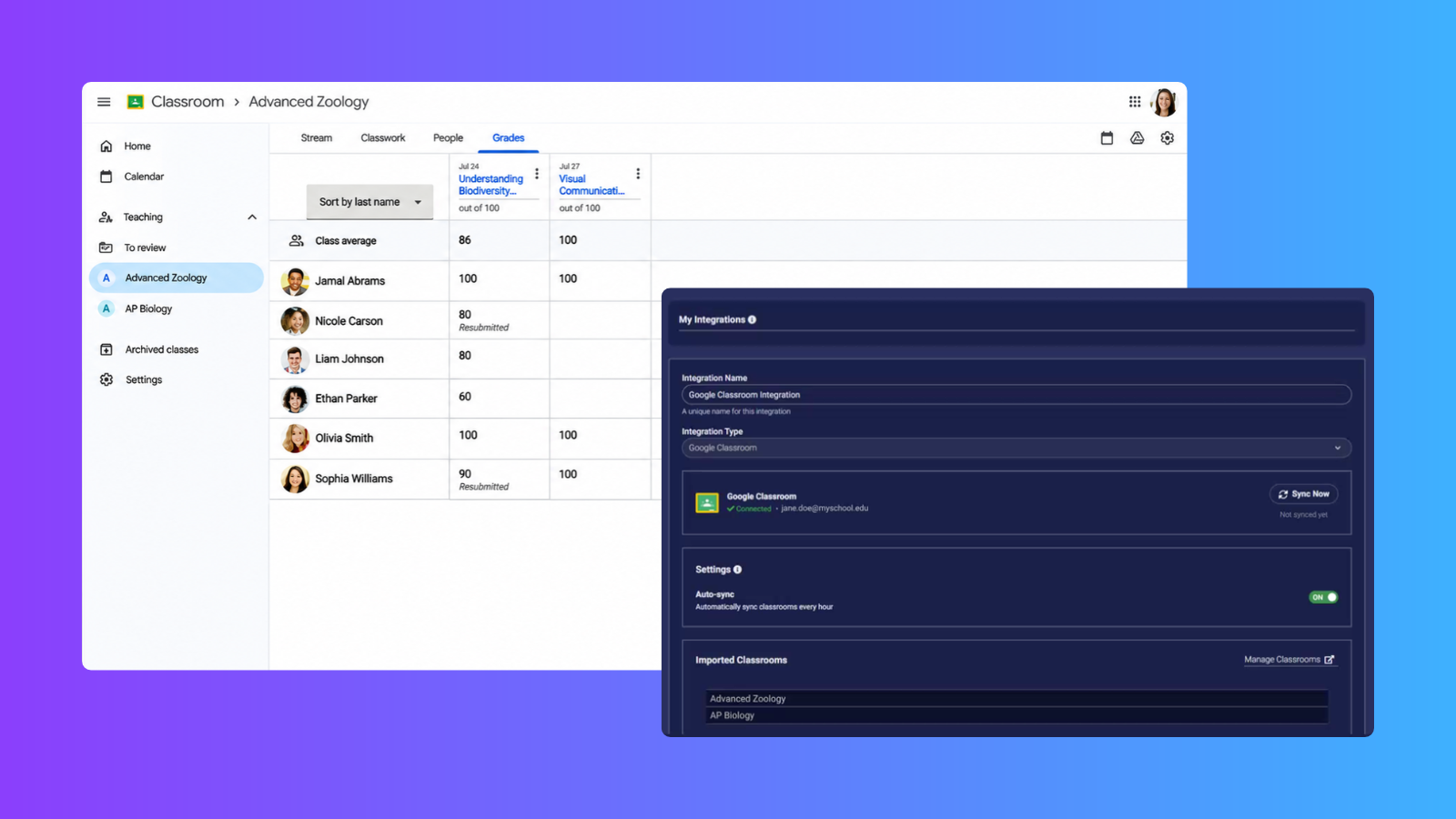
One of the most exciting features of our Google Classroom integration is automatic quiz grade syncing.
Teachers can now assign ScreenPal video quizzes through Google Classroom and have student scores automatically synced to their Google Classroom gradebook.
That means less time transferring grades between platforms and more time using assessment results to guide instruction.
Here’s how it works:
- Create an interactive video quiz in ScreenPal.
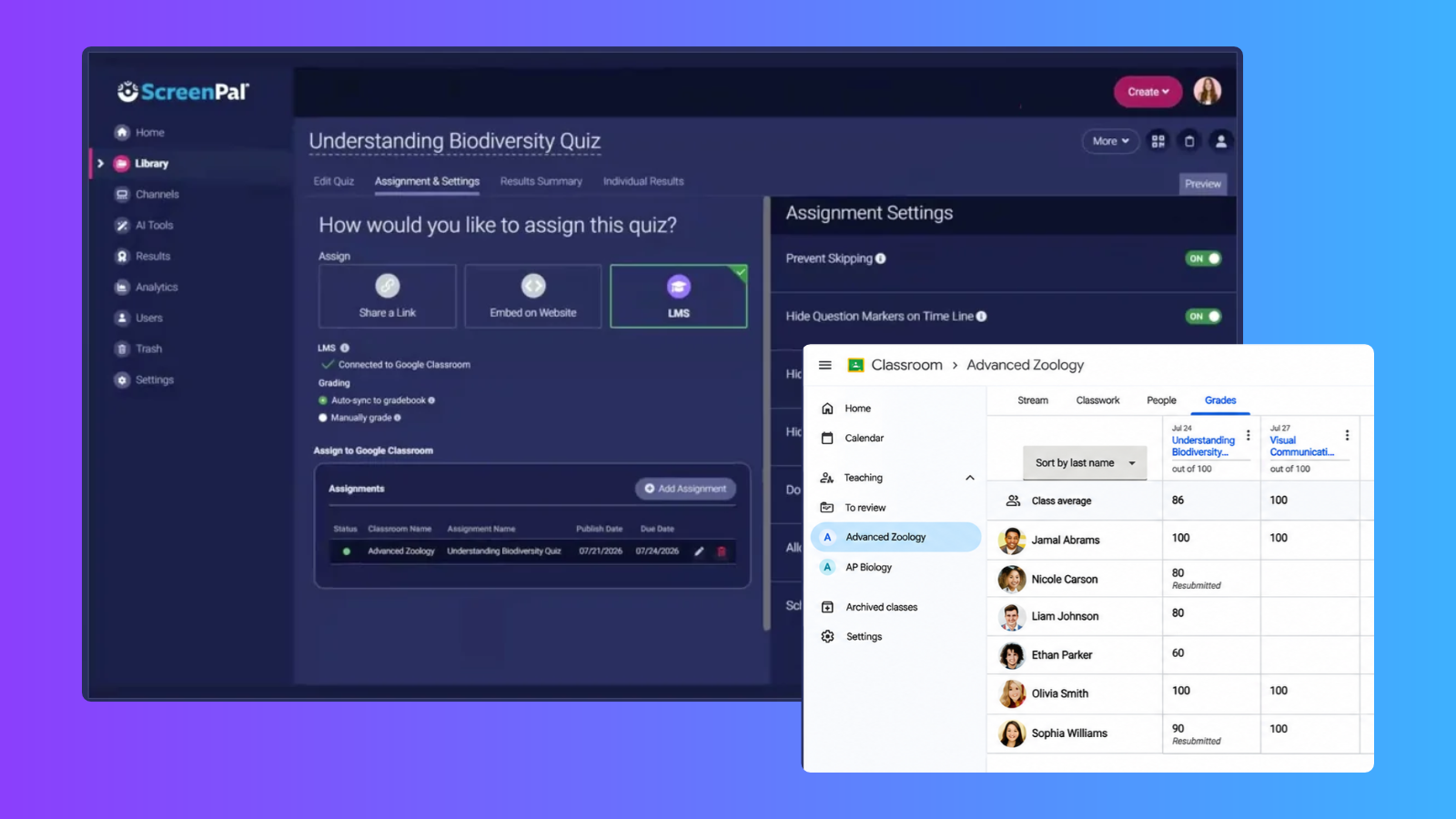
- Open the quiz’s Assignment & Settings tab and select the LMS assignment option.
- Choose your connected Google Classroom course and enable Auto-sync to gradebook.
- Assign the quiz to your students.
- As students complete the quiz, their scores automatically sync to your Google Classroom gradebook.
It’s a simpler way to incorporate formative assessment into your everyday teaching workflow.
Note: Automatic grade syncing is available for supported auto-graded quiz questions. Short-answer questions must be manually graded before their scores can be synced to the gradebook.
Create engaging video lessons with powerful, easy-to-use tools
Great video lessons start with tools that make content creation simple.
ScreenPal gives K-12 educators everything they need to record, edit, and enhance instructional videos, whether they’re creating a quick explanation or a complete lesson.
Record lessons your way
Capture your screen, webcam, or both using ScreenPal’s desktop or browser-based screen recorder.
Take advantage of flexible recording tools designed to help teachers communicate clearly and creatively:
- Teleprompter: Keep your lesson organized and stay on track with a prepared script while recording.
- Recording canvas: Explain concepts visually using a digital whiteboard.
- Drawing and annotation tools: Highlight important details and guide students’ attention.
- Creative effects: Personalize your recordings and make lessons more visually engaging.
From step-by-step math tutorials to narrated presentations and personalized student feedback, ScreenPal helps educators bring their lessons to life.
Edit and enhance your videos
Once you’ve finished recording, ScreenPal’s video editing tools make it easy to polish your content.
Trim unnecessary sections, add text and annotations, incorporate music, or use visuals from the stock media library to create more engaging instructional videos.
Teachers can create professional-looking lessons without needing advanced video production experience.
Save even more time with ScreenPal AI
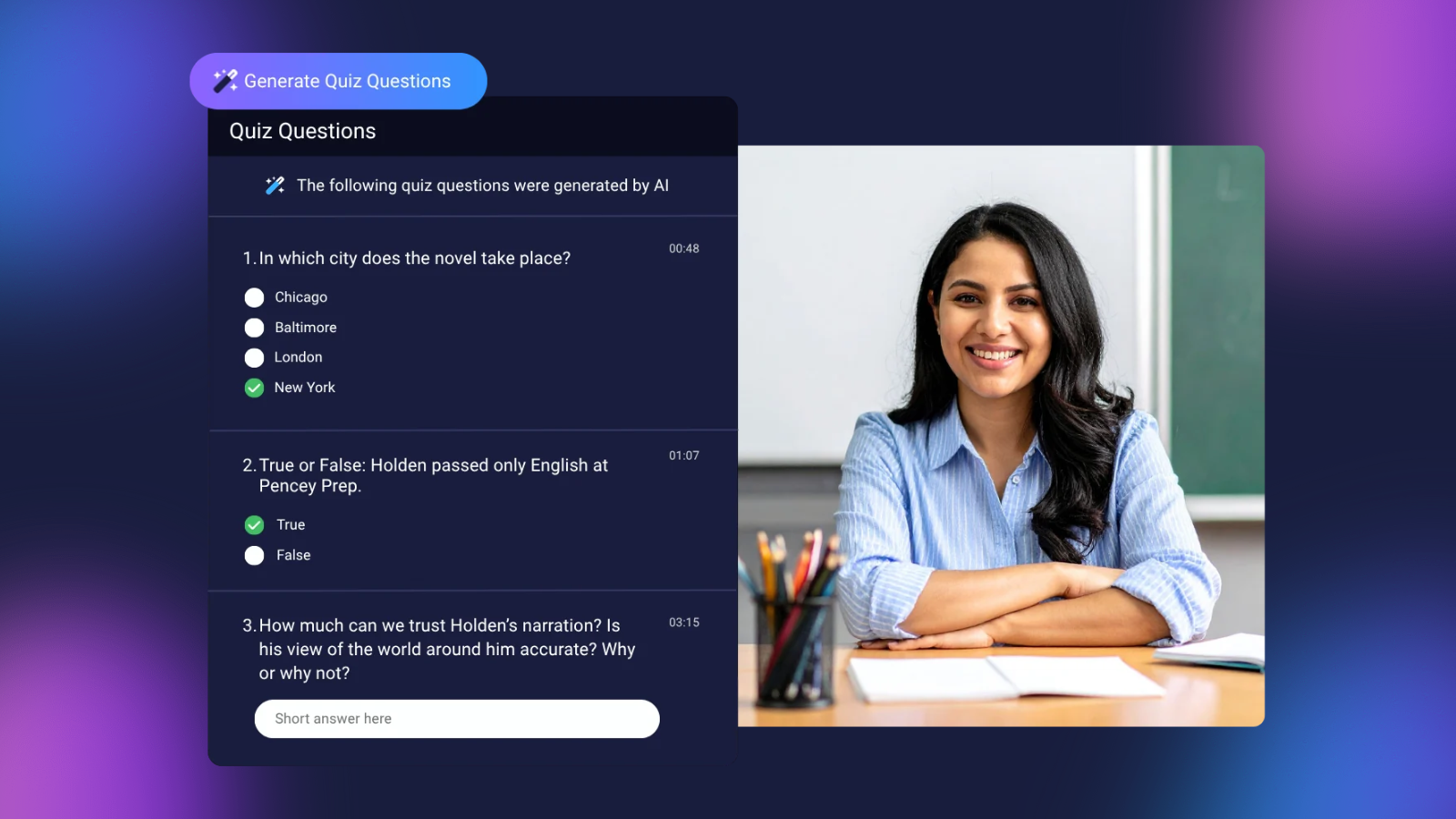
Teachers have enough on their plates. ScreenPal’s AI-powered tools help simplify video creation so educators can spend less time producing content and more time supporting students.
Generate video quiz questions with AI
Creating meaningful assessments takes time, but ScreenPal AI can help speed up the process.
With AI-generated quiz questions, teachers can turn narrated instructional videos into interactive learning activities in just a few clicks.
ScreenPal analyzes the video content and suggests quiz questions that teachers can review, customize, and add to their lessons.
It’s a convenient way to build knowledge checks, reinforce important concepts, and make video lessons more interactive.
Turn ideas into videos for Google Classroom
Need a quick visual explanation or an engaging introduction to a new topic?
ScreenPal’s AI video creation tools can help transform ideas, scripts, and existing content into videos.
Whether you’re introducing a science concept, creating a vocabulary review, or developing supplemental learning materials, these tools help make instructional content creation more efficient.
Note: Availability of AI-powered features varies by ScreenPal plan. Some tools may require a Solo Max or Team subscription.
Support diverse learners with accessible video lessons
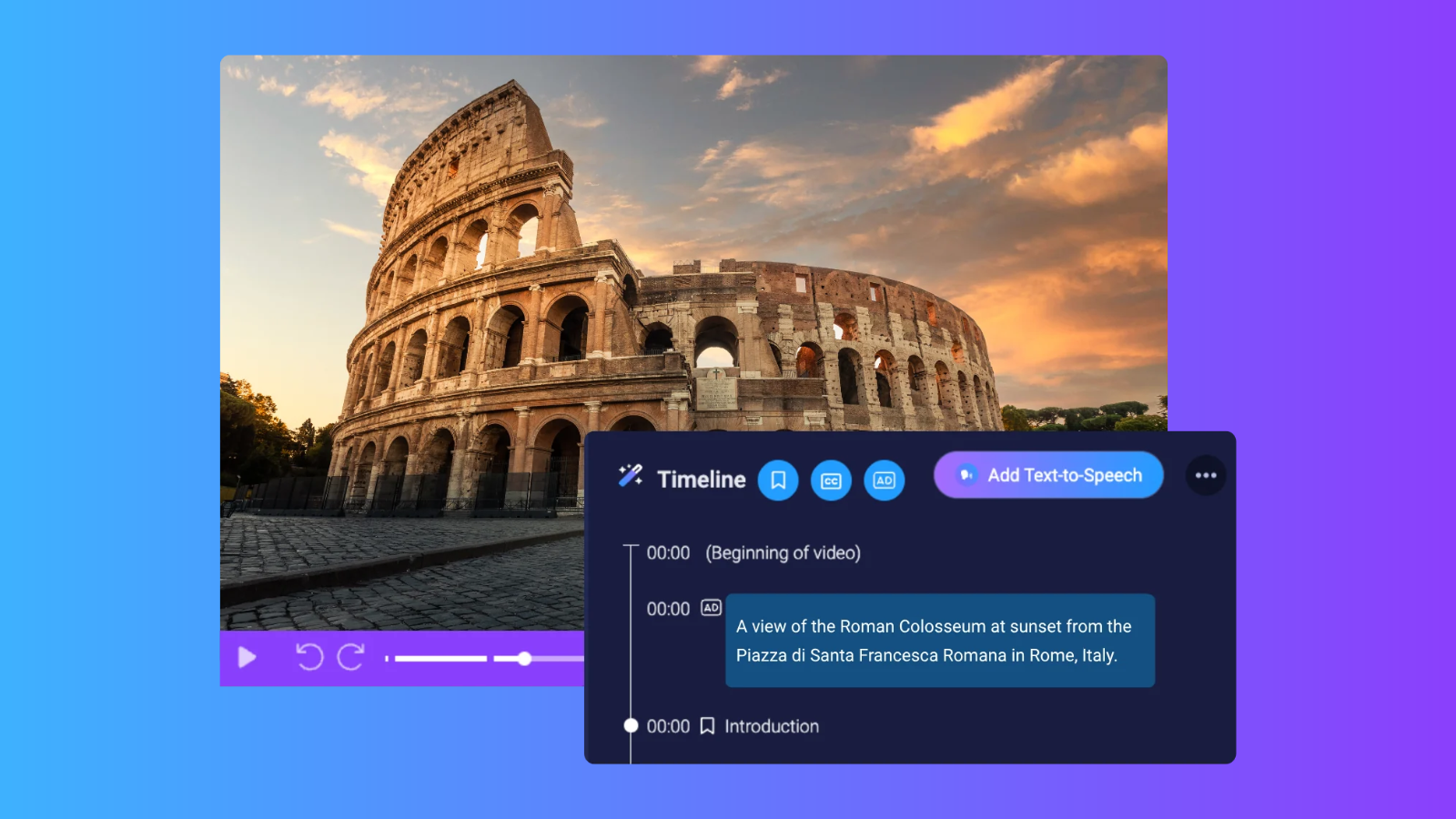
Every student deserves access to engaging learning experiences.
ScreenPal includes powerful accessibility features that help teachers create instructional videos designed to support a wide range of learning needs.
Educators can enhance videos with:
- Automated captions: Make spoken content available in text for students who benefit from reading along.
- Caption translations: Translate captions into 140 languages to help multilingual learners access and understand instructional content in their preferred language.
- Audio descriptions: Make instructional videos more accessible to students who are blind or have low vision with AI-generated narration that describes important visual information.*
- Adjustable playback speed: Allow students to slow down or speed up videos to match their learning preferences.
- Video chapters: Organize longer lessons so students can easily navigate to important sections.
When teachers share ScreenPal videos through Google Classroom, students can use available playback and accessibility controls to personalize their viewing experience.
These features are especially valuable for differentiated instruction, independent review, and helping students access learning materials beyond the classroom.
*Note: With ADA Title II accessibility requirements taking effect in April 2027 for many larger public school districts, ScreenPal’s built-in audio description tools help educators prepare for compliance without relying on additional software.
Getting started with ScreenPal and Google Classroom is easy
Ready to simplify your video-based instruction?
Connecting ScreenPal with Google Classroom takes just a few steps.
Step 1: Connect your accounts
Log into ScreenPal and navigate to Settings > Integrations. Add Google Classroom as an integration, connect your Google account, and select the classes you want to import.
Step 2: Create your content
Record a new video, upload an existing lesson, or create an interactive video quiz using ScreenPal.
Step 3: Share to Google Classroom
From your ScreenPal library, open the video you want to share and select Share > Google Classroom.
Choose whether to share your video as an assignment, class material, question, or announcement.
For video quizzes, use the LMS assignment option to share your quiz and enable gradebook syncing.
That’s it! You’re ready to start creating more engaging learning experiences for your students.