

 Main Menu
Video can do much more than deliver information. Used intentionally, video engagement can help educators personalize instruction, give students more control over how they learn, invite them to explain their thinking, and make classroom communication more accessible to every family.
During the ScreenPal Innovative Learning Summit, edtech and curriculum consultant Dr. Monica Burns shared practical ways to make video part of the school year without trying to transform every lesson at once. The founder of Class Tech Tips, host of the Easy EdTech Podcast, and author of EdTech Essentials, Monica demonstrated how educators can use ScreenPal to create short instructional videos, generate new content with AI, support student reflection, check for understanding, and strengthen family connections.
Her central message was refreshingly manageable: choose one direction, connect it to a routine you already use, and build from there.
Table of contents
- Build a video engagement strategy around assess, create, and generate
- Use video engagement to make learning more flexible
- Teach students how to learn from video
- Support video engagement through self-paced learning
- Use AI to create video engagement opportunities
- Increase video engagement by transforming existing slide decks
- Make video engagement easier with simple recording tools
- Build video engagement through student-created content
- Boost video engagement with built-in assessment
- Improve video engagement with accessible content
- Choose one idea and press play
Build a video engagement strategy around assess, create, and generate
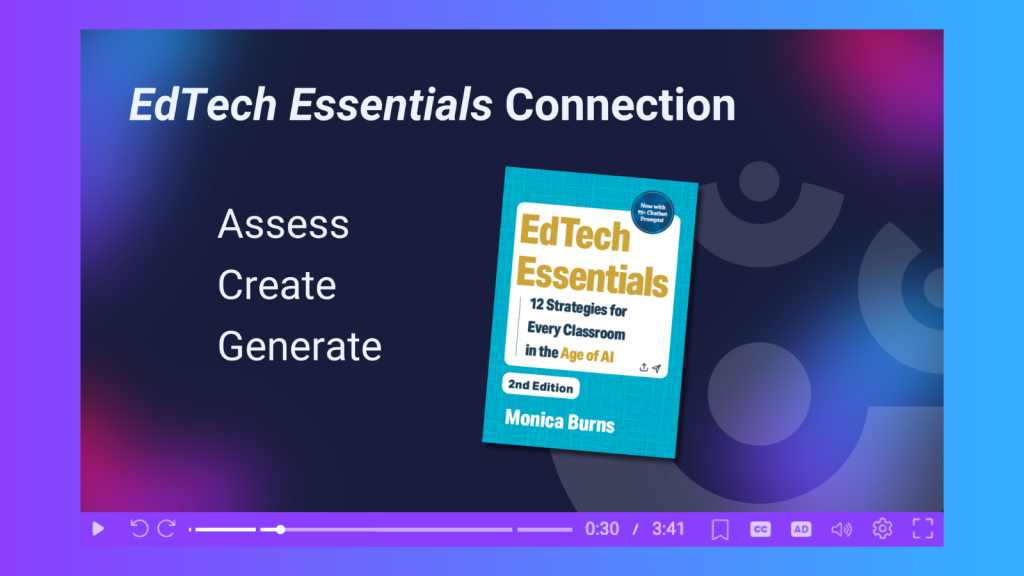
Monica anchored the session in three of the strategies from the second edition of her book, EdTech Essentials: assess, create, and generate.
Assess means using video to check for understanding and respond to what students need. An educator might add questions to a lesson video, create a targeted explanation after reviewing assessment data, or give a student personalized video feedback.
Create applies to both teachers and students. Educators can build resources that combine video, audio, text, slides, and screen recordings. Students can use the same formats to demonstrate a skill, explain a concept, reflect on their learning, or present a project.
Generate describes using AI to help produce new materials. Instead of beginning with an empty timeline, educators can use a prompt or an existing slide deck to generate a script and a first version of a video, then apply their professional judgment to make it right for their learners.
Together, these three actions turn video from a passive resource into part of a larger instructional cycle: create or generate content, invite students to engage with it, assess what they understand, and use those insights to decide what comes next.
Use video engagement to make learning more flexible
Monica began with two familiar instructional models: blended learning and flipped learning.
In a blended classroom, video works alongside face-to-face instruction. Students might watch a short clip during a station rotation, view an example before beginning independent work, or watch a whole-class video before discussing it with a partner. Because everyone does not necessarily need the same resource, teachers can also use video to personalize learning paths based on assessment data, prior knowledge, or student interest.
In a flipped model, students encounter core content before class and use shared time to apply it. They might learn the background of a science experiment before conducting it in class, or watch an explanation of the causes of the American Revolution before discussing evidence in small groups. Class time can then focus on questions, clarification, collaboration, and practice.
Video also creates a resource students can revisit. A screen recording can provide visual reinforcement, walk learners through a process, or help an absent student catch up. With the option to pause, rewind, slow down, and replay, students can engage with an explanation at the pace they need.
The goal is not to use video simply because it is available. The value comes from matching the format to the learning need: preview, model, explain, review, extend, or respond.
Teach students how to learn from video
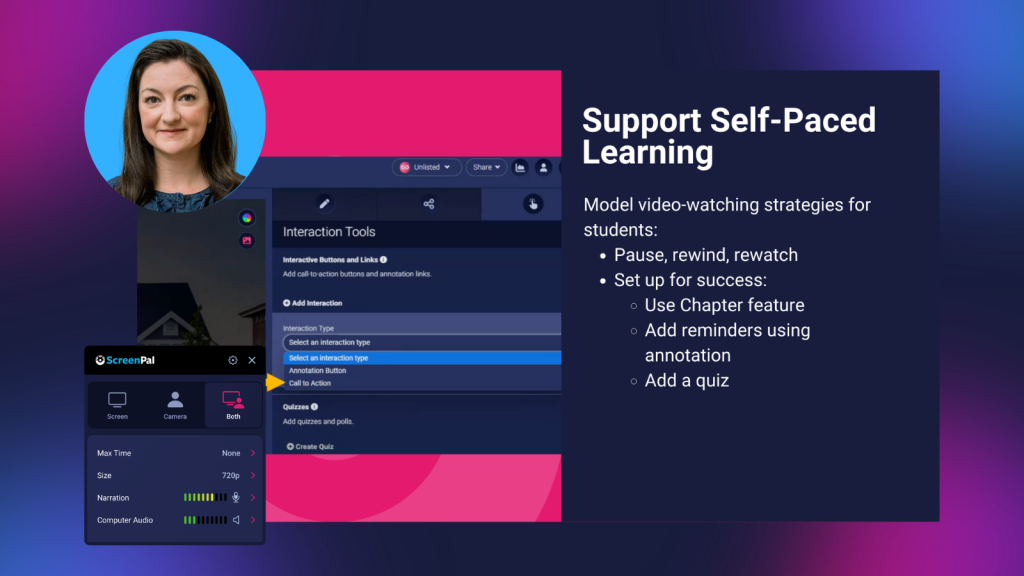
Giving students control of playback does not automatically mean they know how to use that control strategically. Monica encouraged educators to explicitly model the behaviors that support self-paced learning.
Show students when and why they might:
- Pause to process a new idea
- Rewind to hear an explanation again
- Rewatch a model before trying a task independently
- Use captions or a transcript to reinforce meaning
- Respond to a prompt, quiz, or call to action before continuing
These moves may feel intuitive to adults who regularly learn online, but students still need opportunities to build the habit. Educators can reinforce those habits by adding annotations, reminders, questions, and calls to action directly within a video.
This is an important distinction: effective video learning is not only about what the teacher creates. It is also about helping students become more intentional viewers.
Support video engagement through self-paced learning
A full flipped-learning initiative can feel ambitious if video is new to your classroom. Monica’s advice was to begin with one small use case, such as a brief video hook at the start of a lesson.
A short video can:
- Activate prior knowledge
- Introduce a new vocabulary term
- Connect today’s lesson to something students learned earlier
- Preview a process or question
- Spark curiosity about a new topic
Monica suggested setting a timer and aiming to keep a first video under five minutes. Rather than recording an entire lesson, choose one chunk: one math problem, one writing strategy, one misconception, or one key idea.
Screen annotations can help focus attention while recording. Using ScreenPal’s drawing tools, an educator can underline a phrase, circle a detail, mark up an example, or point to a step as it happens during their screen recording. The result feels less like a recorded lecture and more like a guided model students can return to when they need it.
Use AI to create video engagement opportunities
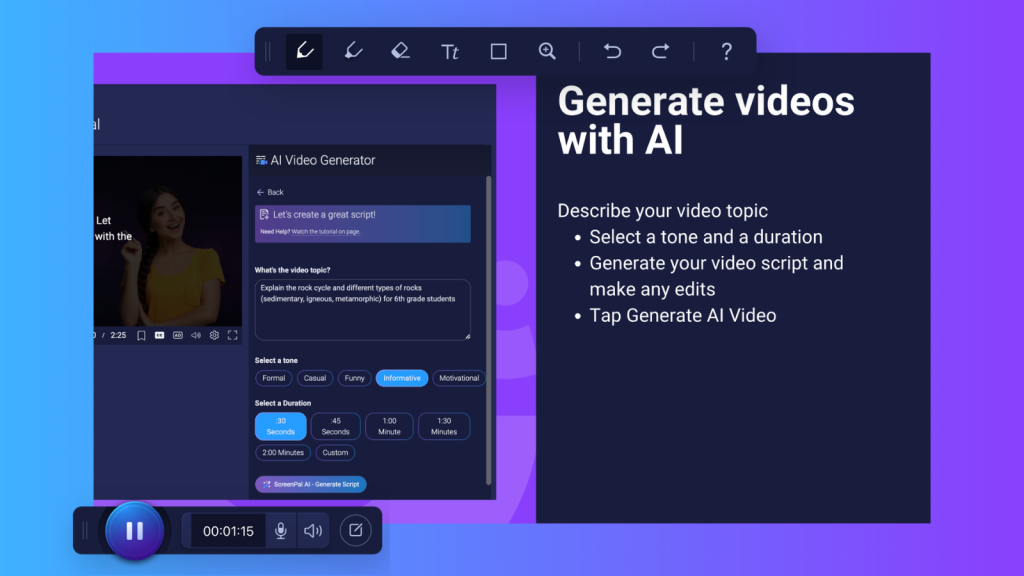
For educators who need content quickly, Monica demonstrated ScreenPal’s AI text-to-video workflow. The process begins with a description of the topic, followed by choices such as tone and duration. ScreenPal generates a script for review and, once the educator is satisfied, turns that script into a video with narration, visuals, and captions.
In her demonstration, Monica asked for a short, informative explanation of the rock cycle for sixth-grade students, including igneous, sedimentary, and metamorphic rocks. ScreenPal generated a timed script, which she could review and revise before creating the video.
That review step matters. As Monica emphasized, the educator remains “in the driver’s seat.” AI can accelerate production, but teachers still bring the expert eye required to confirm accuracy, adjust vocabulary, align the content with a lesson, and decide what is appropriate for their students.
AI-generated video can be useful for:
- A quick lesson hook
- A concise topic overview
- A visual explanation of unfamiliar vocabulary
- A review resource
- An extension for students interested in a subtopic
- Targeted content for a particular learning need
The feature can also make differentiation more realistic. If only a few students need additional background or want to explore a related topic, a teacher can create a focused resource without having to record every element from scratch.
Increase video engagement by transforming existing slide decks
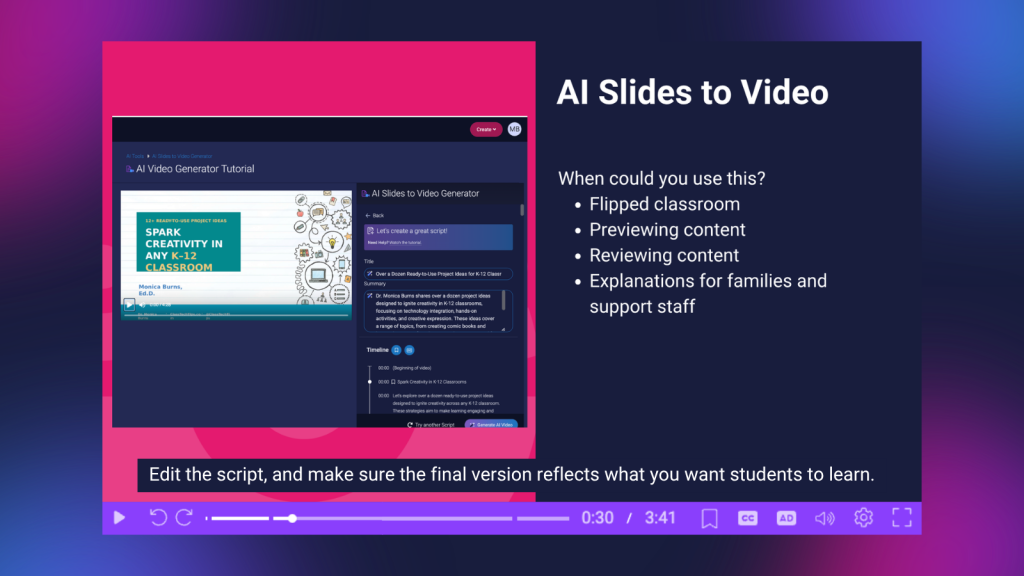
Educators often have years of useful material stored in slide decks. ScreenPal’s AI Slides to Video feature offers a way to transform those existing resources into videos for preview, review, flipped instruction, or asynchronous learning.
After uploading a PowerPoint or PDF, ScreenPal can use the slides and available speaker notes to generate a script and narrated video. Educators can review the proposed timeline, edit the script, and make sure the final version reflects what they want students to learn.
Monica demonstrated the workflow with a presentation she had previously delivered at a conference. The original live session included interaction and discussion, while the generated video distilled the material into a more focused resource that someone could watch later.
The same approach can work in the classroom. A teacher might turn a slide deck into a video to:
- Introduce material before an in-person lesson
- Give a student additional processing time
- Help learners review at the end of a unit
- Share an explanation with support staff
- Help families understand what students are learning
- Provide access to someone who missed the live presentation
This is not simply content conversion. It is a chance to reuse strong instructional materials in a format students can control and revisit.
Make video engagement easier with simple recording tools
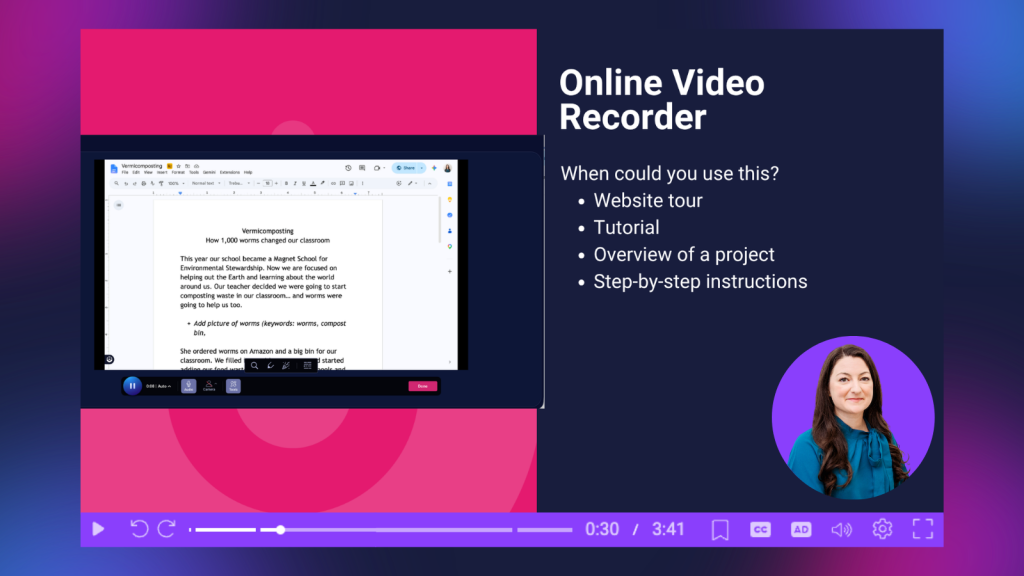
Not every video needs AI. Monica also showed how ScreenPal’s online recorder makes it possible to record a screen, webcam, or both directly from a browser.
That flexibility supports a wide range of practical classroom resources: a tour of a research website, an introduction to a new digital tool, a walkthrough of a project rubric, or step-by-step instructions for an assignment. Drawing and annotation tools can become part of the recording, allowing teachers to highlight the exact part of the screen students should notice.
For educators who want help staying concise, Monica recommended trying the teleprompter available with the desktop recorder and the online recorder. A script can scroll near the webcam while the educator records, with controls for text size, speed, and placement. It is especially useful when every detail matters, such as a process tutorial or an announcement for families.
A teleprompter can also reduce recording anxiety. Instead of worrying about forgetting a step or starting over after a missed point, the educator has a guide visible on screen and can focus on delivering the message clearly.
Build video engagement through student-created content
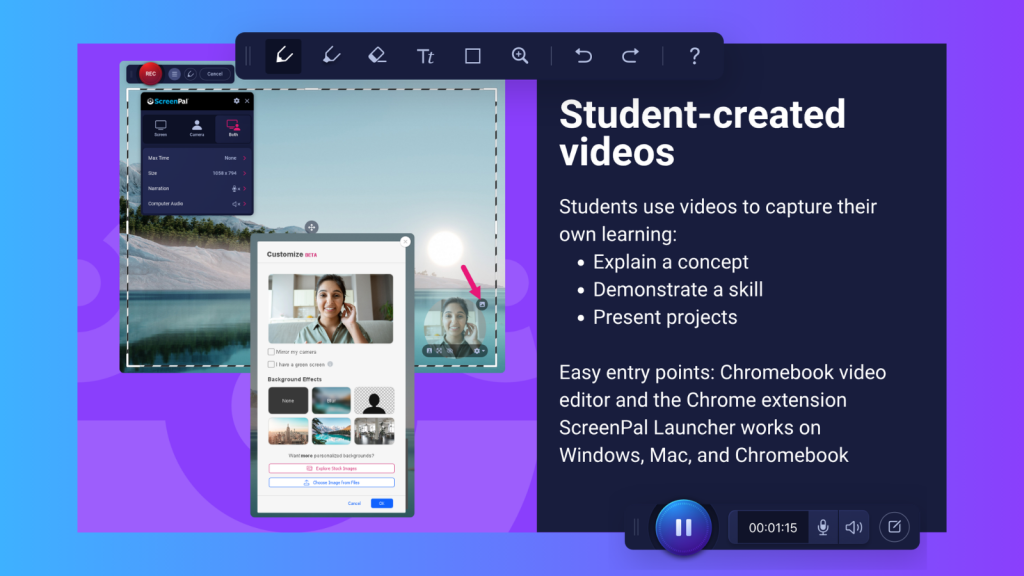
Student-created video can capture learning in ways a conventional written response may not. Students can explain a concept, demonstrate a skill, present a project, reflect on their choices, or talk through their reasoning.
But asking students to produce a polished video immediately may create unnecessary friction. Monica recommended beginning in a familiar space and scaling up as confidence grows.
With the ScreenPal Chrome browser extension, students can record while working in tools they already use. Monica demonstrated how a video can be added to a Google Docs comment. Instead of writing all their feedback, students could record a short response about a specific passage in a classmate’s document. They could also use the feature to explain their own thinking to a teacher.
This creates a natural entry point for:
- Peer feedback
- Reflection
- Revision explanations
- Think-alouds
- Short demonstrations of understanding
Because the recording is connected to an established classroom routine, students can focus on expressing their thinking rather than learning an entirely new production workflow.
Boost video engagement with built-in assessment
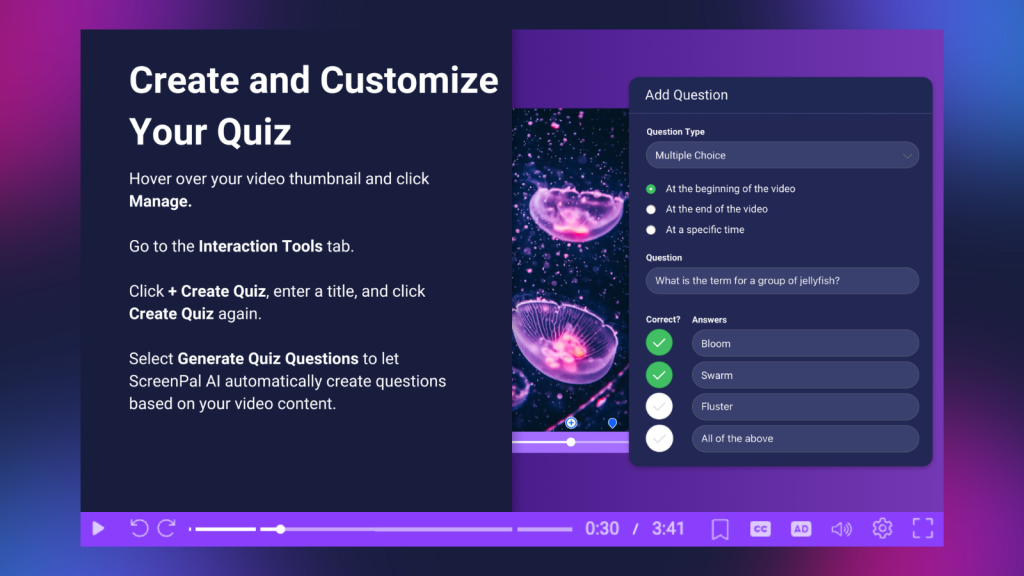
Video becomes more instructionally useful when educators can see how students are responding. Monica demonstrated how teachers can add interactive questions to a ScreenPal video, whether the video was uploaded, recorded, or generated with AI.
Question types can include multiple choice, true or false, short answer, polls, and ratings. Educators can write their own questions or use ScreenPal AI to generate a starting set.
Embedded questions can serve several purposes. They can prompt students to retrieve a key fact, make a prediction, reflect on their confidence, or explain their reasoning. In a blended or flipped lesson, they also give the teacher information to use during the next in-person interaction.
That closes the loop between video and instruction. Students do not simply watch; they respond. Teachers do not simply publish; they gather evidence and adjust.
Improve video engagement with accessible content
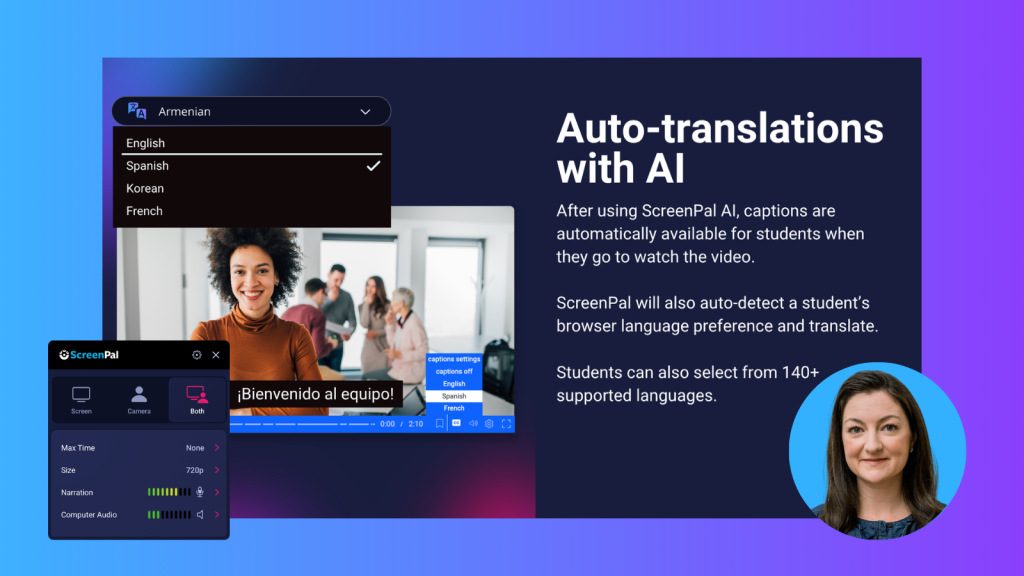
Accessibility was woven throughout Monica’s session rather than treated as a final production step. Once uploaded, teachers can utilize ScreenPal AI to include captions, and content can be translated to help learners access it in a preferred language.
Those tools also create important opportunities for family communication. A teacher can record a back-to-school presentation for relatives who cannot attend, explain a math strategy that may be unfamiliar to adults at home, or show families how to find a report card or navigate a school platform.
For example, Monica recalled learning the lattice method of multiplication as a fifth-grade teacher. A short video would have helped families understand the method and support homework, even if it was not how they had learned multiplication themselves.
Language access can make these resources more useful to more households. During the discussion, the ScreenPal team shared an example of a teacher who needed content in Swahili for a refugee community. Translation and AI narration made it possible to provide the material in the language families needed, rather than defaulting only to the most commonly offered translation.
Educators can organize recurring family resources in a ScreenPal channel and share one link throughout a semester or school year. A password can be added when appropriate. Mobile screen recording is also useful for tutorials because the steps for accessing a parent portal or classroom app on a phone may look very different from the desktop experience.
One helpful tutorial can answer a question for far more than the first person who asks it. Over time, a small channel of frequently requested videos can improve access for families while saving educators from repeatedly explaining the same process.
Choose one idea and press play
Monica closed by asking educators to identify one way they could use video in the coming school year. That “one” is important.
You do not need to build a full library, flip an entire course, and launch student video projects at the same time. You might begin with a two-minute hook. Turn one well-used slide deck into a review video. Add one comprehension check to an existing recording. Invite students to leave one video comment. Create one mobile tutorial for families.
Each of those choices can make learning more flexible, visible, and accessible. Once the routine works, it can grow.
Ready to try one of Monica’s ideas? Create, edit, and share your next learning video with ScreenPal.
About the speaker
Dr. Monica Burns is an EdTech consultant, author, speaker, and the founder of Class Tech Tips, where she helps educators use technology strategically and with intention. A former classroom teacher, Monica has led hundreds of professional development workshops for educators and spoken at conferences around the world, sharing practical strategies that keep learning, not technology, at the center.
Monica is the author of several books on educational technology, including EdTech Essentials: The Top 10 Technology Strategies for All Learning Environments, and the host of the Easy EdTech Podcast. Through her books, podcast, blog, workshops, and online resources, she helps educators navigate emerging technology, design meaningful learning experiences, empower students as creators, and make thoughtful choices about the digital tools they bring into the classroom.