Main Menu
Creating an online course can get complicated quickly.
There’s the outline and learning objectives. The script. The recording. The editing. The accessibility considerations. The question of how long each video should be, and how to keep learners engaged once they press play.
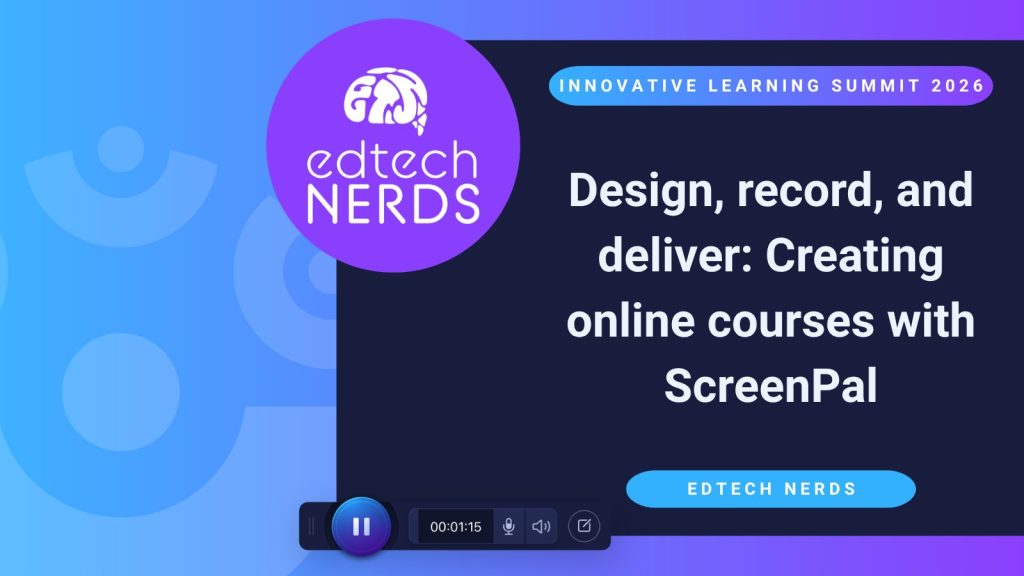
During the ScreenPal Innovative Learning Summit, Kris Thurston and Destiny Wagner, aka the EdTech Nerds, tackled that entire process in their session, Design, Record, and Deliver: Creating Online Courses with ScreenPal.
Known for sharing practical ideas that help educators make better use of technology without adding unnecessary stress, Kris and Destiny brought the same mindset to course creation. Their session focused on the audience, a practical production workflow, and the ScreenPal tools they use to turn course ideas into accessible, engaging learning experiences.
Their message throughout the session was clear: start with the learner, keep the content focused, and create a workflow that makes the process manageable.
Keep reading to learn how to:
- Start with the learner
- Make learning easier to digest with microlearning
- Build trust with a consistent learning experience
- Plan visually with storyboards
- Turn a script into narration
- Batch your recording without creating one giant video
- Make mistakes easier to edit
- Use visual cues to guide attention
- Keep your script at eye level with the teleprompter
- Use AI to accelerate accessibility tasks
- Add interaction instead of relying on passive viewing
- Make course content accessible across languages
- Plan how learners will access the content
- Put the entire workflow together
- Start with one lesson
- About the speakers
Start with the learner in your online course
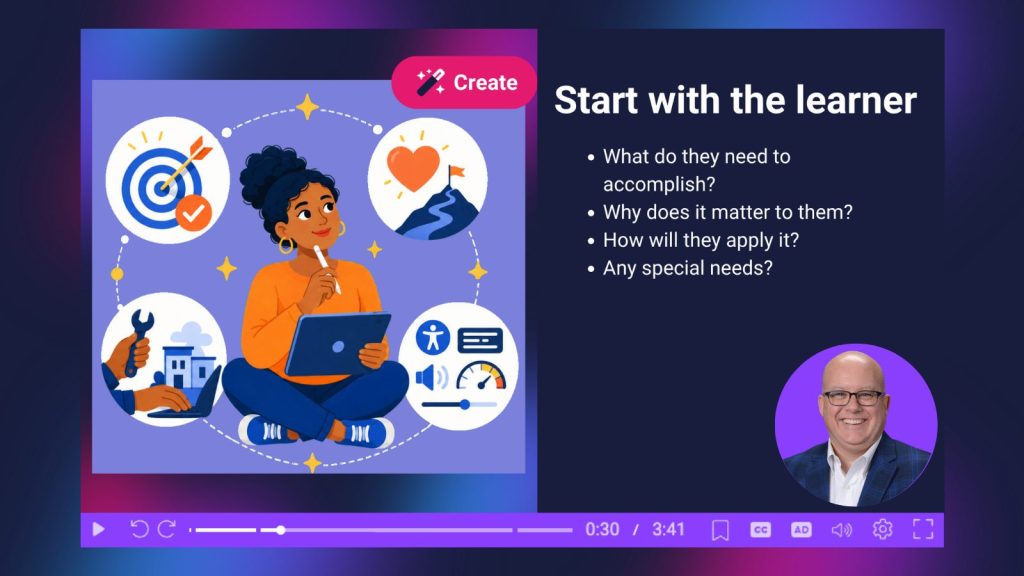
Before deciding what to record, Kris and Destiny encouraged educators to think about who will be watching.
Who is your audience? What do you need them to accomplish? Why does it matter? How will they apply what they learn? And are there accessibility needs you should consider as you design the course?
Those questions move the focus away from simply covering content and toward designing something learners can actually use.
That learner-first approach also influences one of the EdTech Nerds’ strongest recommendations: keep instructional videos short.
Make online course learning easier to digest with microlearning
Kris and Destiny are big fans of microlearning: short, focused, practical lessons that are easy for learners to revisit.
They described the familiar experience of opening an online course only to discover that the next video is 48 minutes long. Staying focused for that long can be difficult, whether the audience is students or busy adult learners.
Instead, they recommend delivering content in short “micro bursts.” For younger learners, their rule of thumb is roughly one minute per grade level, up to seven minutes. Even for older students and adults, they recommend trying to stay under seven minutes. For microlearning-style videos specifically, Destiny suggested aiming for about two to four minutes.
If a concept requires more time, break it into smaller pieces.
As Kris put it, six five-minute videos can be easier to approach than one 30-minute video. Shorter content also fits the way many learners are accustomed to consuming information: in focused pieces they can access when and where they need them.
Build trust with a consistent learning experience in your online courses
Length isn’t the only thing that makes an effective instructional video.
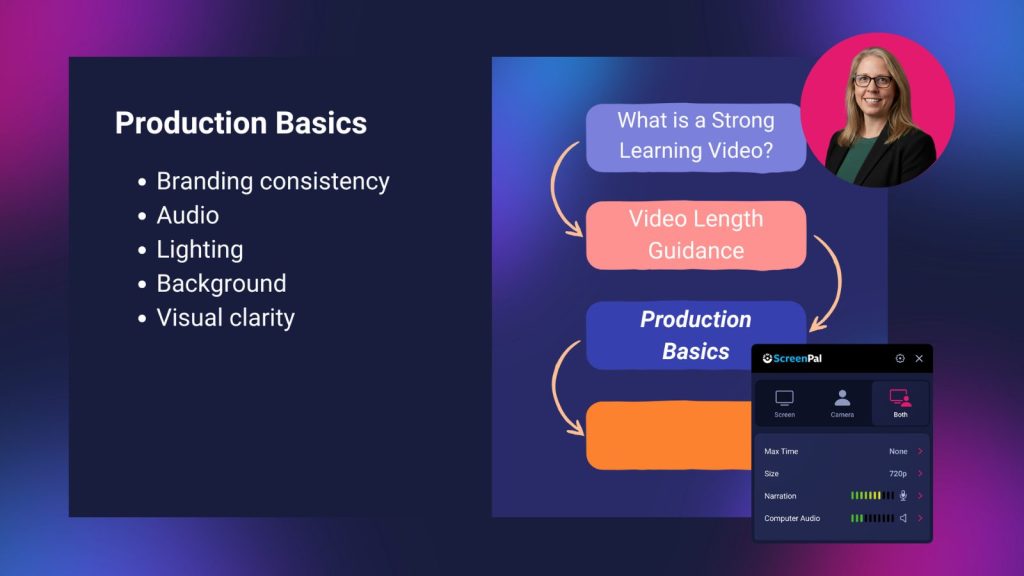
Kris and Destiny also emphasized a consistent look and feel across a course. Familiar colors, logos, and other branding elements immediately help learners recognize that they’ve arrived at the right content.
For Kris, that consistency connects to something even more important: relationships.
Teachers work hard to build relationships and trust with their students. Video provides an opportunity to carry some of that connection into an online learning experience. A recognizable presentation and an instructor’s familiar face can reassure learners that they are in the right place and hearing from someone they trust.
That’s one reason Kris recommends putting your face on camera, at least at the beginning and end of a video, and potentially throughout it. Facial expressions convey emotion and additional information that learners don’t get from text or narration alone.
You don’t need an elaborate studio setup, either. Kris was facing a window during the session and pointed out that natural light can improve webcam video without costing anything. Clear audio, good lighting, and an uncluttered background can reduce distractions and help learners stay focused on the content.
Plan the online course visually with storyboards
Once you know what learners need and how you want to break up the content, the next challenge is organizing it.
This is where Destiny’s favorite course-creation workflow comes in: ScreenPal storyboards.
A storyboard gives creators a visual overview of a course or lesson while keeping scripts, notes, recordings, and media together. Rather than trying to build everything at once, educators can develop their content section by section.
During the session, Kris demonstrated the workflow using the EdTech Nerds’ own Summit presentation.
Their slide deck had been created in Canva and downloaded as a PDF. Kris imported that PDF into a ScreenPal video project, where the individual sections could be dragged, dropped, and reordered. Creators can choose between a graphical storyboard view and a script-based list view, depending on how they prefer to work.
Each storyboard section can include a script and notes. Creators can add existing media or record screen and camera content directly into the section.
That modular approach was central to the EdTech Nerds’ workflow.
Instead of thinking about creating one enormous course video, you can outline a module, break it into clips, add scripts and notes, record the individual pieces, and then revise and assemble them.
Turn a script into narration
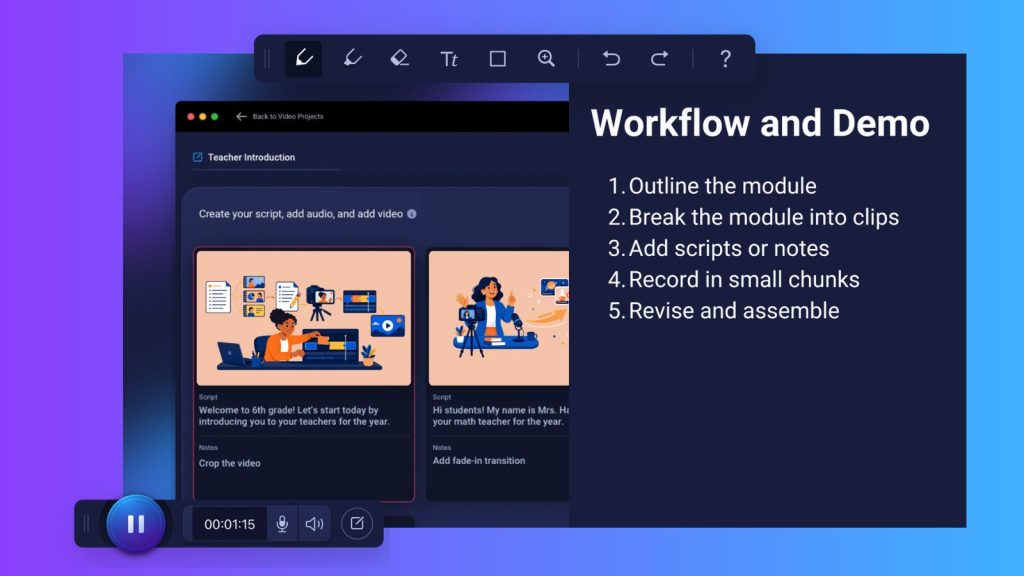
Storyboards can also connect the written planning process directly to narration.
Kris and Destiny demonstrated how text entered into a storyboard script can be turned into text-to-speech narration. The generated voice can read the script for the section, and creators can select different narrator voices.
Destiny pointed to a practical use case: if you’re creating a screencast, generated narration can read the script while you record the on-screen process and mouse clicks.
It’s another example of their larger approach: plan the instructional content first, then use the production tools to make executing that plan easier.
Batch your online course recording without creating one giant video
When the presenters asked attendees which part of course creation felt messiest, outlining, scripting, recording, organizing clips, or deciding what to cut, the responses were all over the board.
Destiny’s response was fitting: storyboards can help with all of them.
They then offered another practical production strategy: batch recording.
Setting up lights, a recording area, a background, and everything else needed to record takes time. Kris pointed out that it doesn’t make much sense to create that setup, record a single five-minute video, tear it all down, edit the video, and then repeat the entire process later.
Instead, prepare your recording environment once and record the content you have planned in the same session.
That doesn’t mean you need to create one enormous recording.
Destiny explained that she used to record one long video and edit it into smaller pieces. Now, using storyboards, she prefers to batch-record the smaller videos individually. That also makes it easier to stop, stretch, refresh, and return to the next segment if you begin stumbling over your words.
Kris uses a slightly different approach for the short help videos he creates in response to specific teacher questions. But for an entire course, he agreed that he would plan the content and batch the recording.
The takeaway isn’t that there is one correct way to record. It’s that planning first gives you options.
Make mistakes easier to edit
Recording instructional video doesn’t require a flawless take.
If you make a mistake, Destiny recommends resisting the temptation to stop and restart the recording. Instead, pause, take a breath, and begin the sentence again.
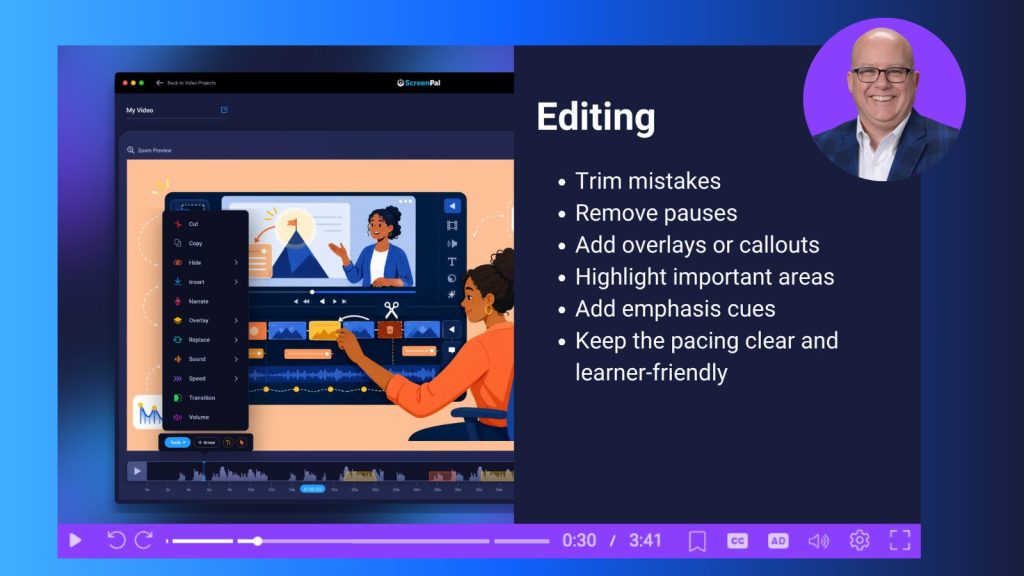
That pause creates an obvious gap in the audio waveform, making the mistake easier to identify during editing. ScreenPal’s silence detection can also identify those sections and provide options to cut, absorb, or speed up the silence.
It’s a simple technique, but one that can make recording feel much less intimidating.
Instead of trying to perform perfectly, you can focus on communicating clearly and clean up the rough edges afterward.
Use visual cues to guide attention throughout your online course
Kris and Destiny also demonstrated editing features that can help learners know where to look.
A highlight can darken the surrounding screen and focus attention on a specific area. Zooms can make that area easier to see. Blur can conceal sensitive information, or even student faces when appropriate, without requiring the entire screen recording to be redone.
Text overlays can reinforce vocabulary, while arrows can point learners toward specific interface elements. Using edit points, Kris demonstrated how an arrow can even move during the video as the focus changes.
For Kris, those graphics and movement serve an instructional purpose: they help move the viewer’s eye and drive engagement with the video.
Keep your script at eye level with the teleprompter
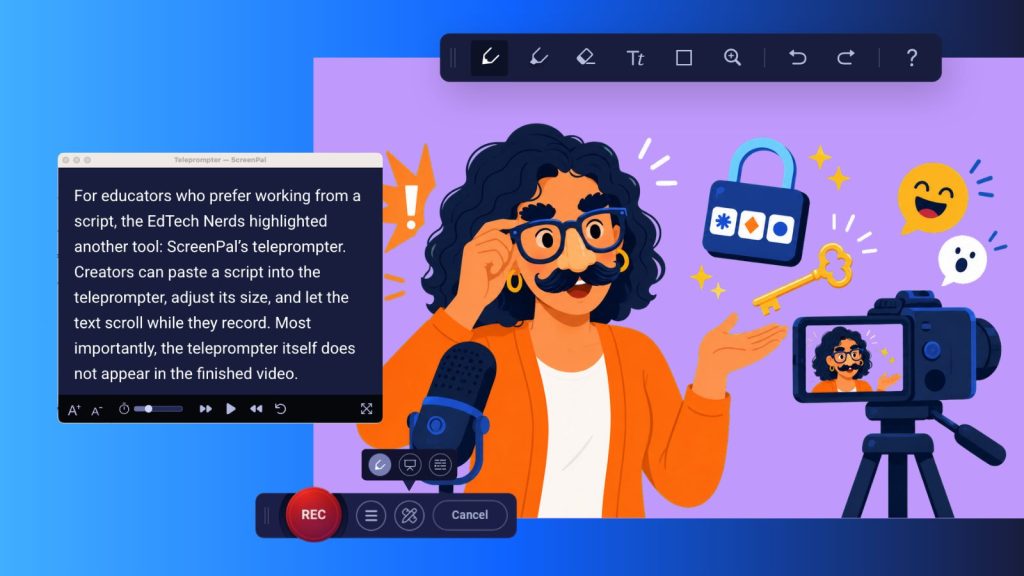
For educators who prefer working from a script, the EdTech Nerds highlighted another tool: ScreenPal’s teleprompter.
Creators can paste a script into the teleprompter, adjust its size, and let the text scroll while they record. Most importantly, the teleprompter itself does not appear in the finished video.
Because the teleprompter window can be repositioned, it can be placed near the webcam to help the presenter keep their eyes closer to camera level instead of repeatedly looking down at notes.
Destiny was particularly enthusiastic about that benefit. In previous courses, she often found herself looking down at a script or off to another part of the screen. With a movable teleprompter that isn’t captured in the recording, she can keep the script where it works best for her setup.
And, as the EdTech Nerds joked, fewer glances away from the camera, and fewer verbal stumbles, may also mean fewer clips for the eventual blooper reel.
Use AI to accelerate accessibility tasks
The session then moved from production into accessibility.
Kris demonstrated ScreenPal AI generating a video title, summary, captions, and chapters. Once generated, the captions remain editable: creators can adjust timestamps and correct words or names.
That editing capability matters. Kris used his own name as an example: automated captions may spell “Kris” as “Chris,” so creators still need to review and correct generated content.
The session also showed how creators can link directly to a particular point in a video, a useful option when a longer recording contains the answer to a learner’s question several minutes in.
Add interaction to your online course instead of relying on passive viewing
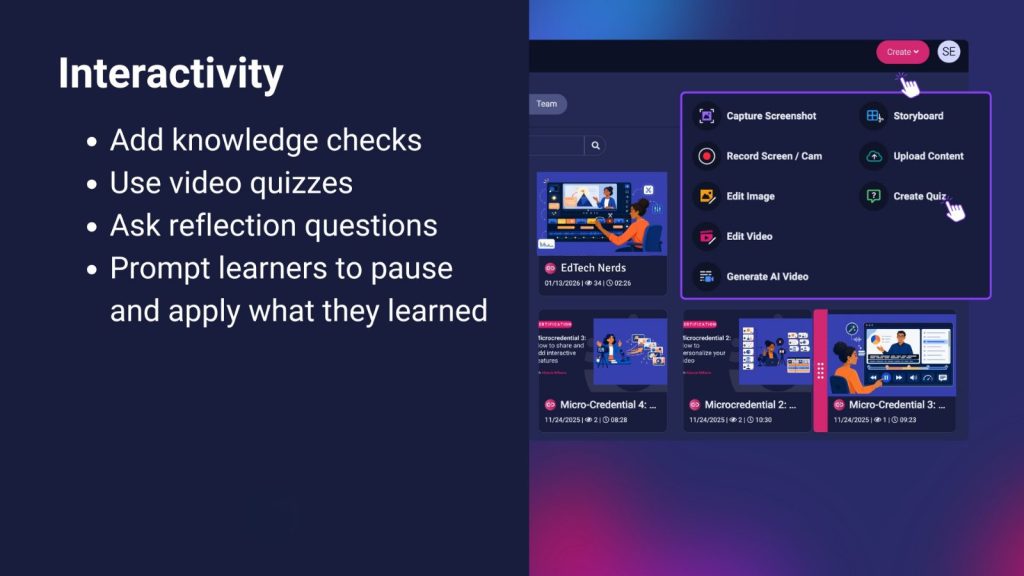
A video doesn’t have to be a passive experience.
Kris and Destiny demonstrated ScreenPal interactions that can add links and quizzes to video content. Quizzes can use the transcript to generate questions at points throughout a video, pausing playback to ask the viewer to respond before continuing.
For the EdTech Nerds, these knowledge checks are an important opportunity for learners to pause and apply what they have learned, even when the instructional video itself is short.
They also emphasized that generated quiz questions can be edited, added, or removed rather than simply accepted as generated.
Make online course content accessible across languages
One of the session’s final demonstrations focused on reaching learners who use different languages.
Destiny showed how viewers can choose from available languages to translate captions. She also demonstrated adding text-to-speech narration for translated content and pointed out the pronunciation dictionary, which can help AI correctly pronounce words it initially struggles with.
Kris added another accessibility feature: AI-generated WCAG audio descriptions for visually impaired learners.
Together, those tools reinforced a theme introduced near the very beginning of the session: think about accessibility while you’re thinking about the learner, not after the course is already finished.
Plan how online course learners will access the content
The final part of course creation is delivery.
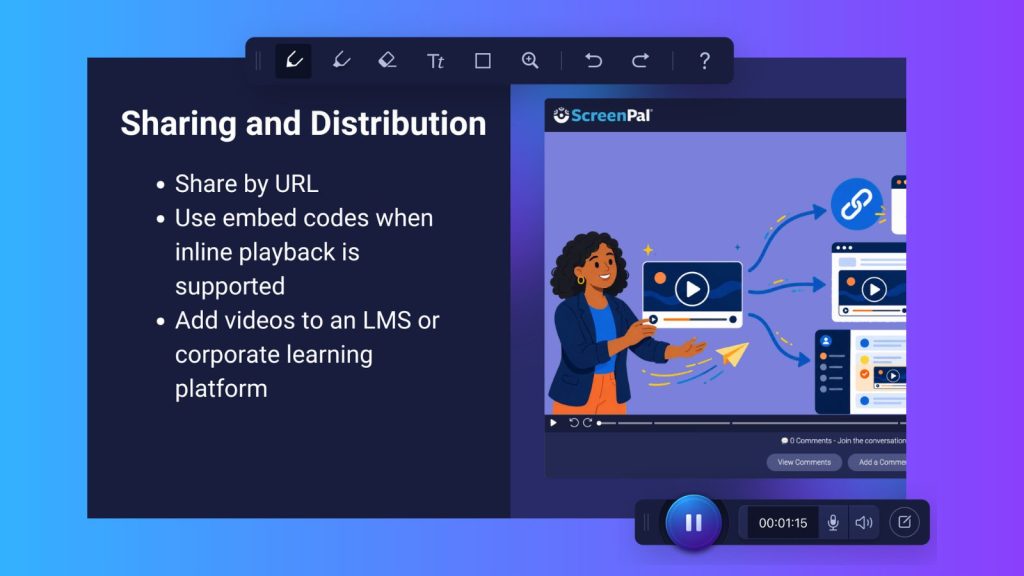
Kris demonstrated sharing controls for adjusting the watch-page experience and deciding which viewer actions should be available. Videos can be shared through links and embed codes, as well as options such as Google Classroom.
The presenters also discussed LMS use, including LTI support with gradebook sync, and noted that embed codes are particularly useful in platforms they use with EdTech Nerds.
For Kris, ScreenPal hosting also addresses a practical issue he encounters in schools: filtering. He explained that schools with strict controls on platforms such as YouTube may find it easier to allow ScreenPal-hosted video links through their filters.
The point was not simply to finish a video, but to think through where learners will encounter it and how they will interact with it.
Put the entire workflow together
Near the end of the session, Kris and Destiny condensed everything into a suggested workflow:
- Choose your course or topic.
- Define the learning objectives.
- Break the content into short videos.
- Build the content with a storyboard.
- Record in chunks.
- Edit and enhance the recordings.
- Add interactivity, including quizzes or other knowledge checks.
- Share the finished content.
They followed that workflow with a course-planning checklist that brought the focus back to the learner: What should learners be able to do? Which videos are actually needed? Can each video focus on one concept? Do you need scripts or notes? What accessibility features are needed? How should learners interact with the content? And where will it be shared?
Start with one lesson for your online course
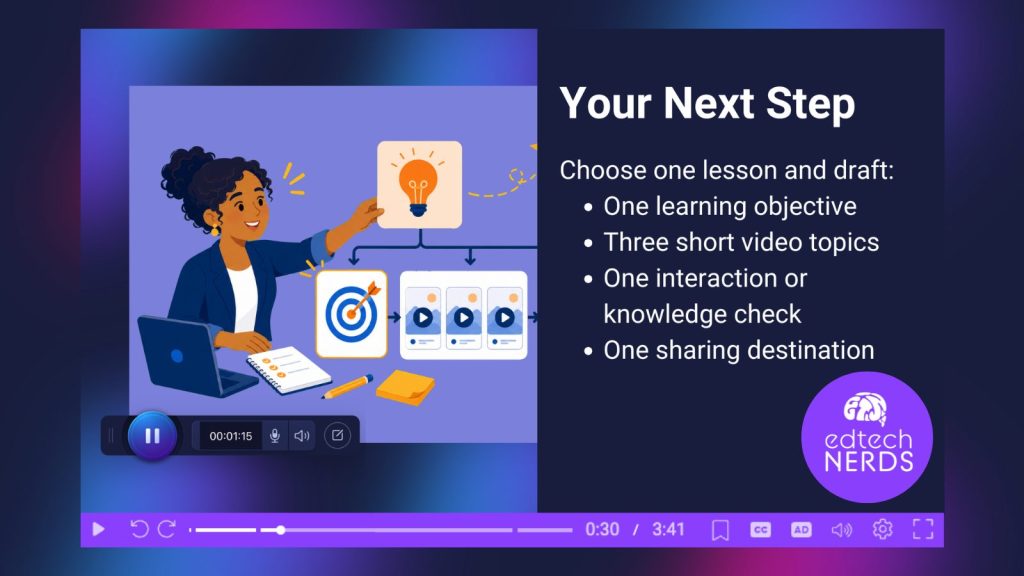
Kris and Destiny closed with perhaps the most actionable advice of the entire session:
Don’t wait to build an entire course. Start with one lesson.
Pick a learning objective. Identify three short video topics that support it. Those become the chunks in your storyboard.
Then decide what interaction belongs with the lesson. Should learners visit a website? Complete a three-question quiz? Finally, decide how you plan to share it.
That’s enough to begin.
The EdTech Nerds’ workflow makes online course creation feel less like one enormous production and more like a series of manageable decisions: understand the learner, break the content down, plan the pieces, record them efficiently, make them accessible and interactive, and deliver them where learners need them.
You don’t have to create everything at once.
Start with one learner need, one objective, and one lesson, and build from there.
About the speakers
Kris Thurston and Destiny Wagner are the nerds behind the EdTech Nerds, where they combine decades of experience in education and technology with a teacher-first approach to professional learning.
Destiny Wagner, Chief Education Nerd, has more than 20 years of experience in education, including work as a classroom physics teacher and instructional technology coach. Her work centers on practical professional development, educational technology, and educator wellness, with a particular focus on helping teachers work more efficiently while maintaining a healthy work-life balance. She is also a Google Certified Educator, Campus Technology Specialist, TCEA course creator, reality-based self-defense instructor, and RYT-500 registered yoga teacher.
Kris Thurston, Chief Technology Nerd, has worked at the intersection of education and technology since 1999, with experience supporting technology in both public and private schools. He also serves as Director of Technology at John Paul II High School in Plano, Texas. His approach to EdTech emphasizes making technology reliable, practical, and sustainable so educators can spend less time wrestling with systems and more time focused on their students.
Together, Kris and Destiny created EdTech Nerds around a mindful approach to technology, helping educators use practical tools and strategies to streamline their work, reduce stress, and create more sustainable teaching practices.